


-

Amazon 1
-

About Aura Displays 6
-

Marketing 6
-

My Account 12
-

General terms and conditions 6
-

My Order(s) 18
-

B2B / Sales / Bulk Orders 9
-

Shipping 9
-

Products 3
-
Triple Boost 14" Pro 23
-
Triple Aero 15.6" Pro Max 20
-
Triple Go (Gen 2) 19
-
Dual Play (Gen 2) 18
-
Dual Boost Pro (Gen 3) 23
-
Dual Boost 15.6" Pro Max (Gen 3) 24
-
Single Boost 15.6" (Gen 2) 18
-
Single Play (Gen 2) 18
-
-

Returns 6
My TRIPLE AERO is only displaying on 1 (or 2) screens — how do I fix this?


How to Properly Connect Your TRIPLE AERO to Your Laptop (Single Cable Setup)
My TRIPLE AERO is only displaying on 1 (or 2) screens — how do I fix this?
If you’re looking to connect your AURA TRIPLE AERO with a single USB-C cable — good news: it’s absolutely possible. This guide will walk you through everything you need to know to get your setup running smoothly with just one cable for both power and display.
Single-Cable Setup Requirements
To make this work, here’s what you’ll need:
- A laptop that supports video output via USB-C (DisplayPort Alt Mode)
- The black angled USB-C to USB-C cable (included in the box)
- The white USB-C to USB-C power delivery cable (included in the box)
- The included power adapter to plug into the wall
- The TRIPLE AERO driver installed on your system (download here)
How to Plug It In
Your TRIPLE AERO has two USB-C ports on the back:
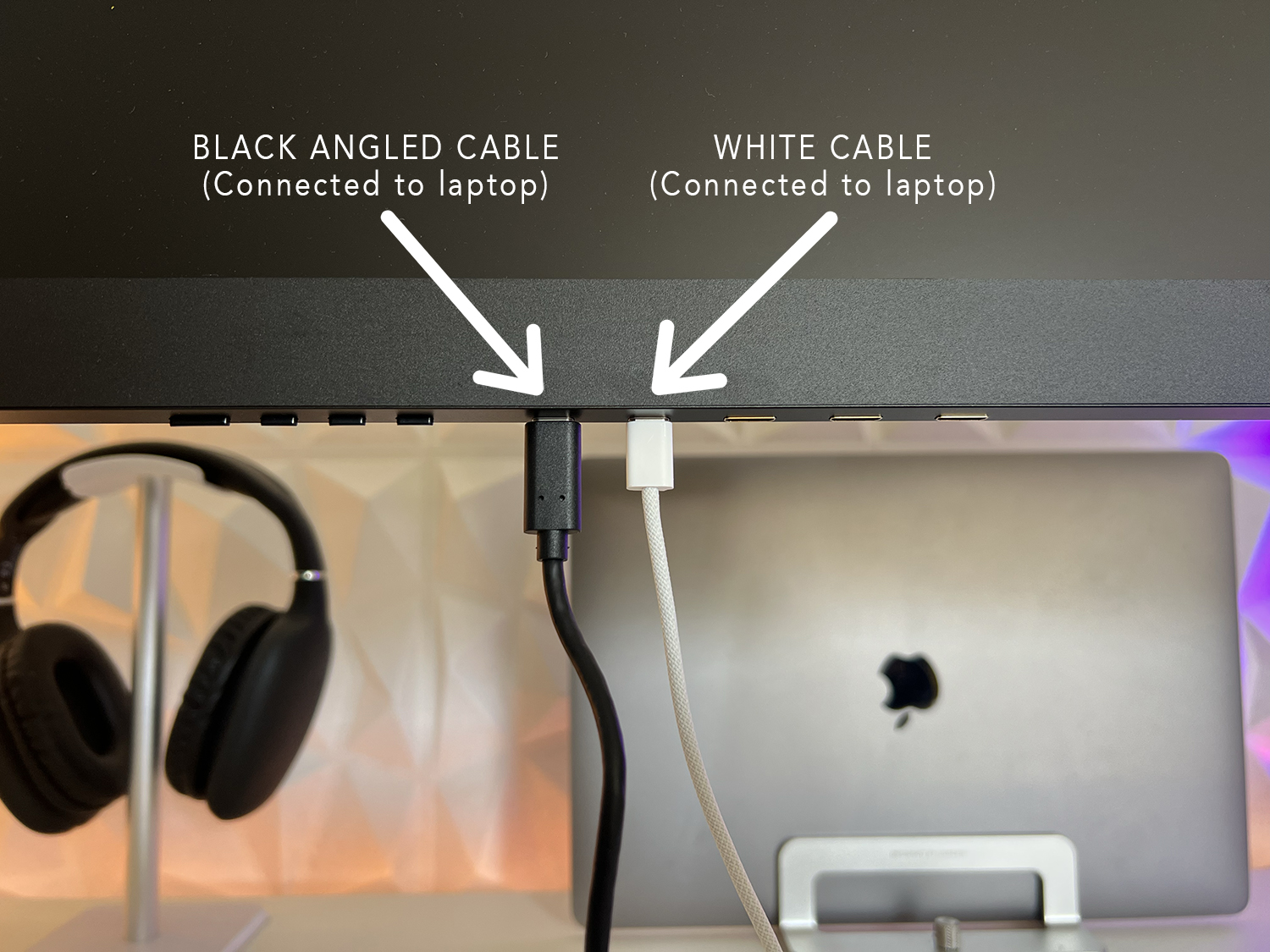
- “PD” port — This is for power. Plug the white USB-C cable into the PD port and connect it to the power adapter.
- “USB-C” port — This is for data/video. Plug the black angled USB-C cable into this port and connect it directly to your laptop.
In short:
White cable → Wall power to PD port
Black cable → Laptop to USB-C port
Important Reminders
- Please install the TRIPLE AERO driver before connecting the monitor. This ensures all three screens activate correctly.
- Please unplug your laptop’s USB-C charger. Our monitor provides reverse charging by default, meaning your laptop will automatically charge through the monitor once everything is properly connected. If both power sources are used at the same time, it can overload the system — causing the screens to blink or stop working altogether.
- Double-check both ends of the black cable are fully inserted — partial connections may result in only 1 or 2 screens turning on.
Other Setup Methods
There are other ways to connect the TRIPLE AERO, including HDMI or USB-A. If you’d like to explore these options or troubleshoot further, please refer to the full user manual, diagrams, and video tutorials on this page: https://aura-displays.com/pages/technical-specifications-triple-aero-15-6-pro-max
Select your product and scroll to the “User Manual” and “Product Videos” sections.
Still Having Trouble?
If all three screens aren’t turning on:
- Check cable placement (white to PD, black to USB-C)
- Confirm driver is properly installed
- Restart your laptop
Still need help? Don’t worry — our team is here to assist. Send a quick video of your setup to our technical support team so we can help you faster.


