


A portable monitor that connects over USB-C has no wall plug of its own. It draws from your laptop, which means every panel you add is a subtraction from the same battery. That is the whole trade, and it is worth understanding before September's desk rebuild turns into a three-screen order.
Where the power actually goes
Three things drive the cost, and only one of them is obvious.
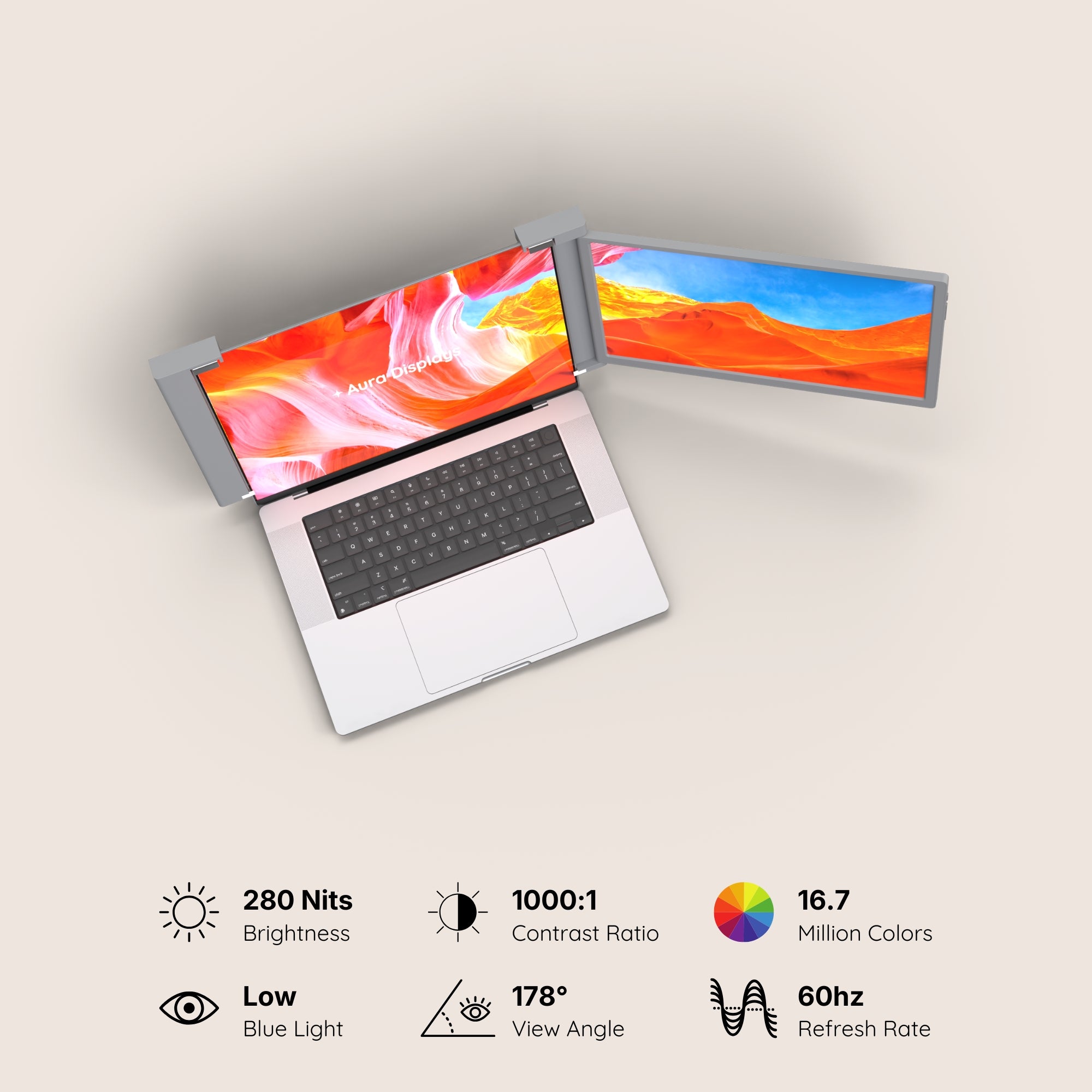
- The backlight. A screen at full brightness costs meaningfully more than the same screen at half. Our panels run between 280 and 350 nits depending on the model — indoor brightness, and most rooms do not need all of it.
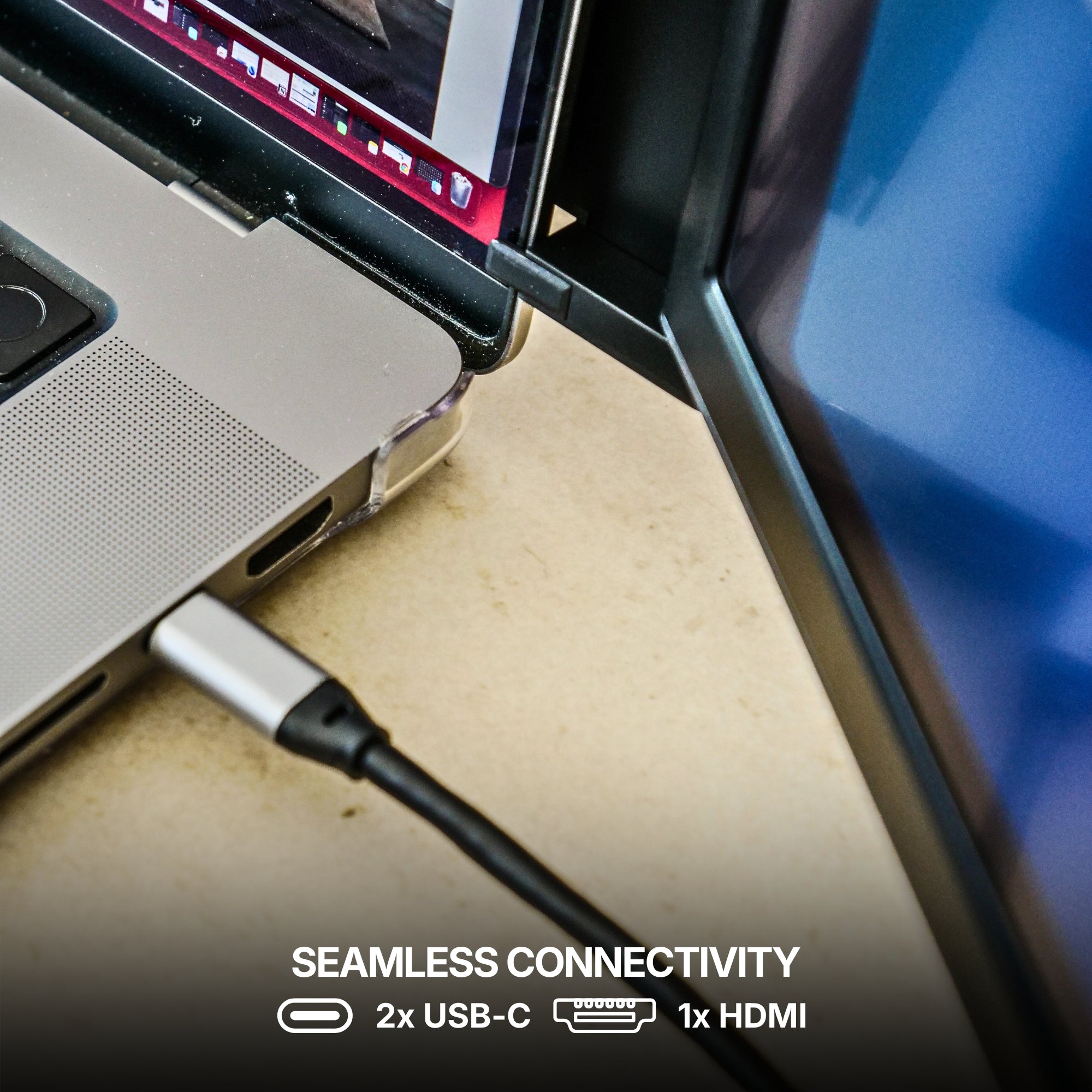
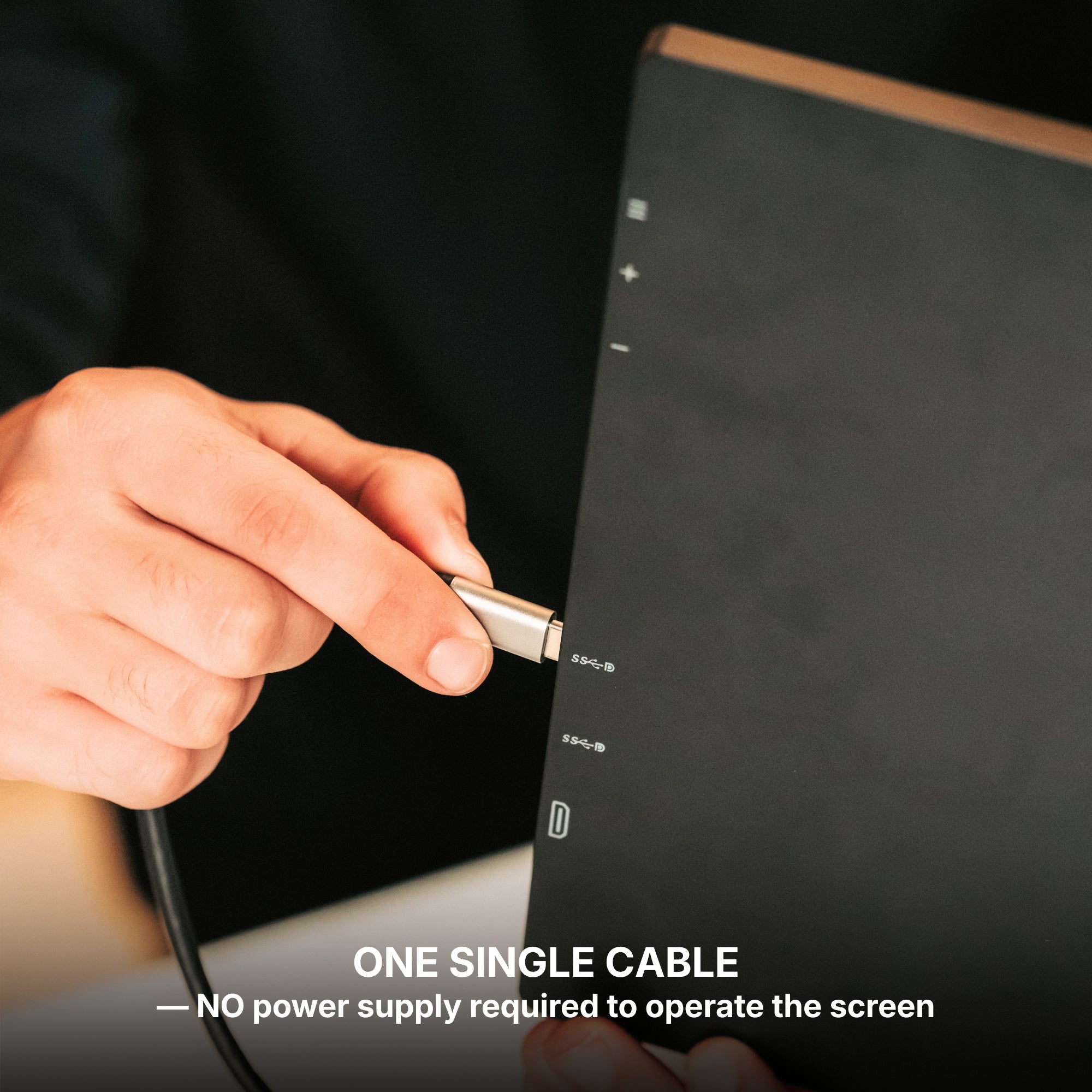
- The port. One USB-C cable carrying video, data and charge in both directions is doing more work than a plain display cable ever did.
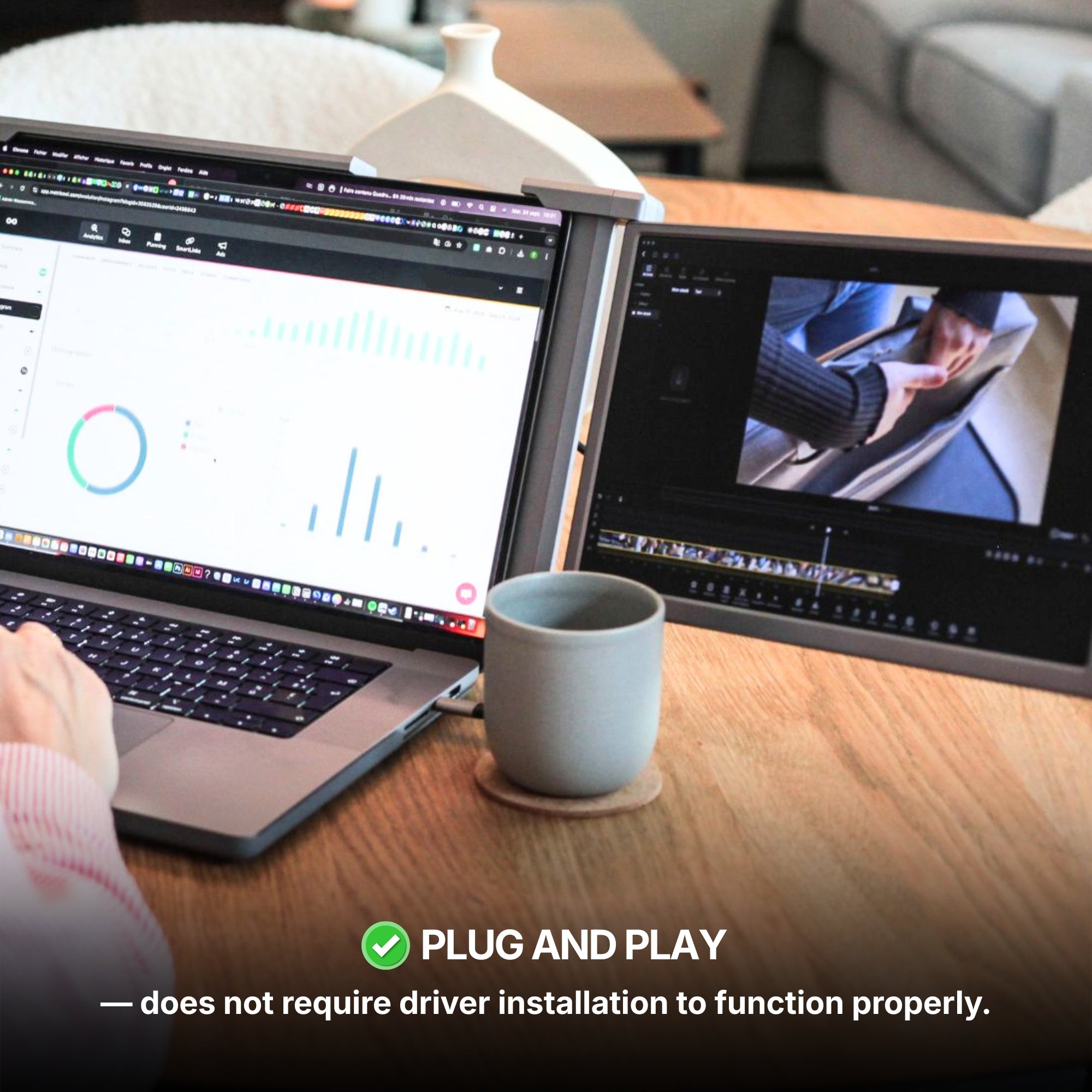
- The software, if your extender needs any. This is the one people miss. An extender that requires companion software is not just lighting a panel — it is asking your CPU or GPU to compose and compress those extra frames, continuously. That is a second, invisible power bill on top of the backlight. Plug-and-play panels, driven directly by the display controller, skip it entirely.
Measure it before you buy anything
You do not have to guess. Both operating systems will tell you, and it takes ten minutes.
macOS. Open Activity Monitor and go to the Energy tab — the Energy Impact and 12 hr Power columns show what is actually costing you. In Terminal, pmset -g batt prints the current charge and the time-remaining estimate. Run it once with the panel unplugged and once with it attached, doing the same work, and note the gap. System Settings → Battery shows a usage history for the last 24 hours and last 10 days.
Windows. Open PowerShell as administrator and run powercfg /batteryreport /output C:\battery.html, then open that file. It gives you design capacity against current full-charge capacity, plus a usage history showing how long the machine really lasted per session. Settings → System → Power & battery → Battery usage breaks the last week down by app and by screen-on time.
Do the same afternoon of work both ways. The number you get is yours, not a number off a spec sheet.
Four settings that buy back an hour
- Drop the brightness on the extra panels first, not the main one. Your eyes live on the primary screen. The glance panels can sit noticeably dimmer and you will not notice.
- Shorten display sleep on the secondary panels. On macOS: Settings → Lock Screen → Turn display off when inactive. On Windows: Settings → System → Power & battery → Screen and sleep. A glance panel spends most of its day being ignored.
- Unplug the panel you are not using. On a two-panel unit, running one is a real saving over running both. Obvious, and almost nobody does it.
- Top up while you are stationary, even for twenty minutes. Twenty minutes on the charger during a meeting is worth more than starting the day at 100 per cent and never plugging in again.
What this will not fix
Power management does not create battery capacity. If your laptop already struggles to reach lunchtime on its own display, no setting will make it run two extra panels for a full workday. In that case the honest conclusion is that your multi-screen setup is a desk setup. Plan for a plug rather than buying a bigger extender and hoping.
The setup we would recommend, and the cheaper fix
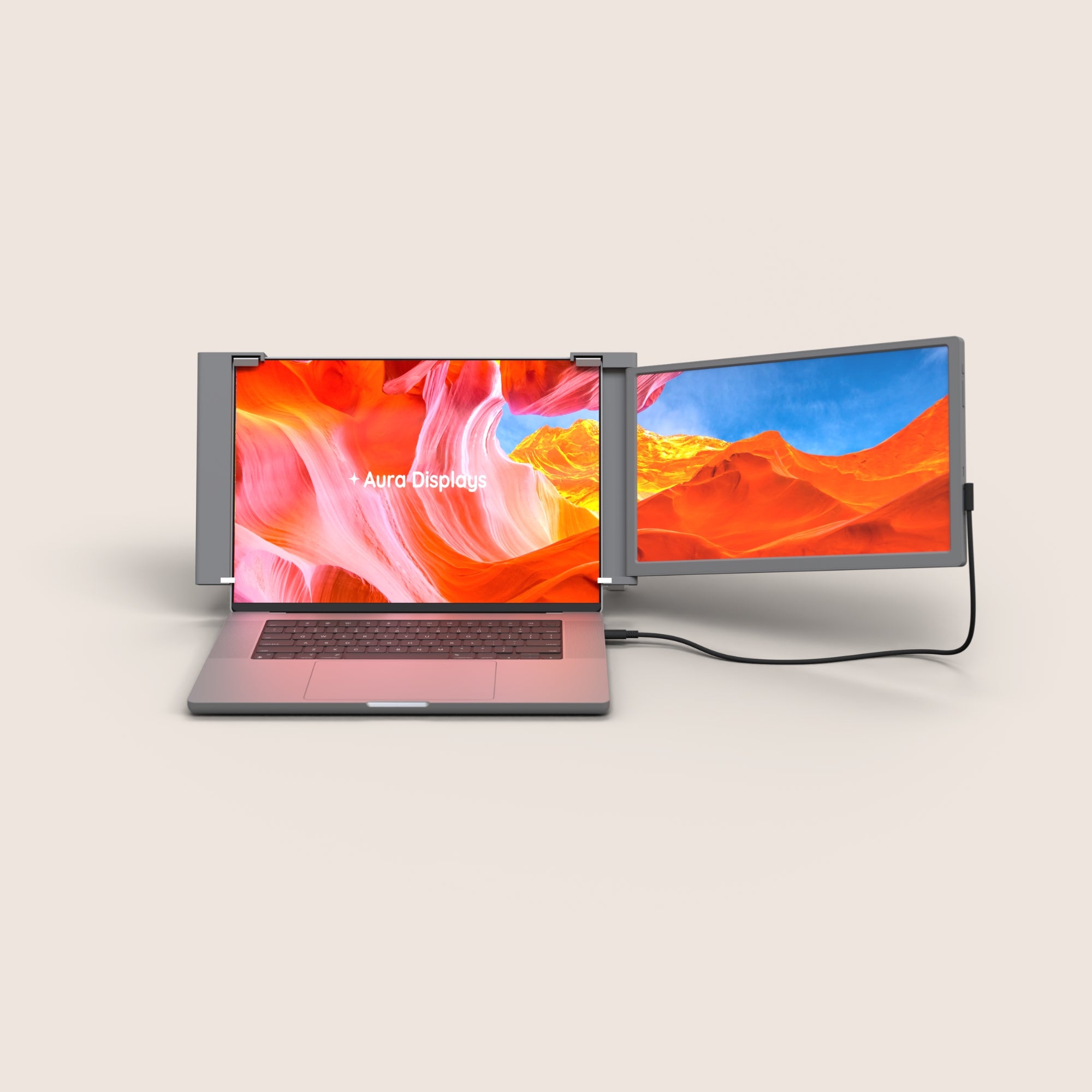
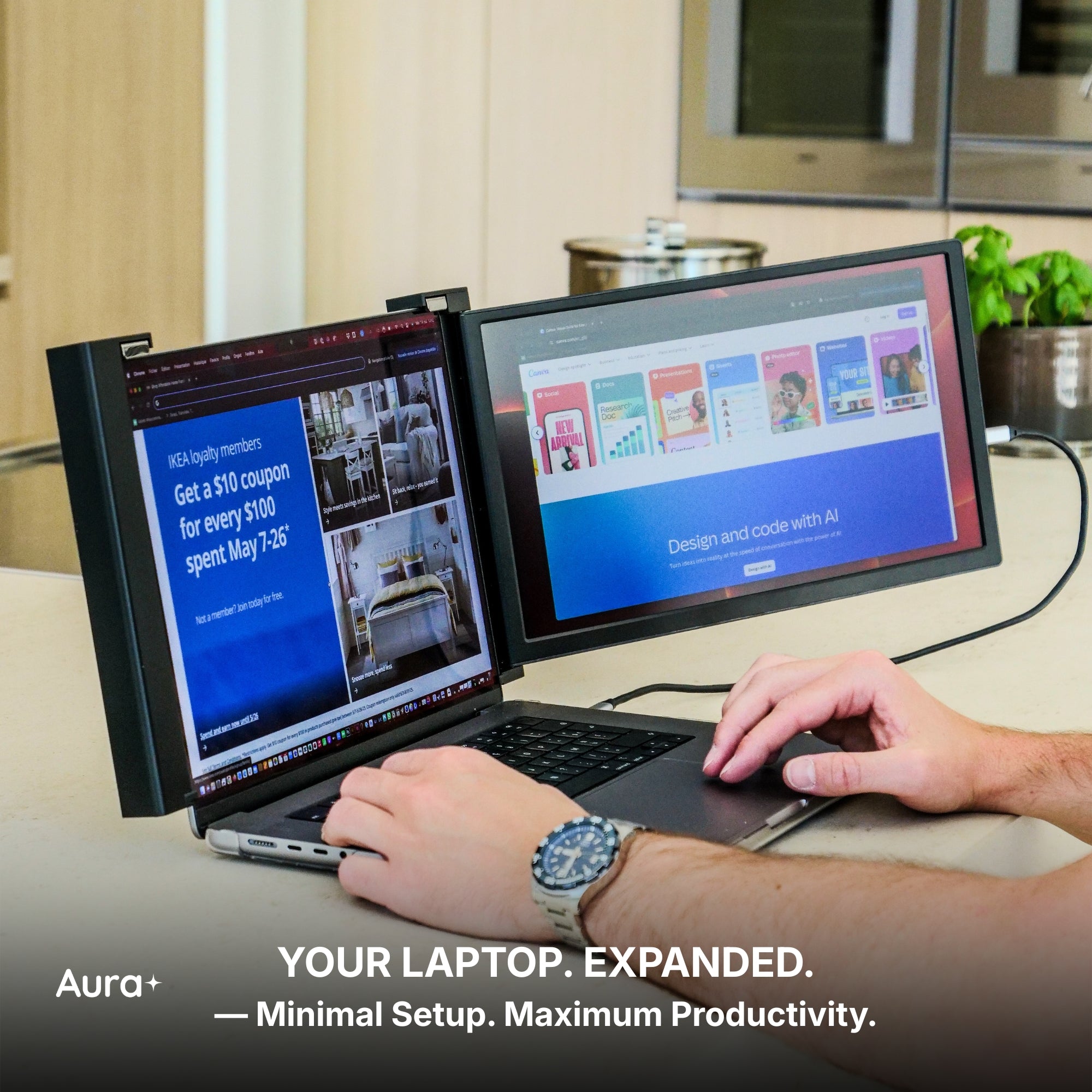
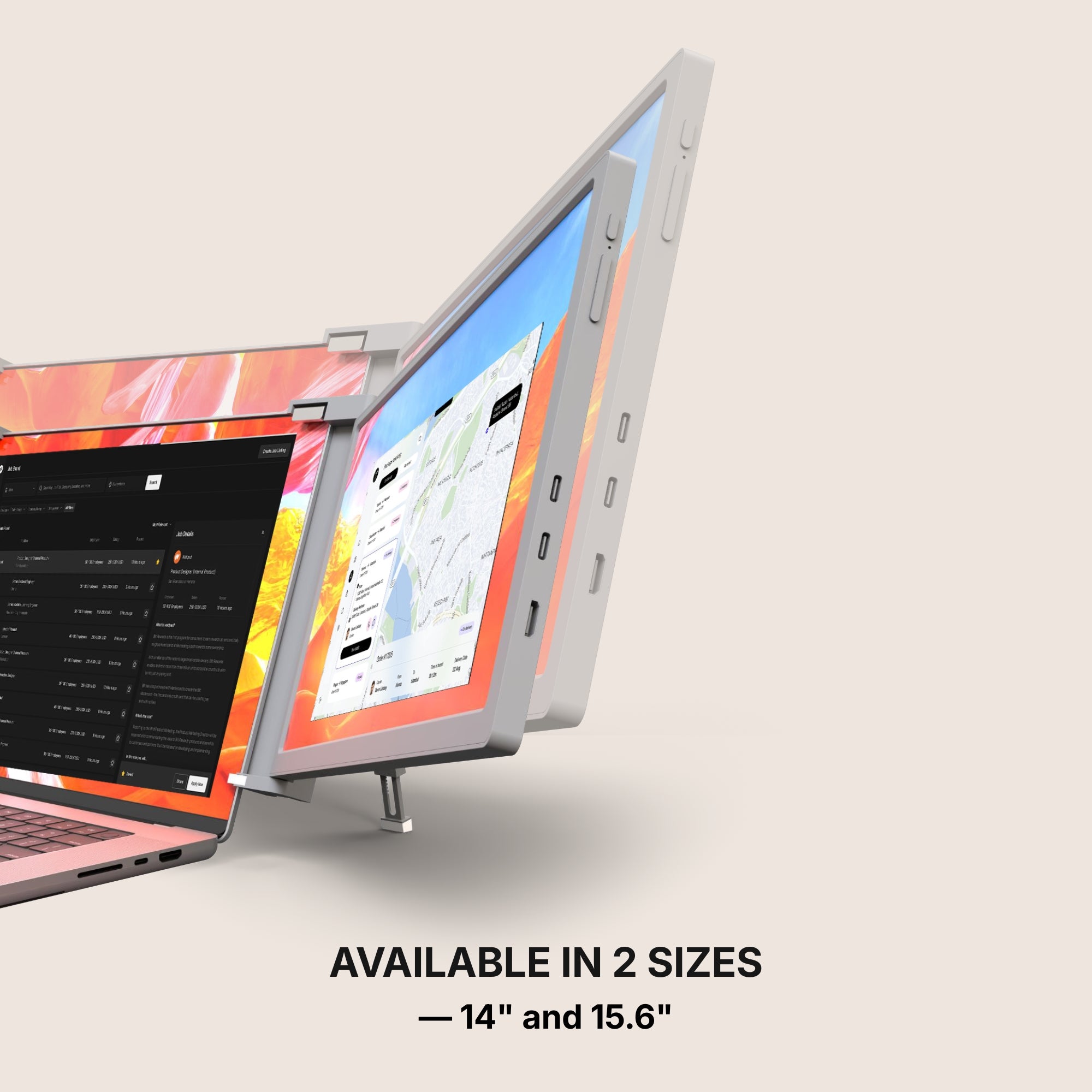
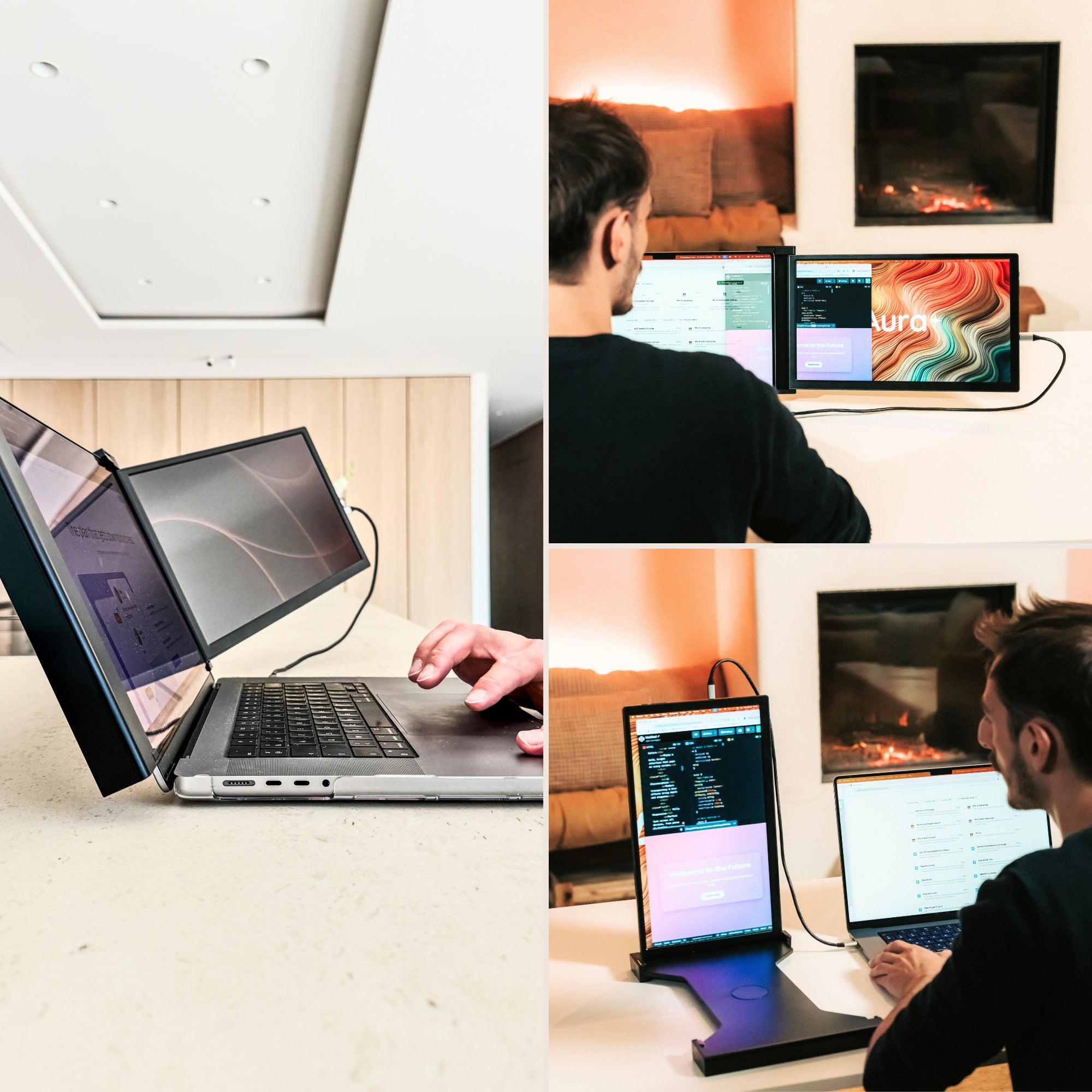
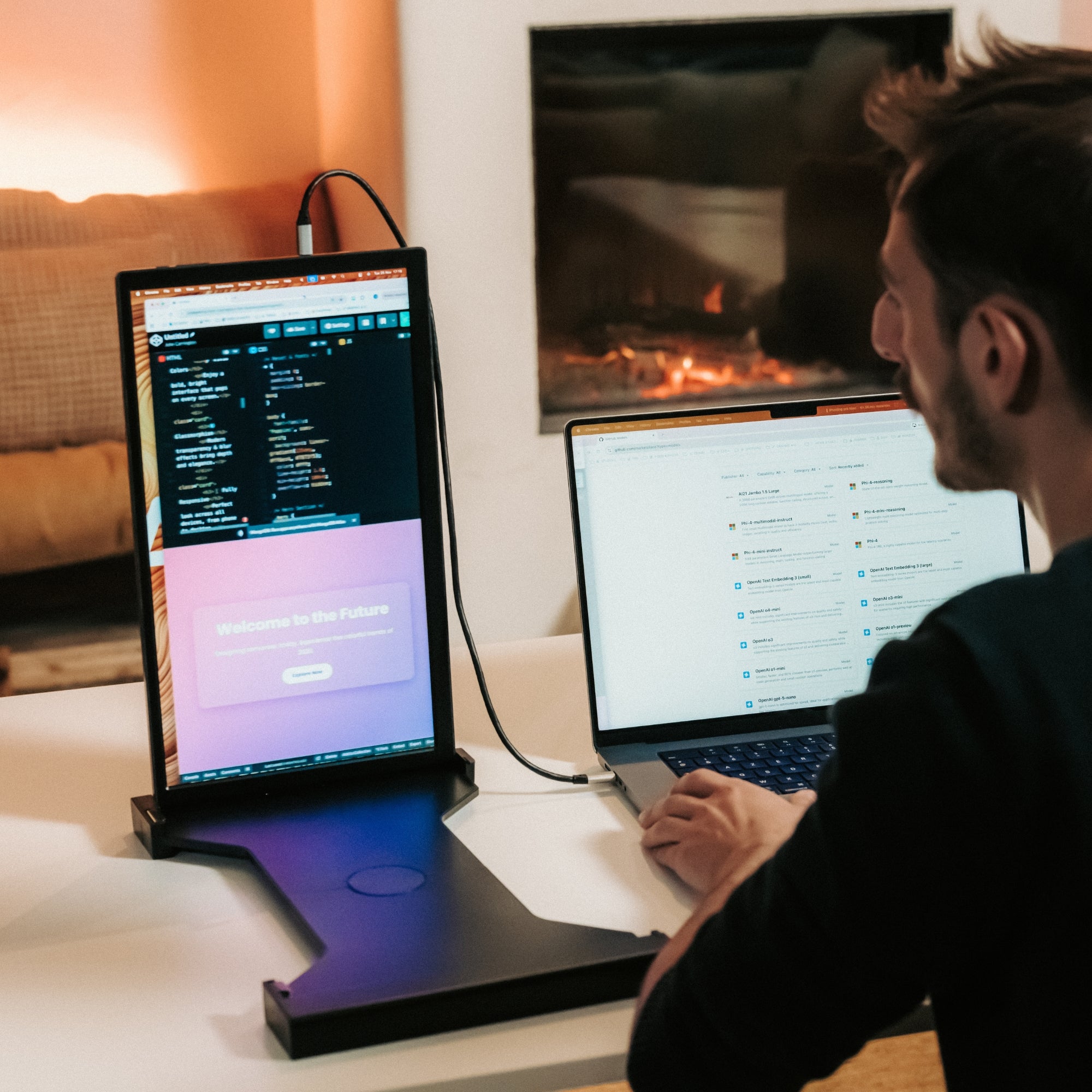
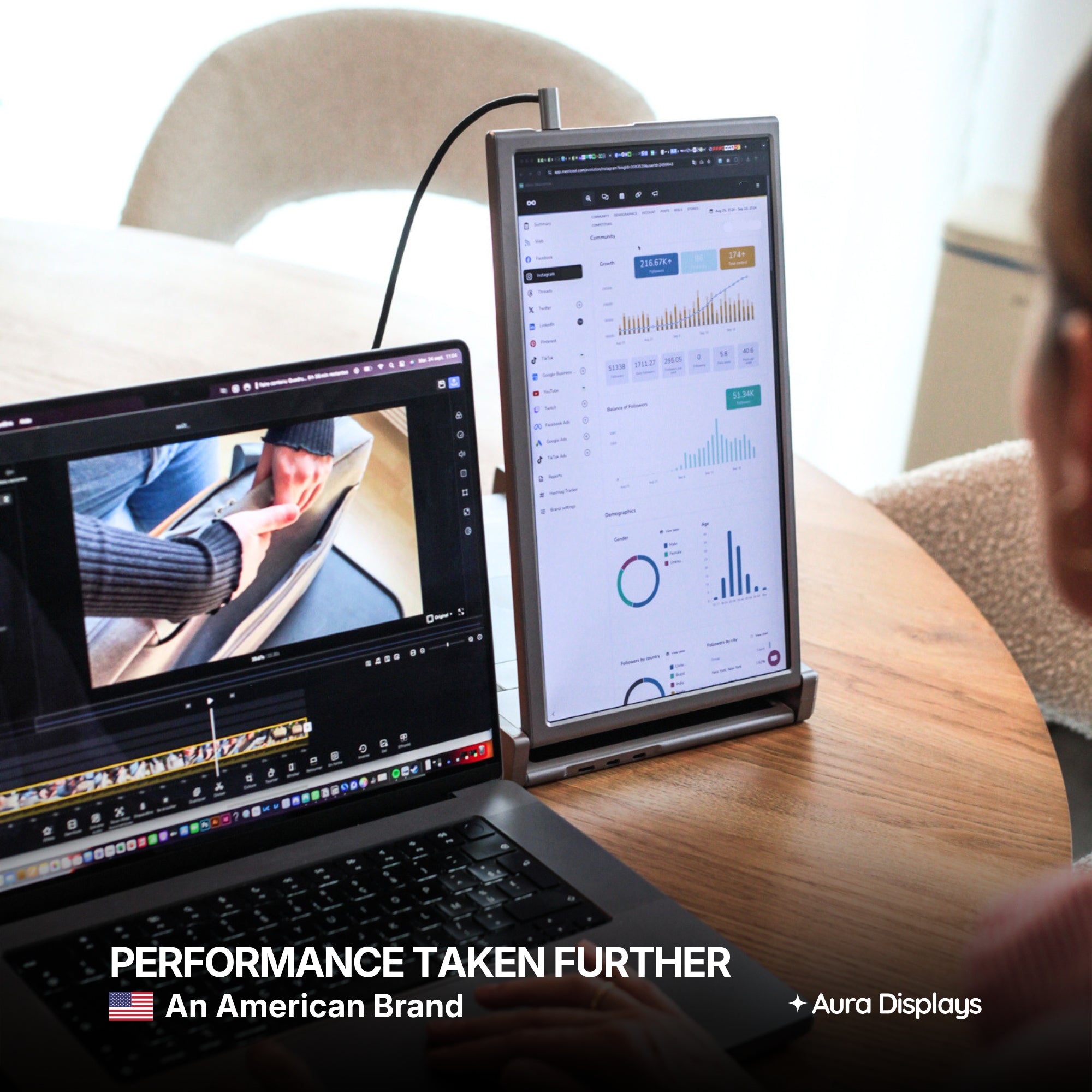
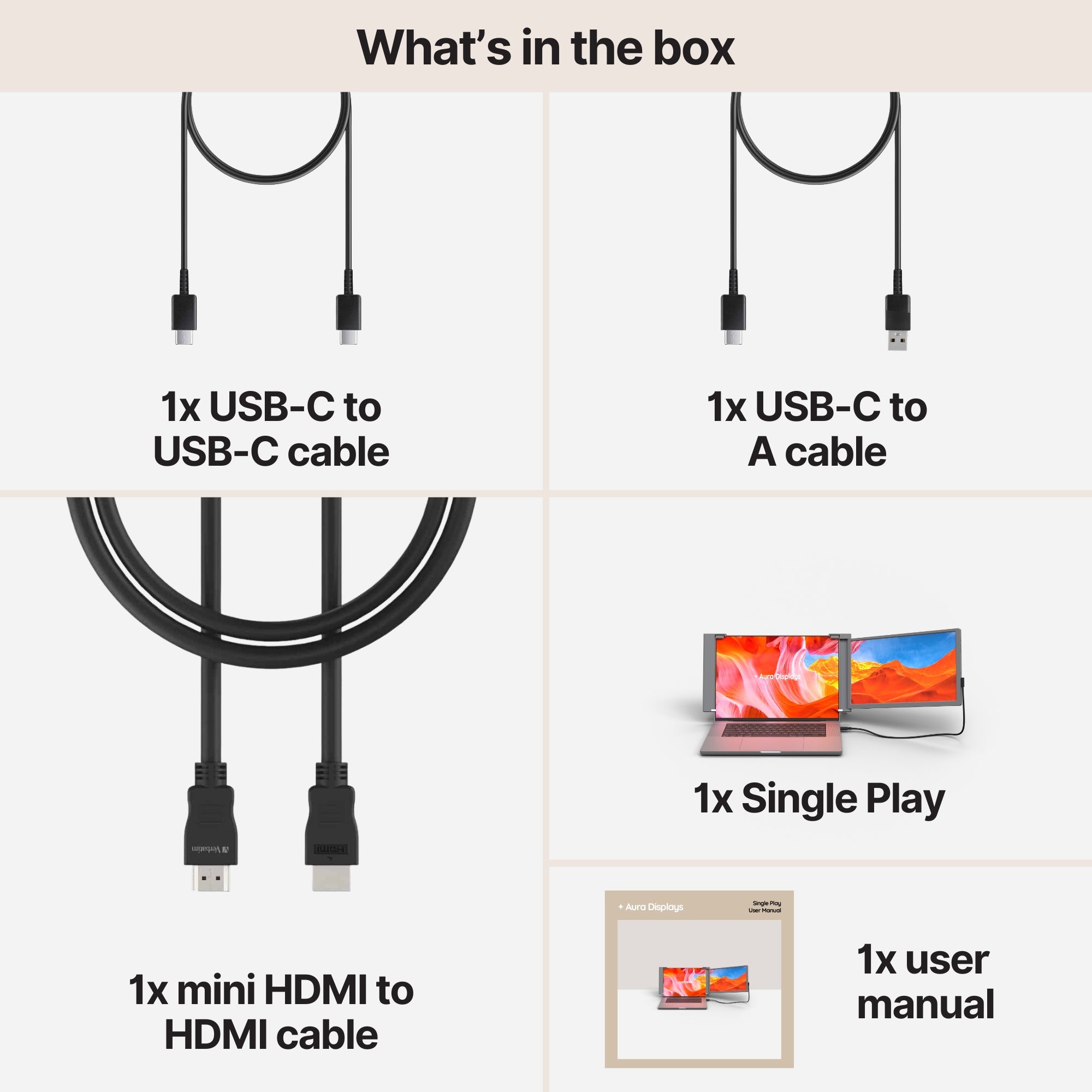
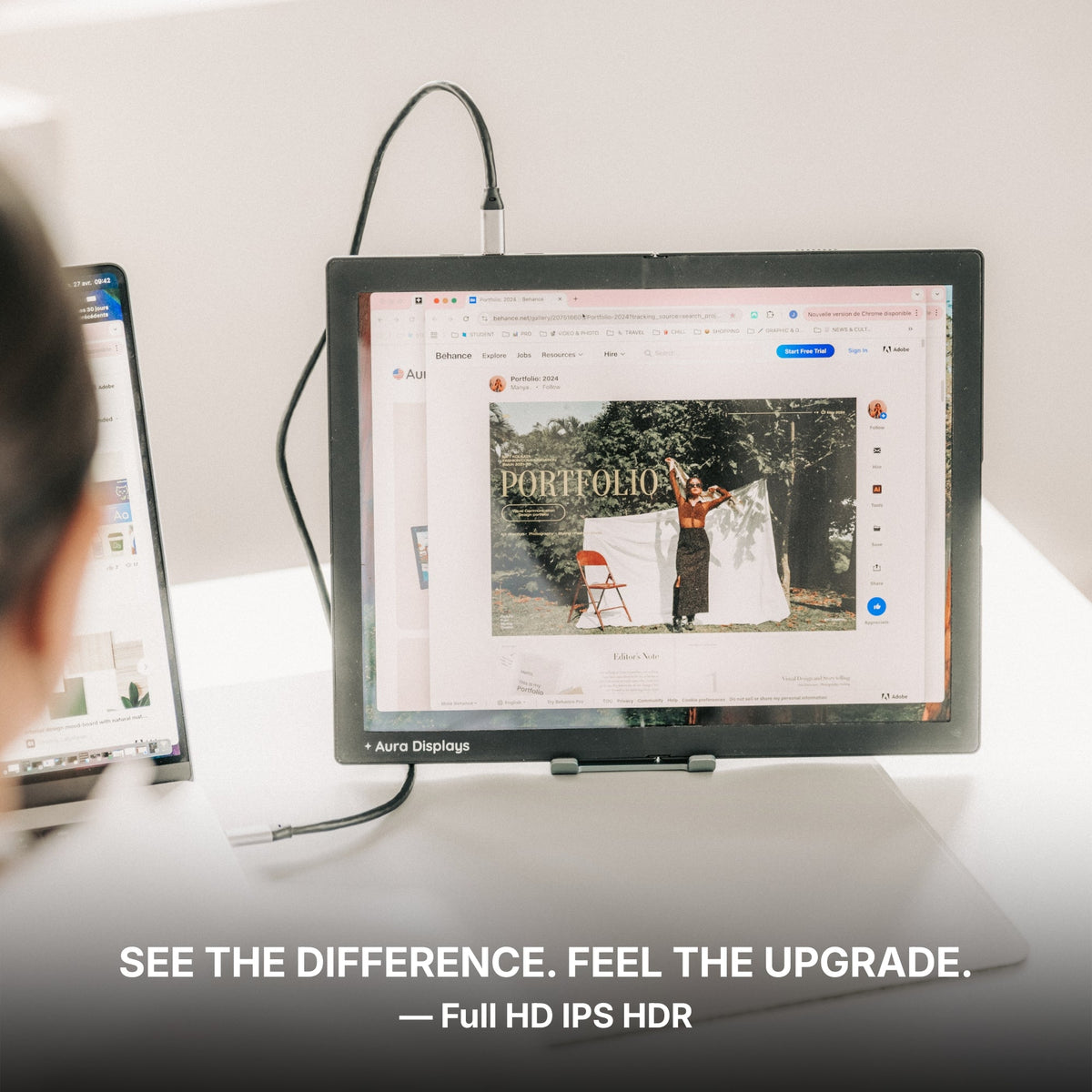
If you work unplugged for real stretches, one extra panel is the setup most laptops can carry all day. The Single Play (Gen 2), from $289, is what we would point you at: a single 1920 x 1080 panel at 280 nits, connected over USB-C with no software at all, so nothing extra runs on your processor. That same absence of software is why it works on a locked-down work laptop, a Chromebook or a Linux machine.
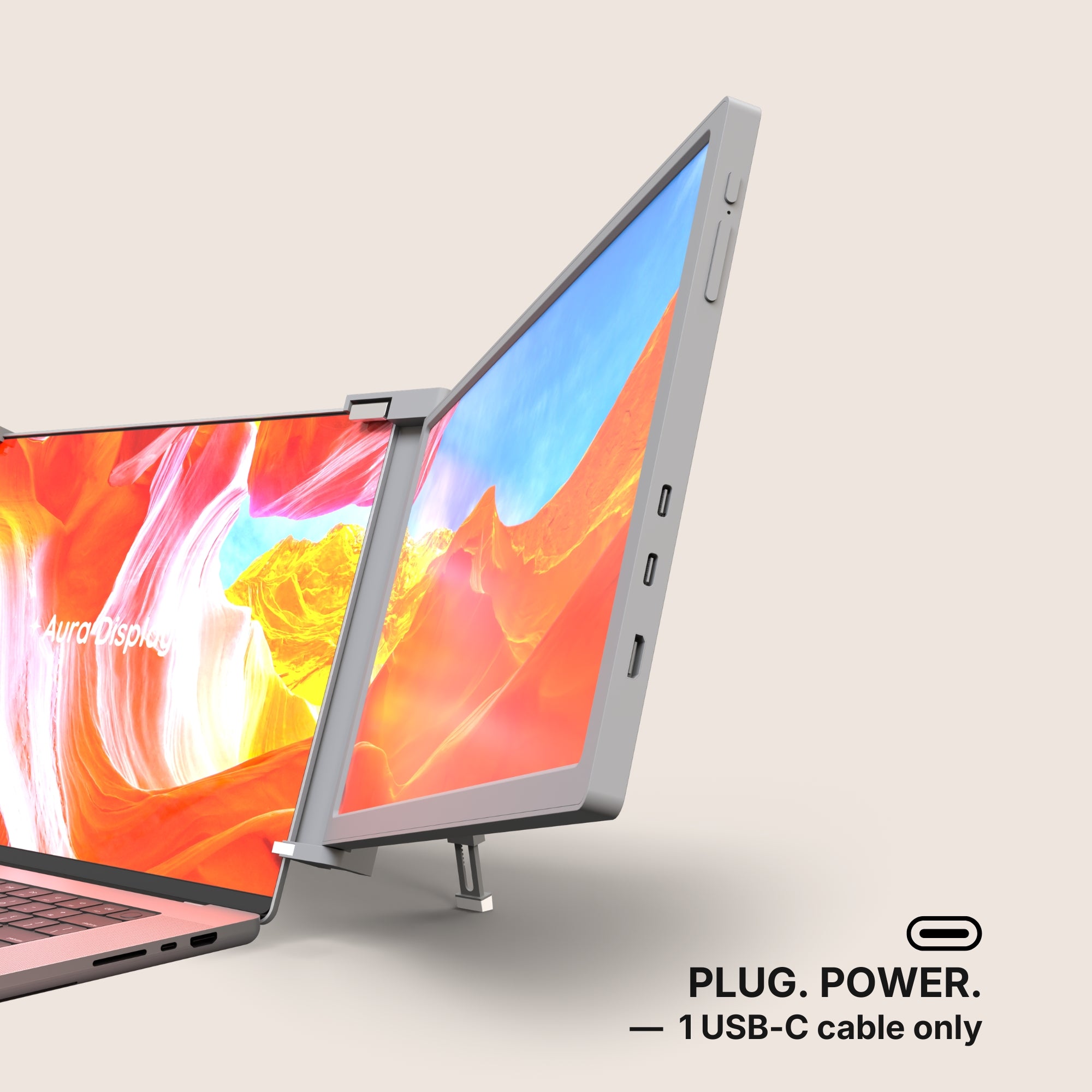
If you already know you need two, the Dual Play (Gen 3), from $369, is the plug-and-play step up — but budget for mains power on long days instead of assuming you will get through on battery.
And if the real problem is that you cannot charge and drive panels from the same port, the cheapest fix on this page is not a screen at all. The Hub USB 8-in-1 87W PD at $29.99, or the 65W USB-C Charger at $49.99 with its travel kit, solves that for a fraction of the price of a monitor.
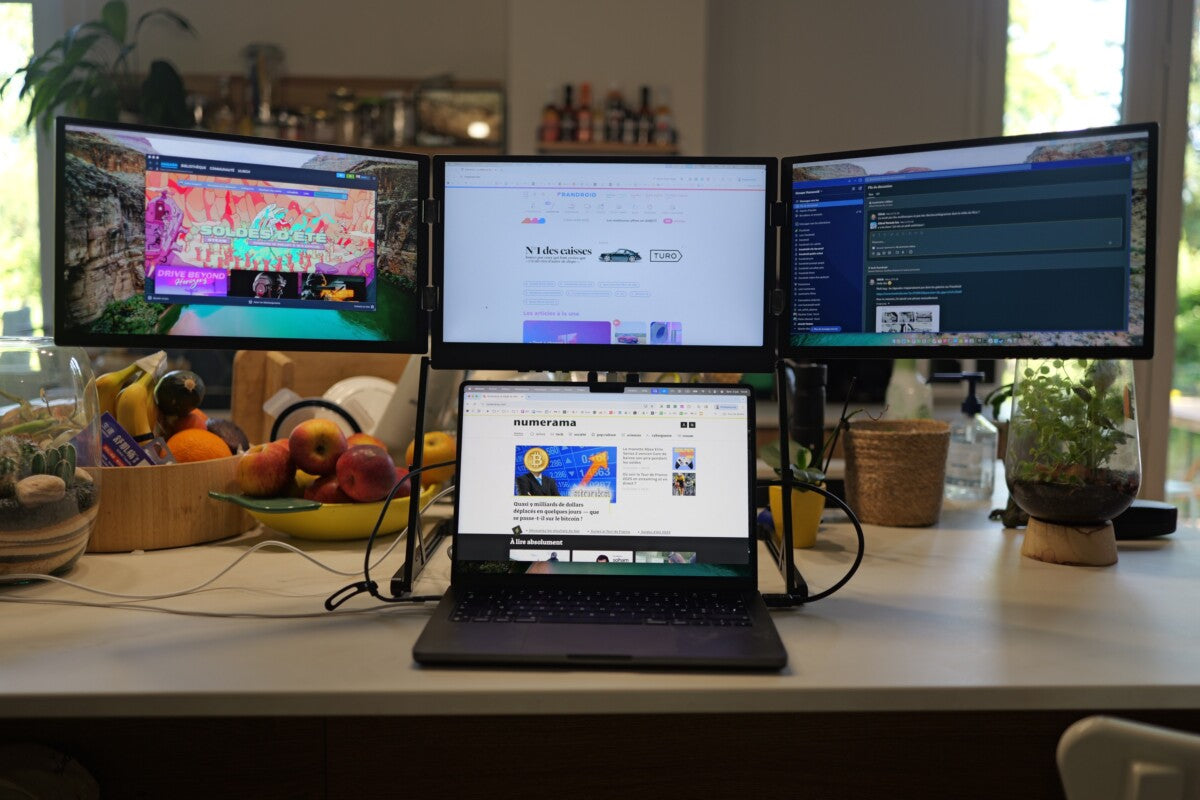
What we would not recommend: a triple-panel extender for someone who mostly works off battery. Three screens is a mains-power setup. Buy it for a desk, not for a train.













Share: