


This one is for developers who write code on a laptop and want two or three screens that actually earn their place — without fighting a work machine that won't let you install anything.
What goes on each screen
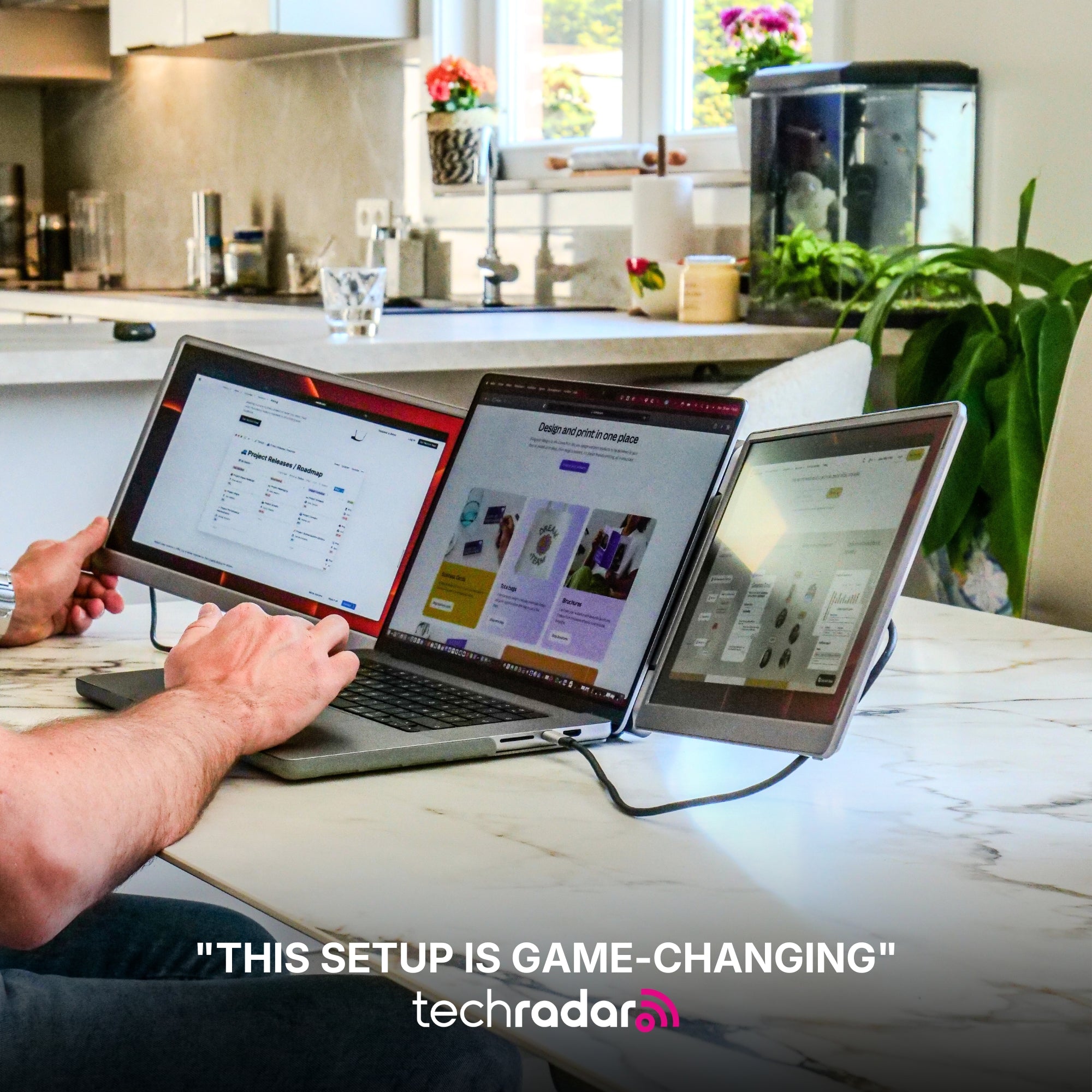
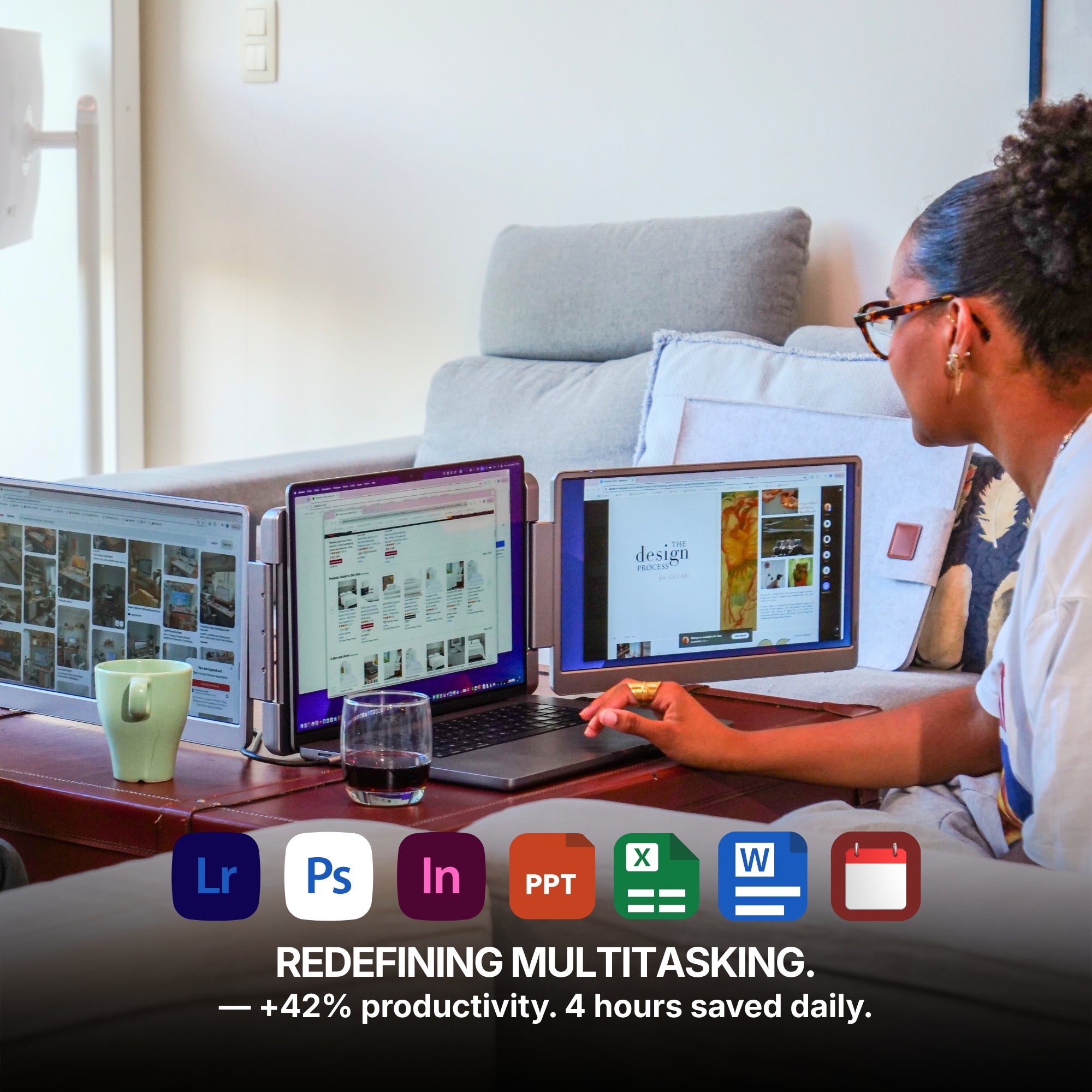
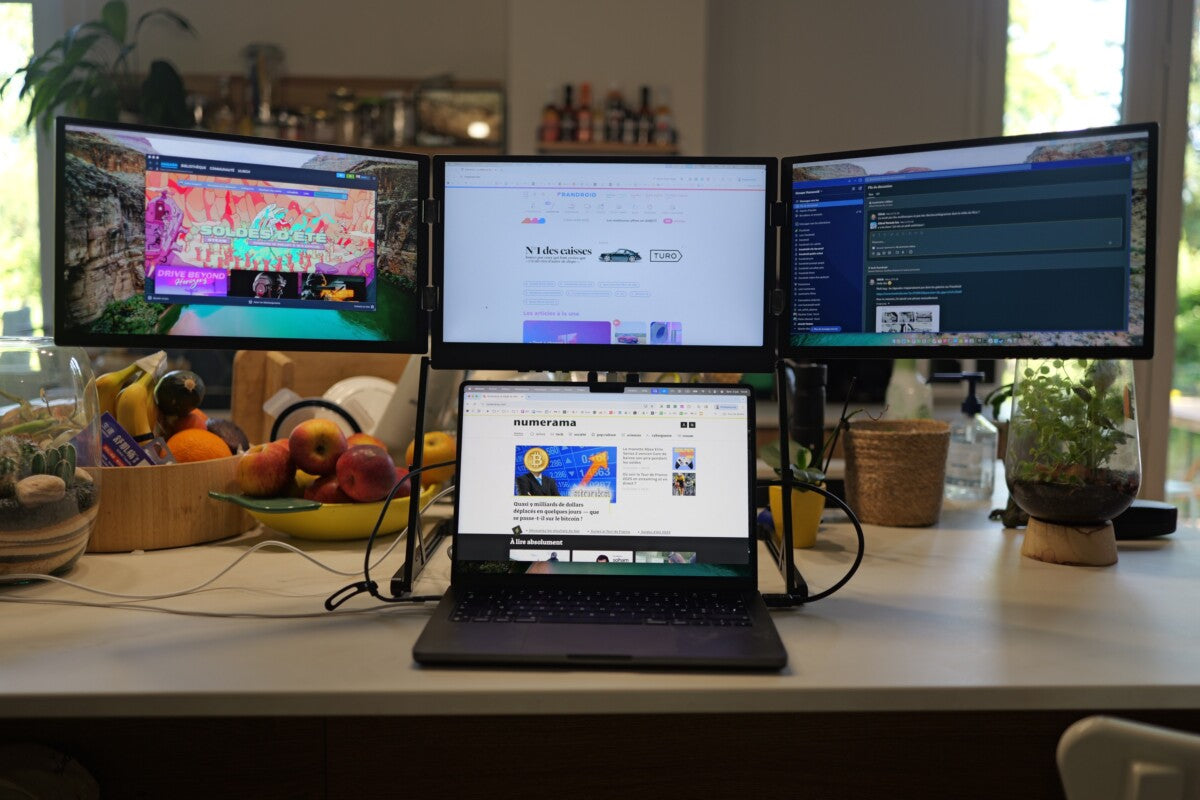
A developer's layout is not three copies of the same thing. It is one place to write, one place to watch, and one place to look things up.
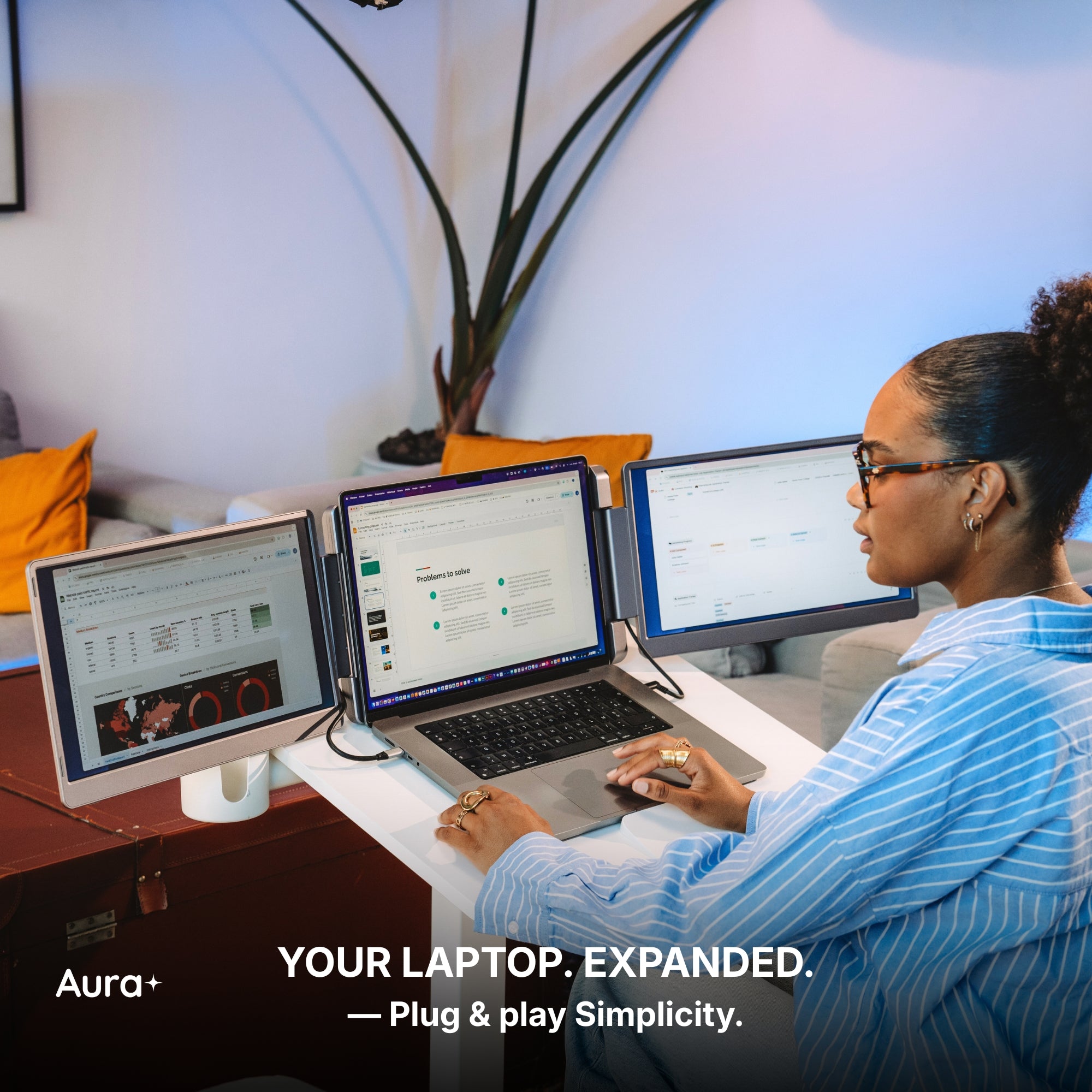
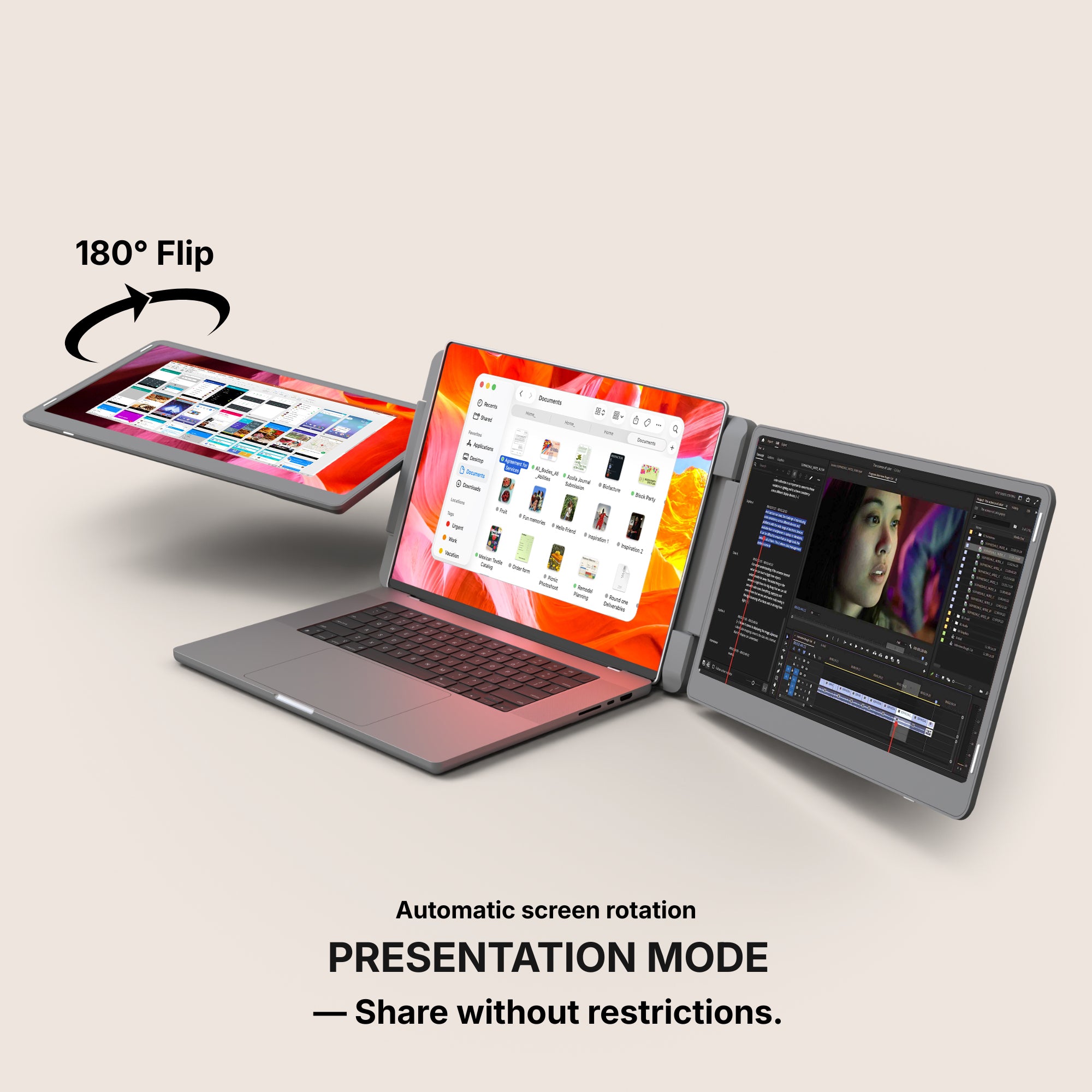
- Centre screen — the editor. Your editor stays dead ahead, at arm's length, because it is where your eyes live. Give it the sharpest, best-placed panel you have.
- Right screen — terminal and logs. The running process, test output, a tailing log file, your container status. This is glance territory: you watch it change while you type on the centre screen.
- Left screen — reference. Documentation, the browser tab you are debugging against, the ticket or PR you are working from. Things you read, not things you edit.
The point is separation. When the editor, the output and the docs each have a fixed home, you stop burying windows on top of each other and stop paying the tax of finding them again.
The software settings that make it usable
Screens only help if your tools are set up to spread across them. A few concrete moves:
- VS Code across monitors. Drag any tab out of the window and it becomes a floating editor window you can drop on another screen (View: New Window, or right-click a tab → Move into New Window). Keep the integrated terminal on the right screen with Ctrl + `, and pin the Problems and Debug Console panels there too.
- tmux in the terminal. Split a pane vertically with Ctrl + b then %, horizontally with Ctrl + b then ", and jump between panes with Ctrl + b then an arrow. One tmux window on the right screen can hold your dev server, a log tail and a spare shell without ever alt-tabbing.
-
Docker where you can see it. Keep the Docker extension's container view (or a
docker statspane) on the right screen so a crashed container is something you notice, not something you discover. - Native window management, not a mouse. On Windows, Win + arrow and Win + Z (Snap Layouts) tile windows to exact regions; on macOS, use full-screen Spaces per task and swipe with Ctrl + →/←. Assign a Space or virtual desktop per project so switching context is one gesture, not a hunt.
What these screens won't do for you
Here is the limit no spec sheet mentions, and it hits developers hardest: many extenders need companion software to drive the extra panels, and a locked-down corporate machine will simply refuse to install it. The same wall stops you on a Chromebook or a plain Linux box. If your work laptop is managed by IT, the fanciest triple-screen extender on the market is worth exactly nothing to you.
The other honest limit: more screens reduce alt-tabbing, not build time. If your feedback loop is slow because tests take four minutes, a third panel won't fix that — it just gives you somewhere prettier to wait. Buy screens to stop losing your place, not to stop waiting on the compiler.
The setup we recommend, and the cheaper one
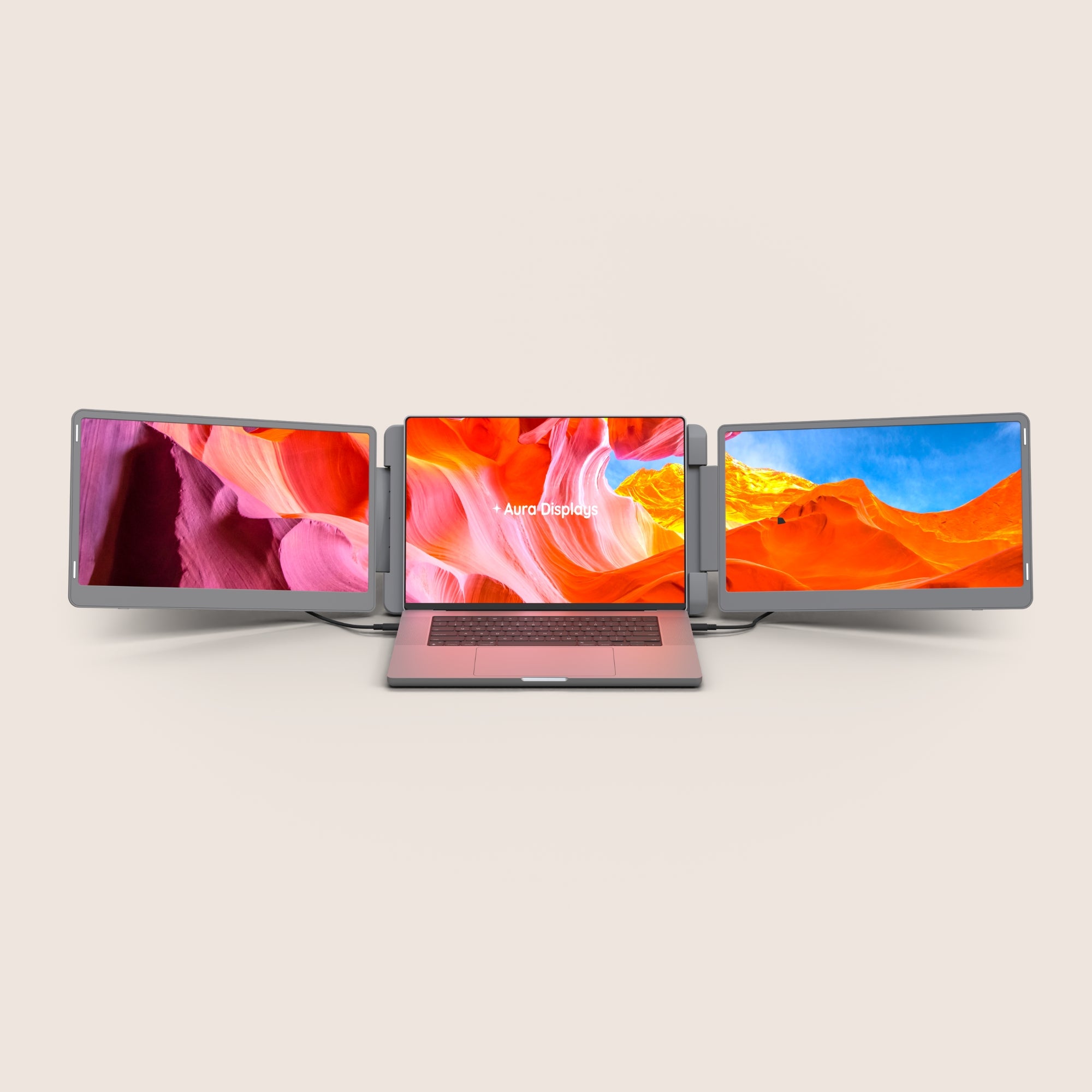
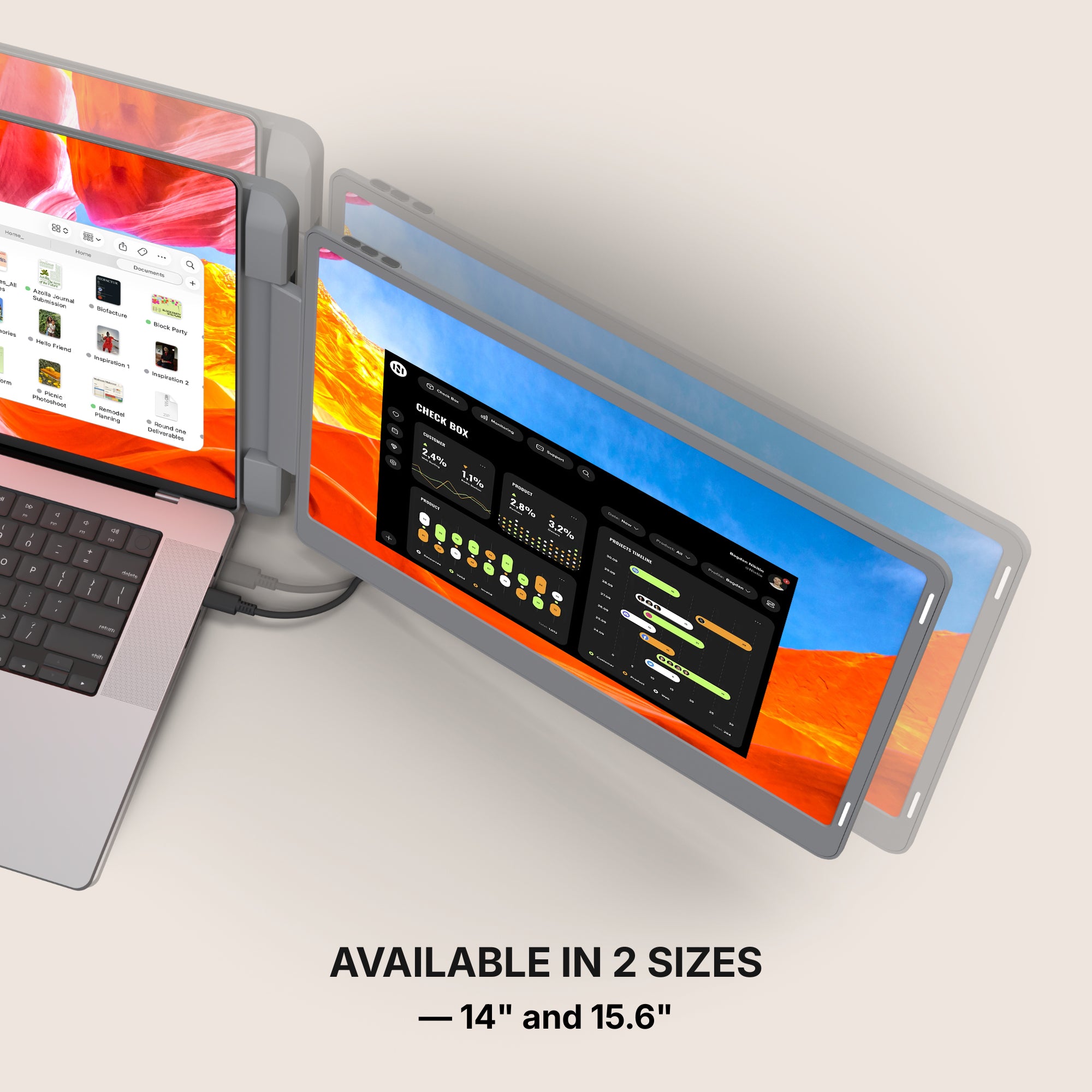
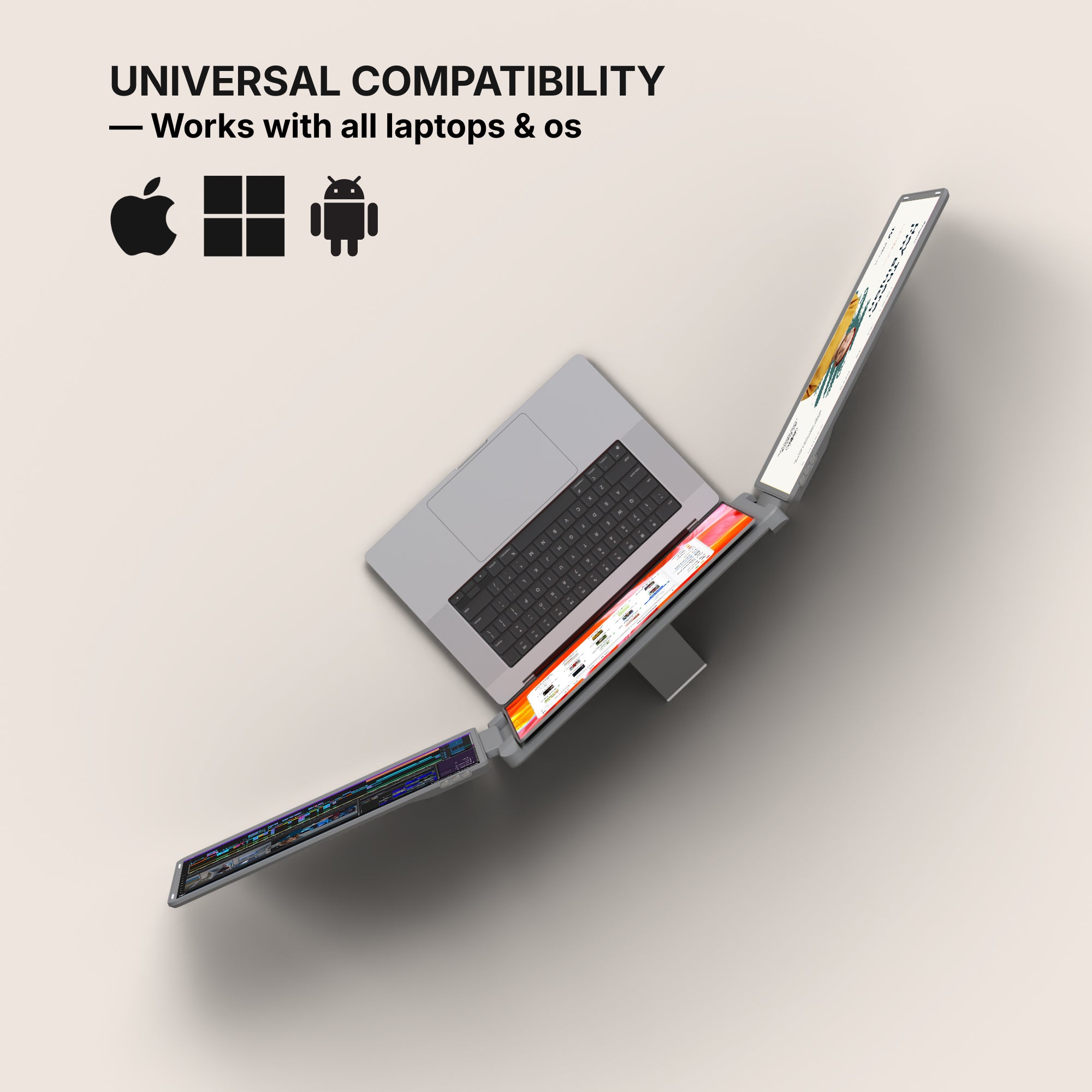
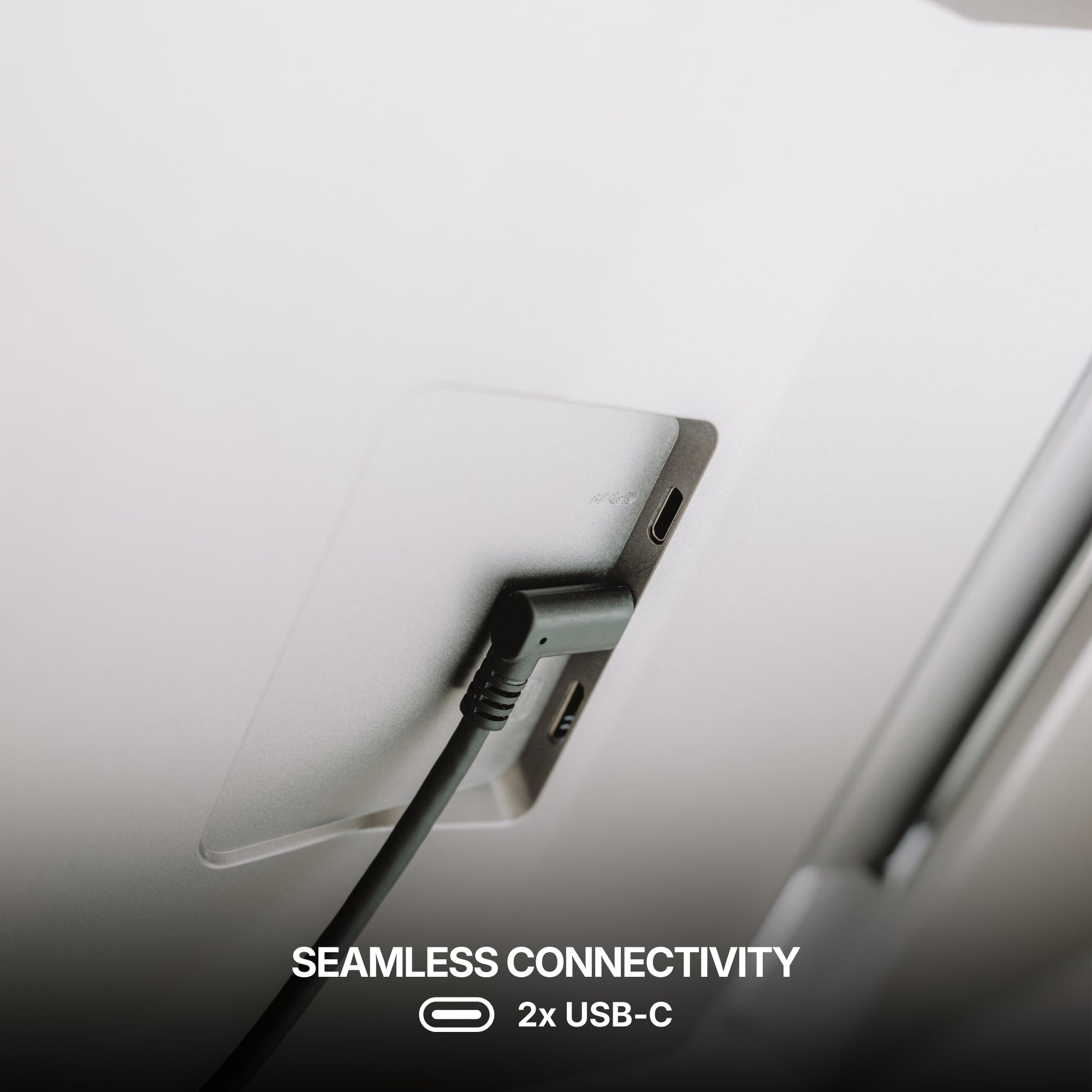
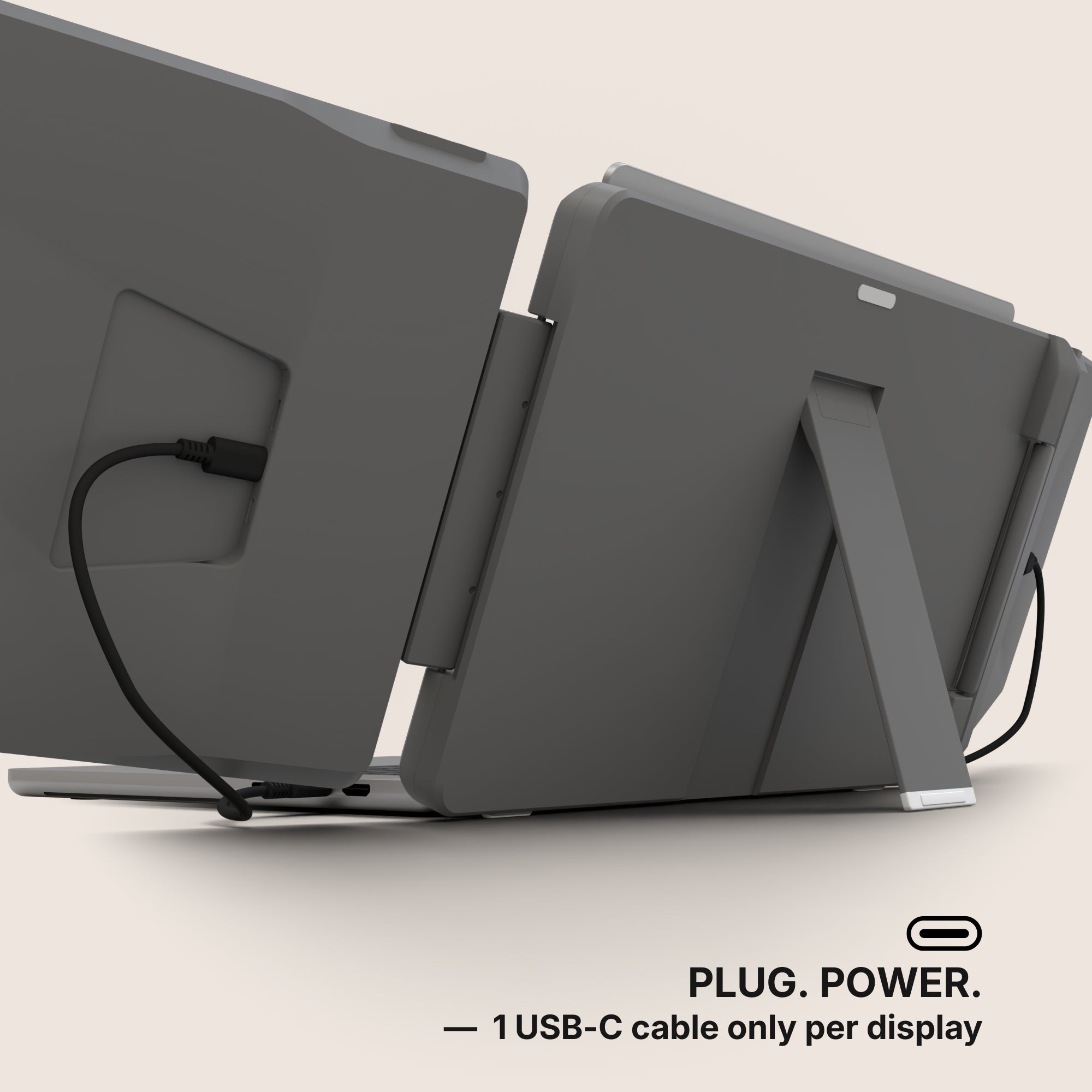
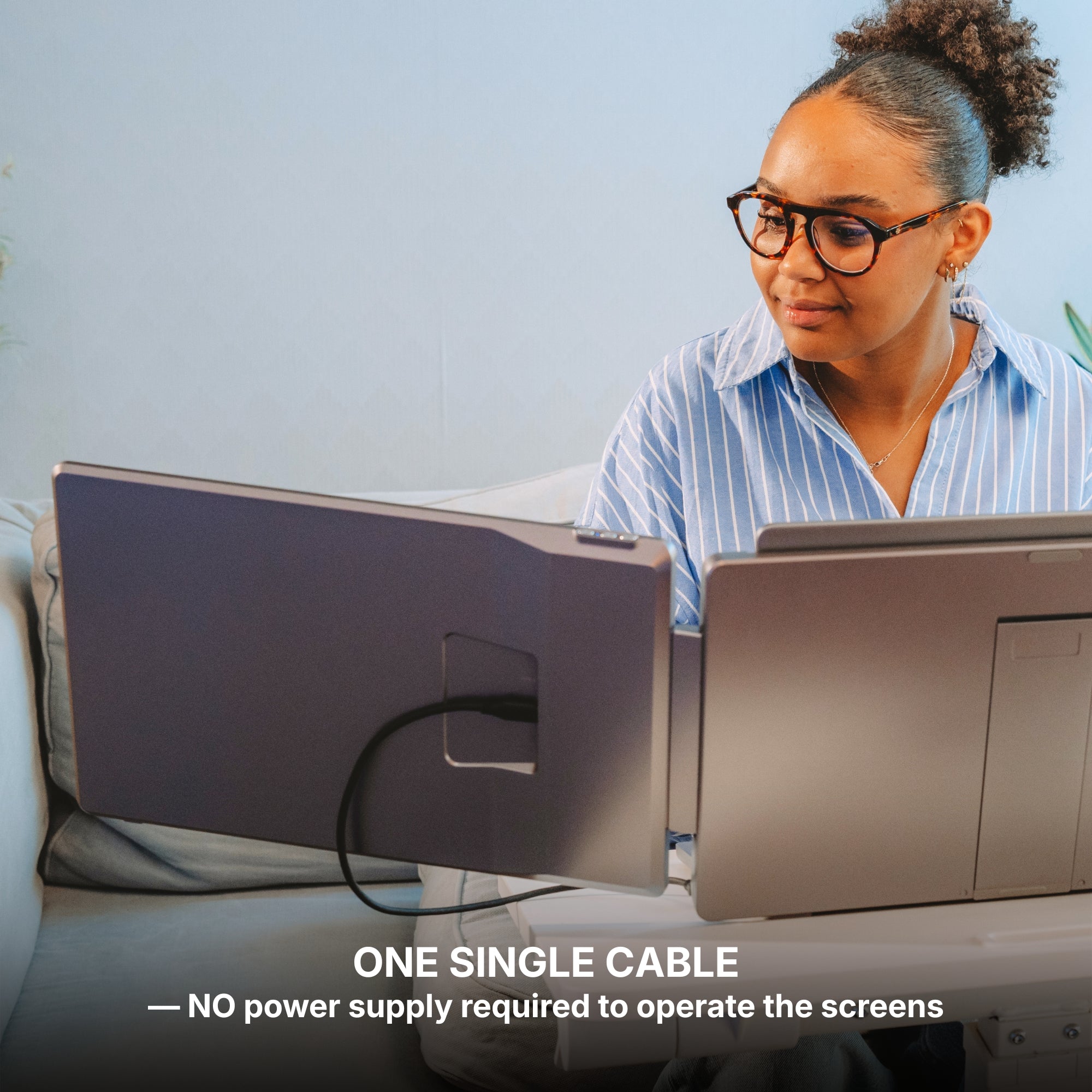
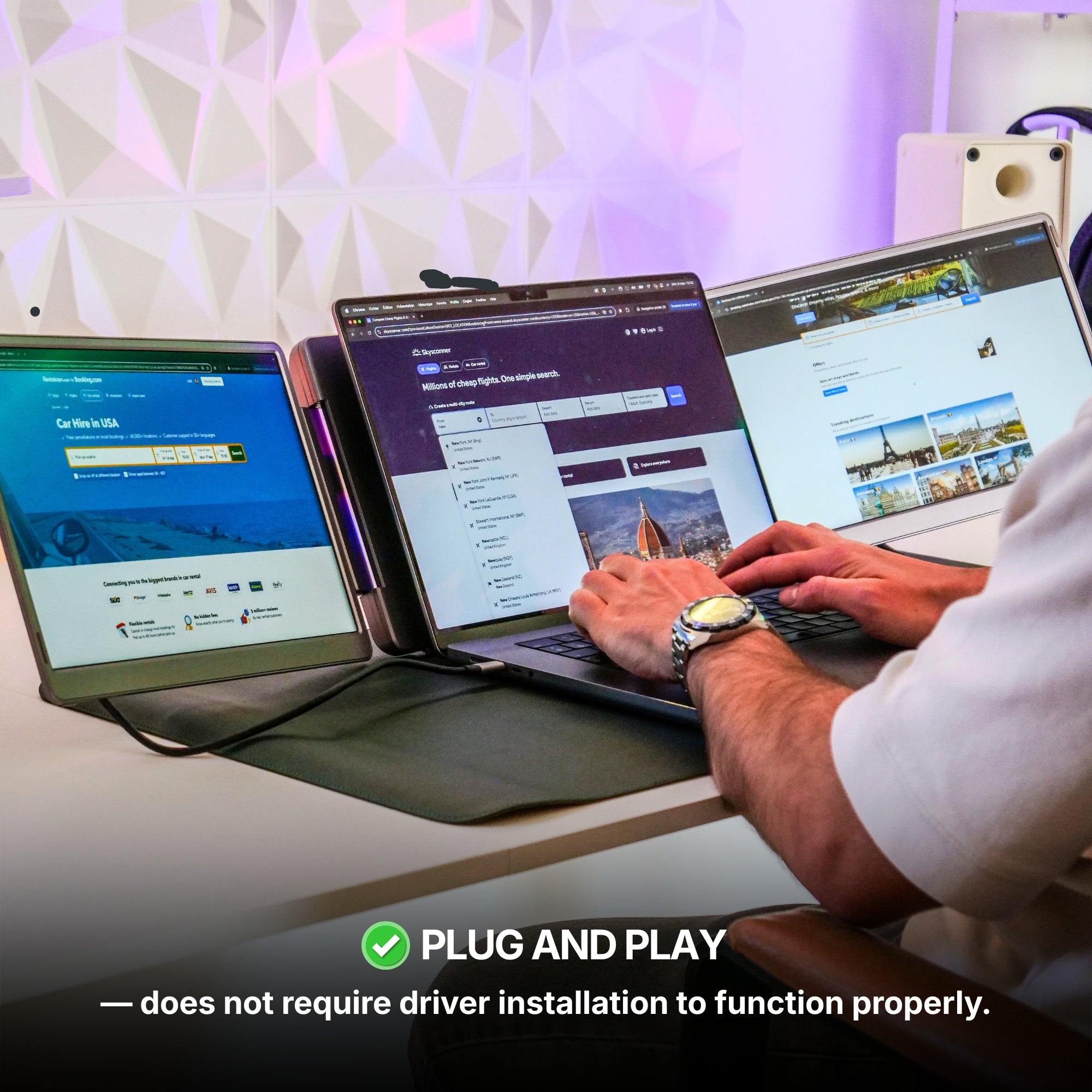
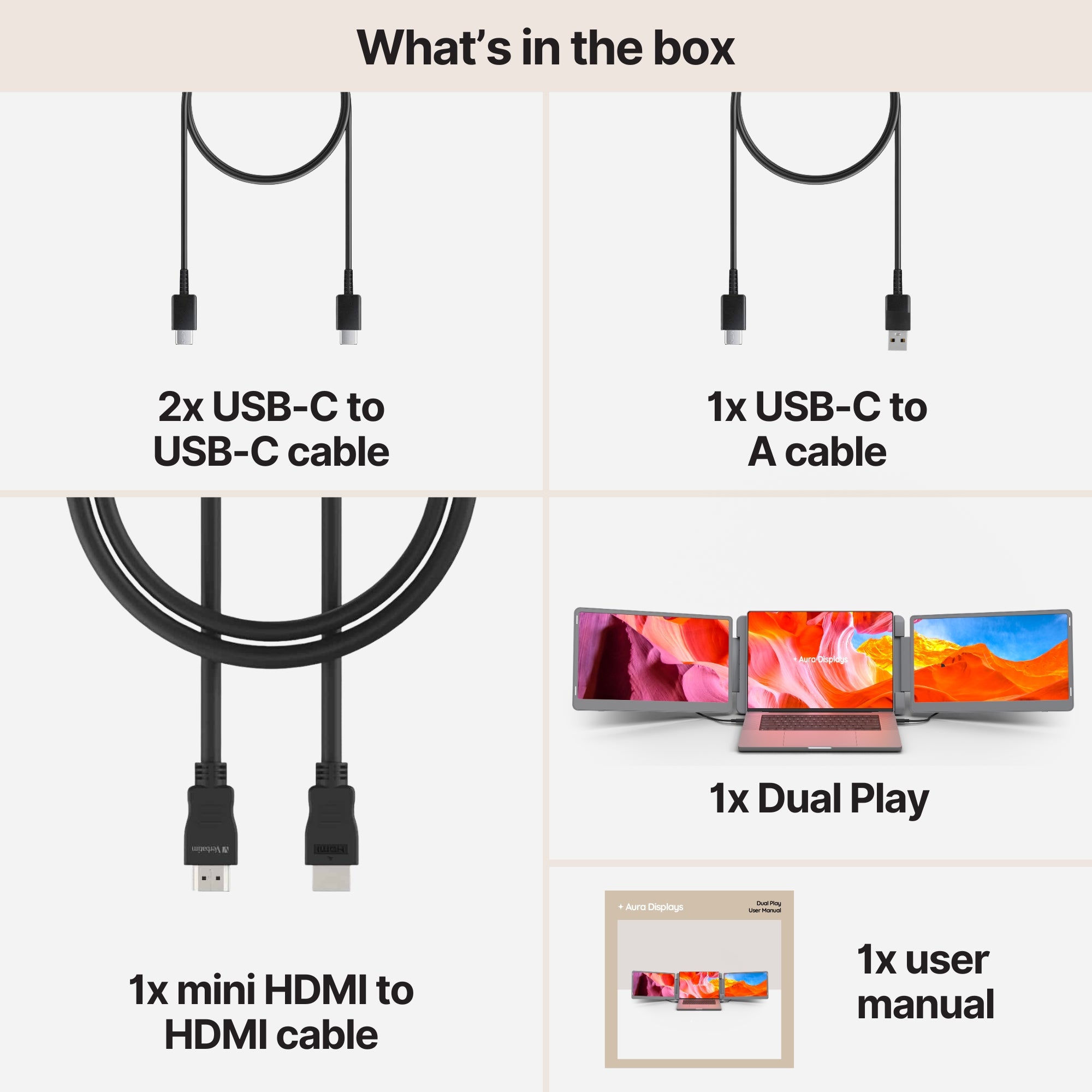
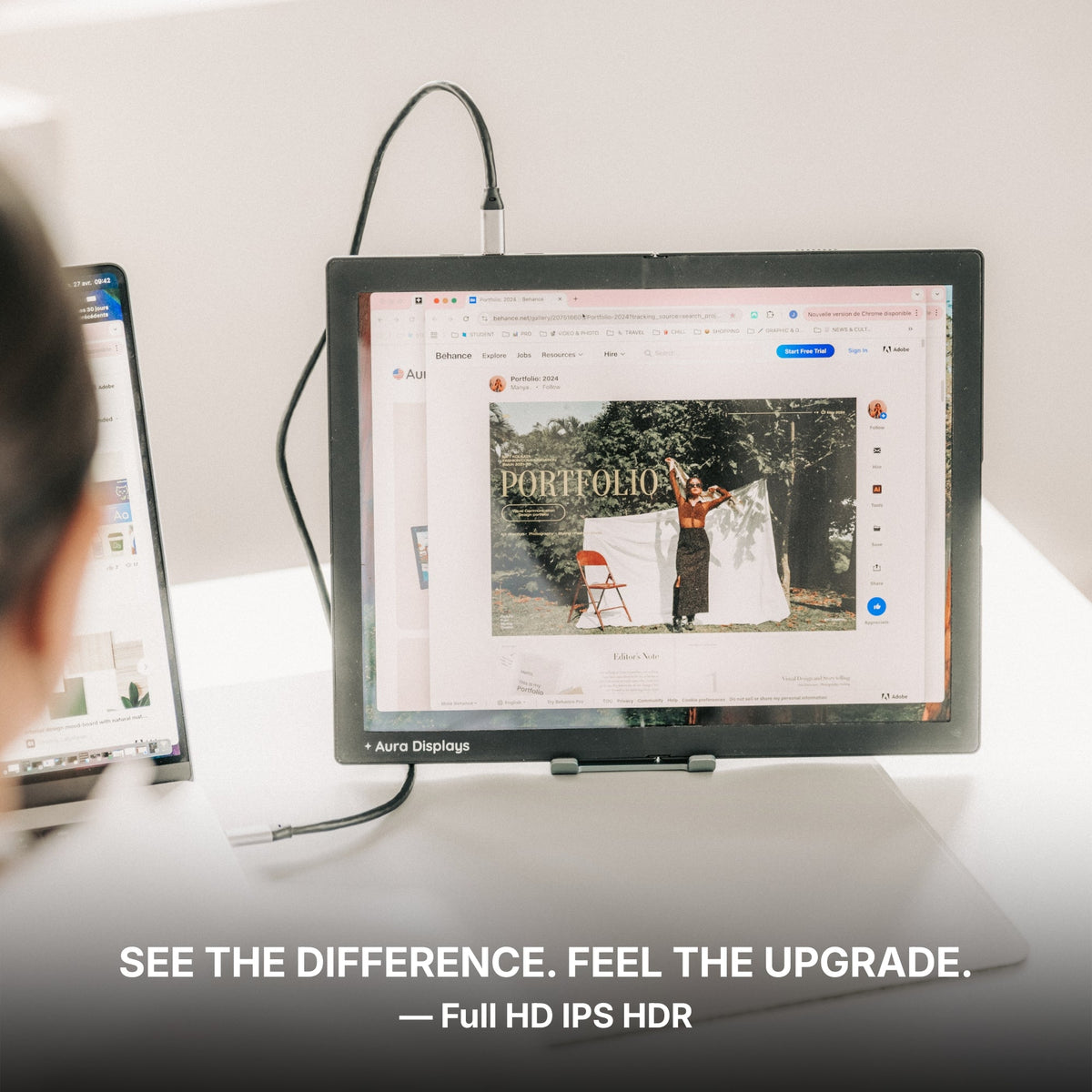
For most developers the right pick is the Dual Play (Gen 3), from $369. It is plug and play — no software, no driver — so it runs on macOS, Windows, Linux and Chromebook alike, which is the whole point when your work machine is locked down. Two panels attach over USB-C (4x USB-C plus 2x mini HDMI on the unit), giving you the editor-centre, terminal-right, docs-left layout on the road. If you read code all day, the 14" Ultra QHD 2.5K panel at $419 is the version to get: sharper glyphs are the difference between an eight-hour screen and a three-hour one.
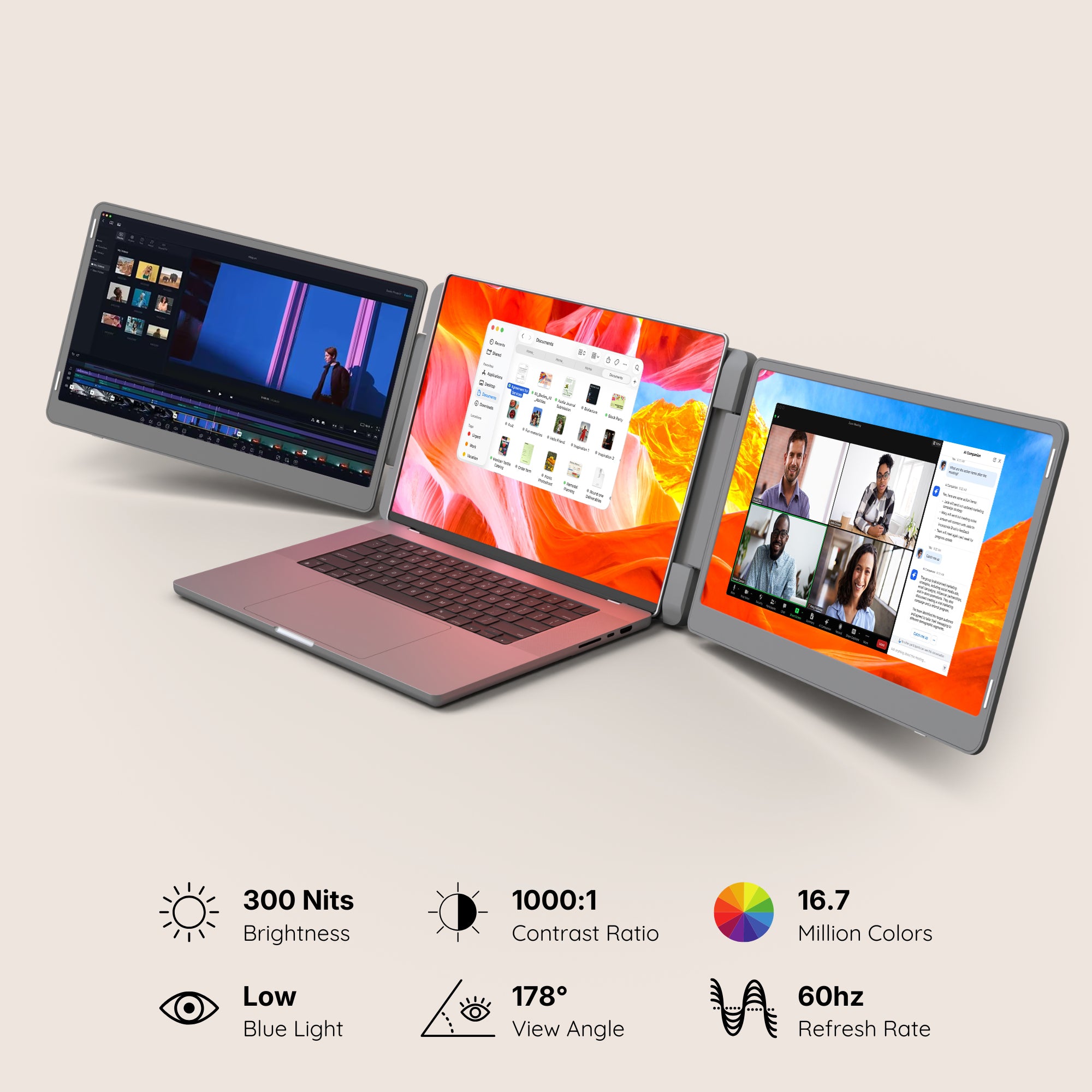
If you mostly live in an editor and a terminal and rarely need the third surface, the Single Play at $289 is the honest cheaper answer — same plug-and-play compatibility, one panel, lighter bag. And we would steer you away from going bigger than you need: a third and fourth panel add weight and setup friction for glance-only content, and most development happens in editor, terminal and docs, which two extra screens already cover. At 300 nits these are indoor screens — comfortable in an office, washed out facing a window, so keep the daylight to your side.















Share: