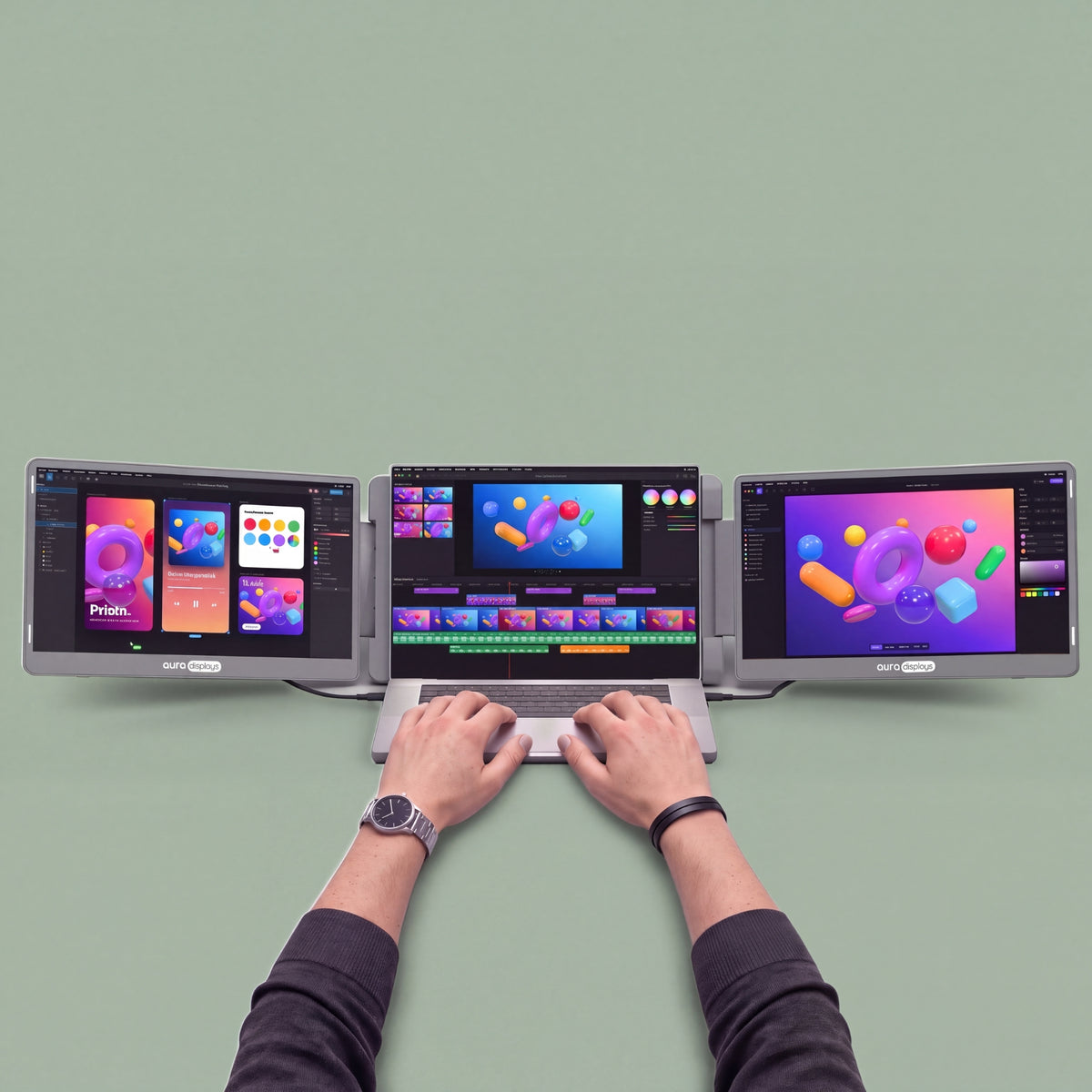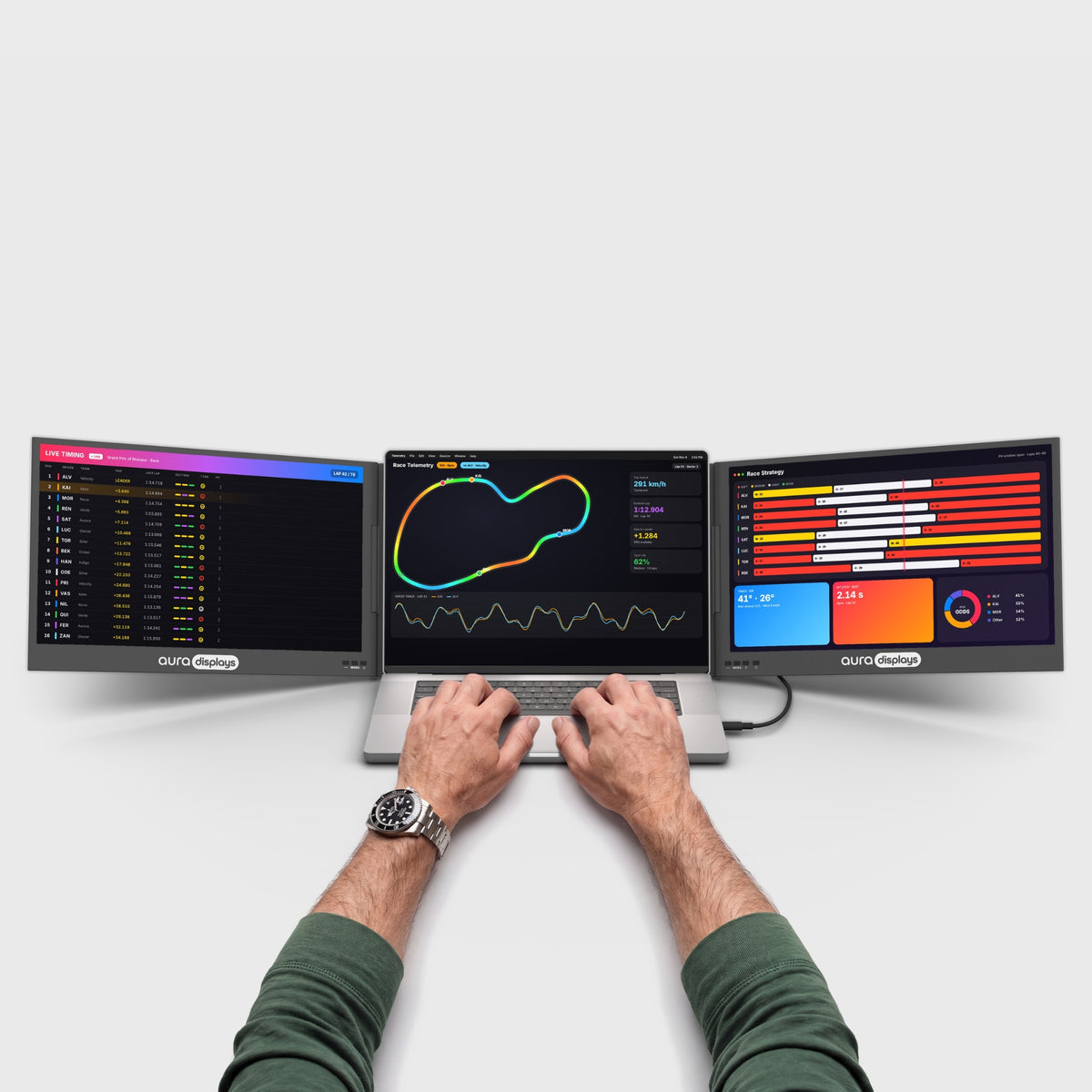

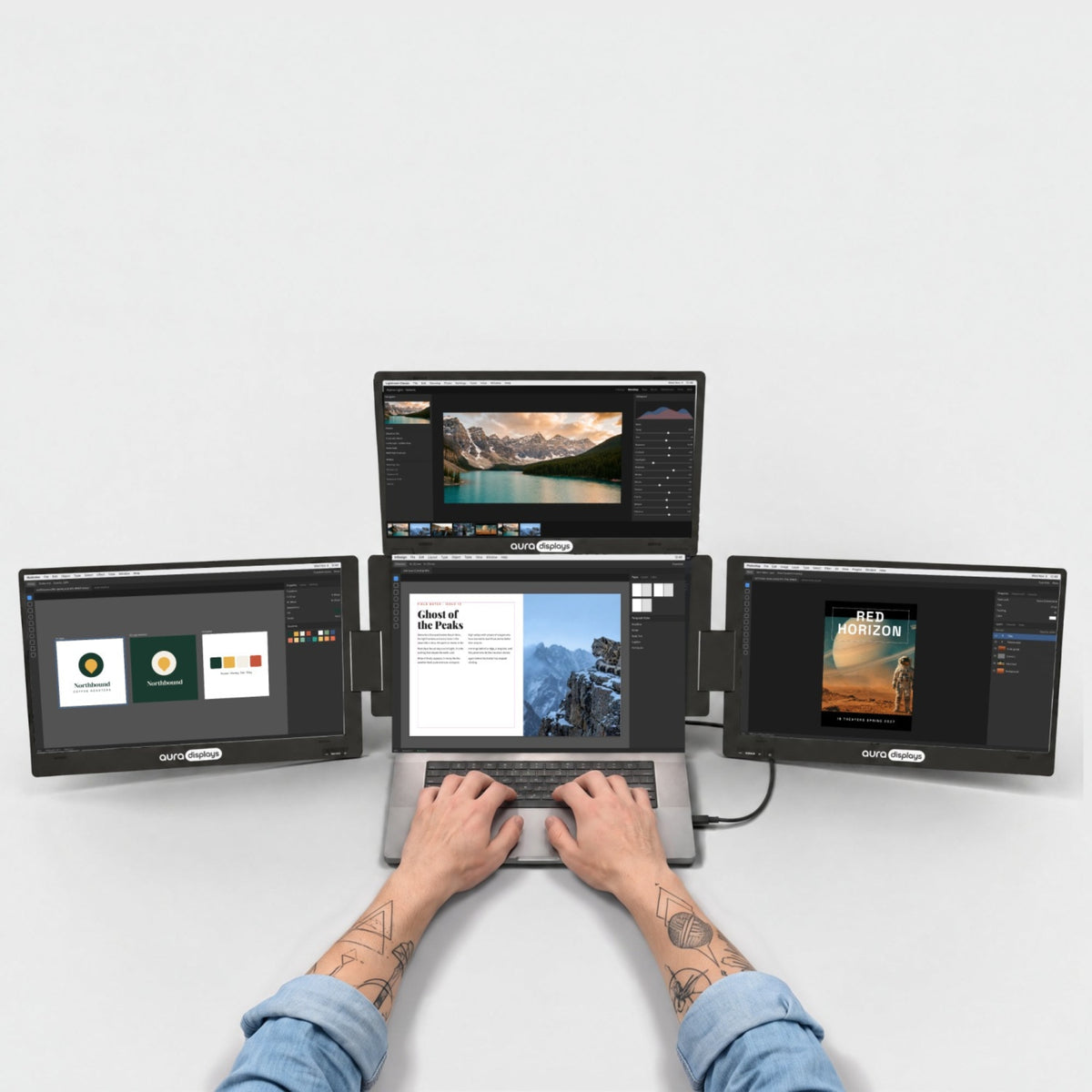

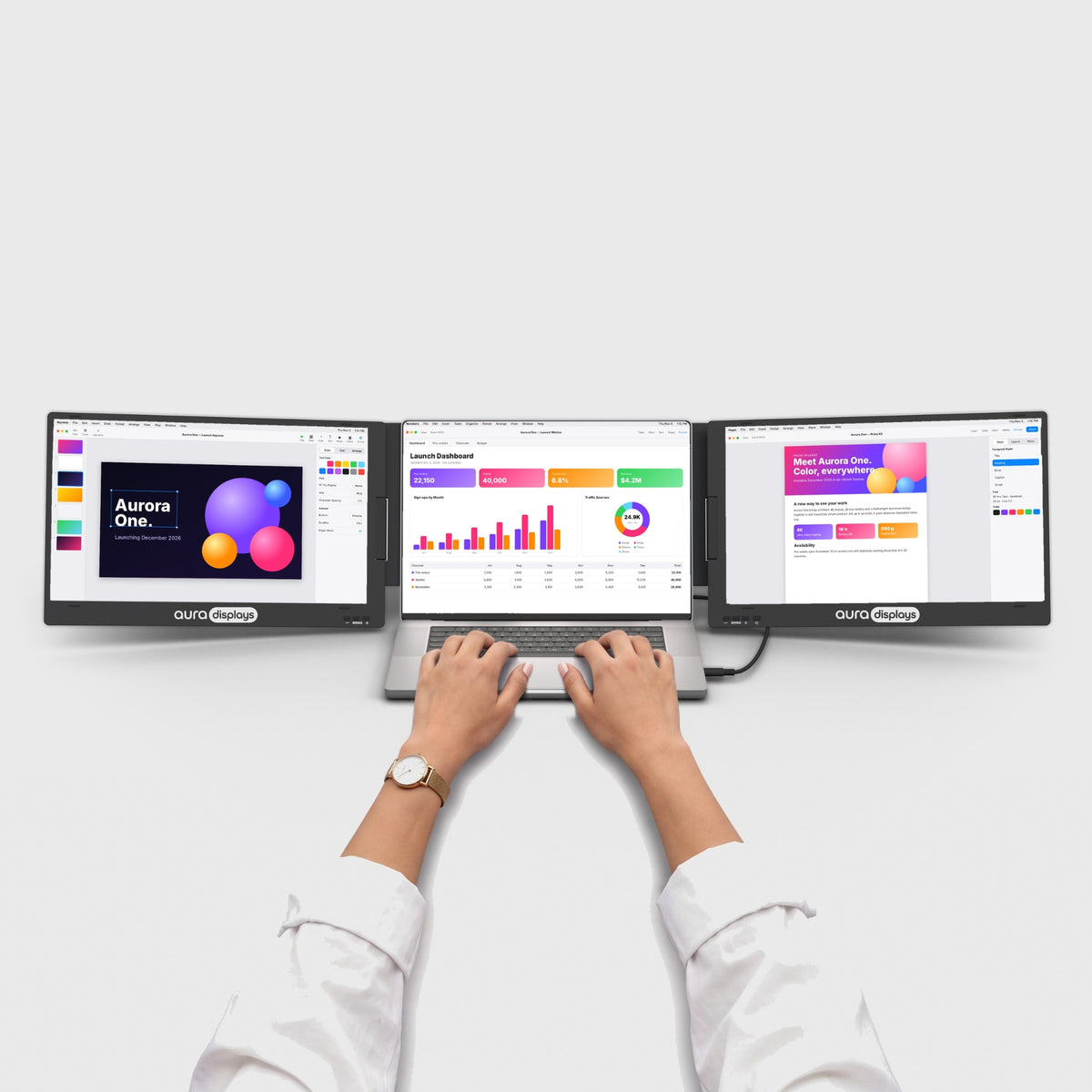


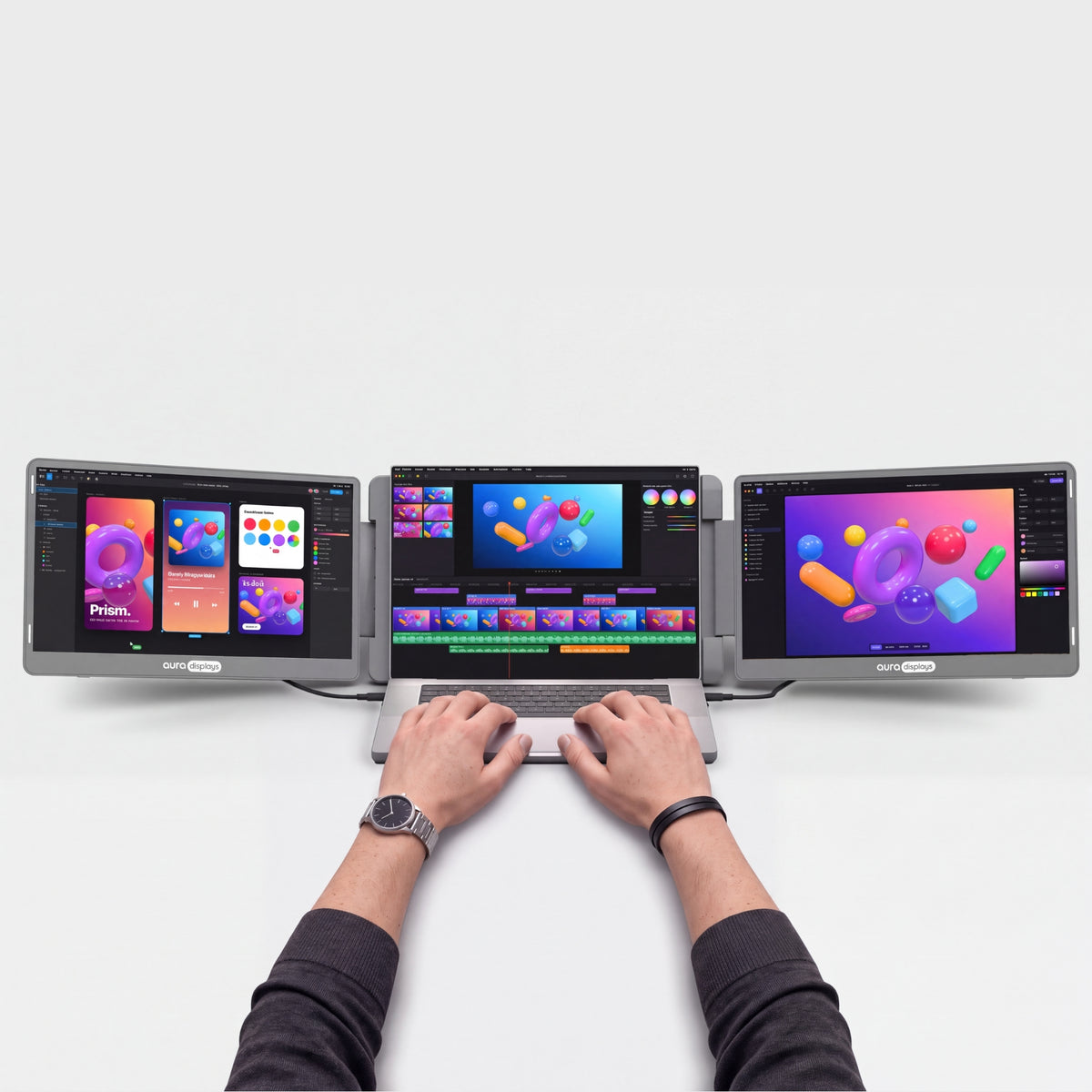


Dual Go 14” Ultra (QHD 2.5K)
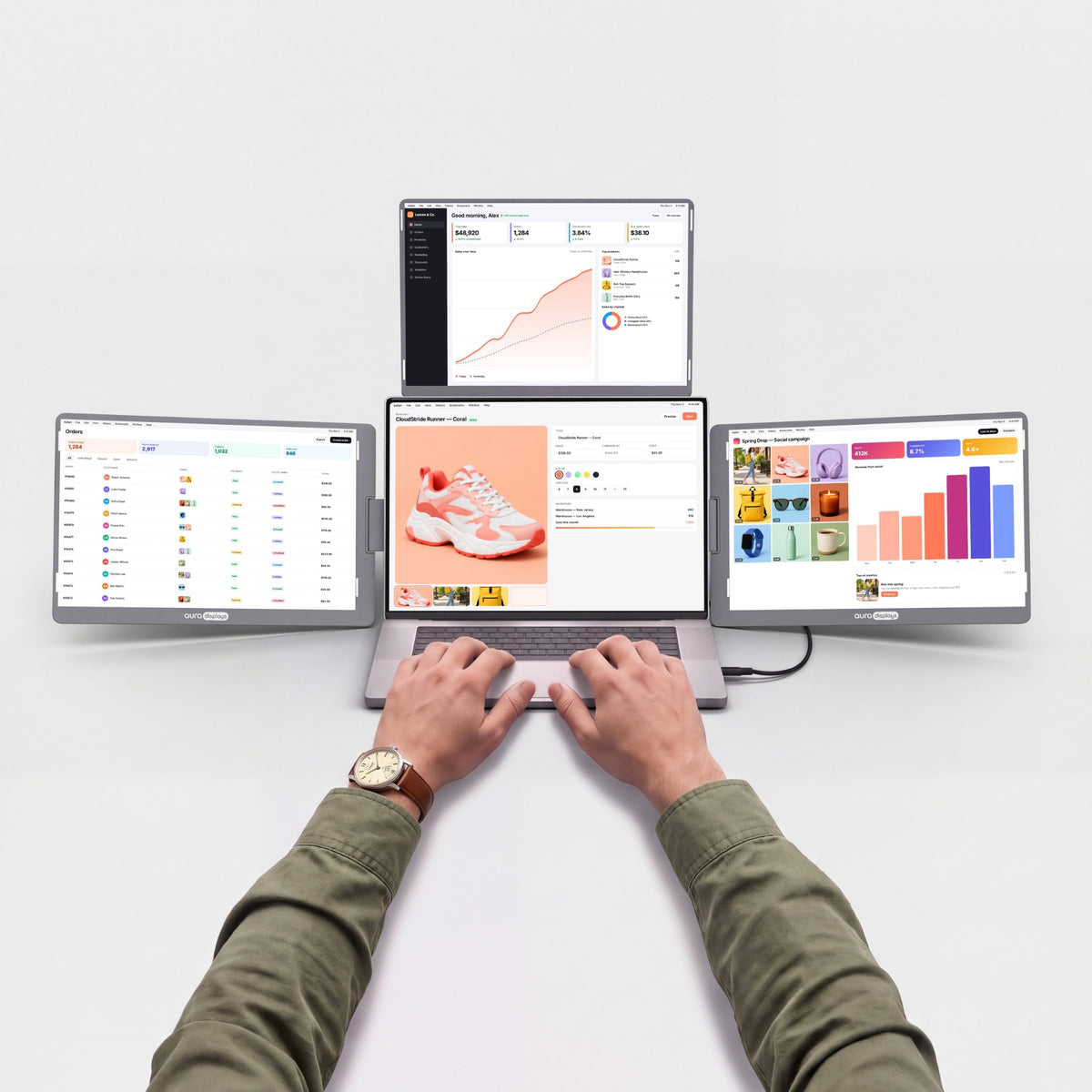
Two 14" QHD screens on their own stand.
Before you buy
- Plug & Play, no driverPlug it in and it works. No install, no admin rights.
- No power outlet neededRuns from your laptop's USB-C port. No adapter to carry.
- Fits laptops 10"–16"Works with Windows, macOS, Android and iOS.Check compatibility in 30 s →
- Weighs 3.55 lb (1.61 kg)Folded: 13.62 × 8.62 × 1.56 in (346 × 219 × 39.6 mm). Fits in a standard laptop backpack.See lighter models →


Included free with your order
You save €92,90-
 Tempered Glass Screen Protector2x 14" / 16:10
€0,00
€50,95 -
 Hub USB 8-in-1 87W PD
€0,00
€41,95


Added to your cart automatically with your monitor.
Overview
Overview
Two 14" screens in QHD 2.5K (2560 × 1600) that sit beside your laptop on their own stand, so nothing clips onto your laptop's lid. Sharper text and 100% sRGB color, for creative work, code and long documents, and the 16:10 format gives you more vertical room than standard screens. Folded, the screens face inward for protection, and the whole setup slips into a standard laptop backpack. Fits laptops from 10" to 16". Each screen connects with its own cable, so your laptop needs two video outputs: two USB-C ports with video, one USB-C and one HDMI, or two HDMI. Over USB-C, it runs on your laptop's power, so there's no power adapter to carry. Over HDMI, plug the included USB power cable into your laptop or any charger of 15W or more. All the cables are in the box. The left screen rotates up to 245° and the right one up to 205°, for panoramic or portrait setups, or turn one around to show the person across from you. The built-in kickstand adjusts to the angle you want. Matte IPS panels with a low blue light mode keep long days comfortable. Plug and play, with no software to install. Works with macOS, Windows and Android, and mirrors your iPhone on one screen.
What's in the box
What's in the box
- 1x Dual Go 14” Ultra (QHD 2.5K)
- 2x USB-C to USB-C cable, video & power (60 cm)
- 1x USB-C cable with USB-A adapter, power (90 cm)
- 1x Mini HDMI to HDMI cable (90 cm)
- 1x User manual
Drivers & user guide
Drivers & user guide
Plug & Play. No driver to install: plug in the cable and it turns on.
Shipping, returns & warranty
Shipping, returns & warranty
Shipping. Orders leave our warehouse within 1–3 business days and arrive in 5 to 8 days on average. This can vary with stock and destination: the up-to-date delivery estimate for this product is always shown on this page, just above the Add to cart button. Free shipping on orders over $100. For the US, the EU, the UK and Australia, taxes and duties are included: nothing to pay on delivery. The delivery time shown is an estimate based on our previous shipments and current stock.
Where’s my order? Track your delivery in real time with your order number and email.
14-day free returns. Not the right fit? Return or exchange it free within 14 days of delivery: open the box, test it, and send it back complete in its original packaging with a prepaid label. We refund as soon as the carrier scans your parcel. Full conditions in our return policy.
1-year warranty. If your monitor is faulty, send us a photo or video; we repair or replace it free of charge. EU customers also benefit from the 2-year legal guarantee. See the warranty section of our return policy.
Questions before or after you buy? hello@aura-displays.com · +1 (213) 845-0774 · Real people, daily 9 am–4 pm ET.
A note on our visuals: 3D renders are for illustration and may differ slightly from the actual product. All verified details are in the tech specs at the bottom of this page.

Why you’ll love it.


Before


After


Two screens. One wide workspace.
Unfold the Dual Go 14" Ultra next to your laptop for one wide workspace. To present, turn a screen around toward the person across the table.


Your laptop was never meant to work alone.
Two more screens turn any desk into a real workspace.

When the workday ends, the screens fold back in and your table is a table again.

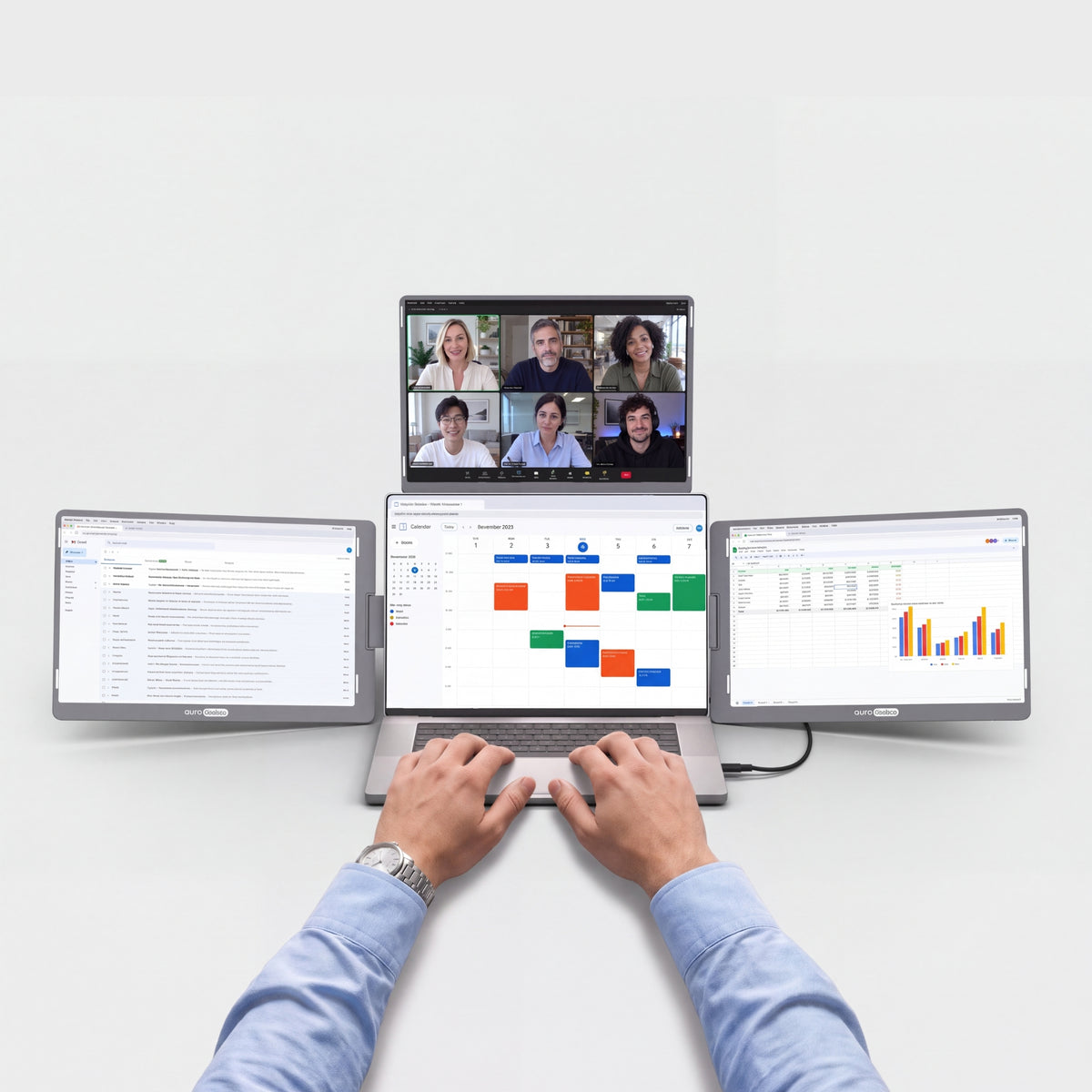
Your notes, your team chat and your video call, all in view at once. No more switching tabs. Just a morning that actually gets things done.

Turn a screen around to show your work to the person across the table. Review a design or walk through photos together, with no need to turn your laptop around.
Sharp, bright, true to life.
Crisp detail for every line of code, every photo and every spreadsheet. Accurate colors, comfortable brightness and smooth motion, from your first email to your last edit of the day.


Standard


Eye care


100% sRGB
Full coverage of the colour space the web was built on — what you edit here is what everyone else sees.

HDR
High dynamic range: brighter highlights, deeper shadows, and detail that survives at both ends.

Matte displays
A non-reflective surface that scatters overhead light instead of mirroring it straight back at you.

Low blue light
A built-in eye care mode filters blue light, so long sessions stay comfortable.
Built for the way you work.
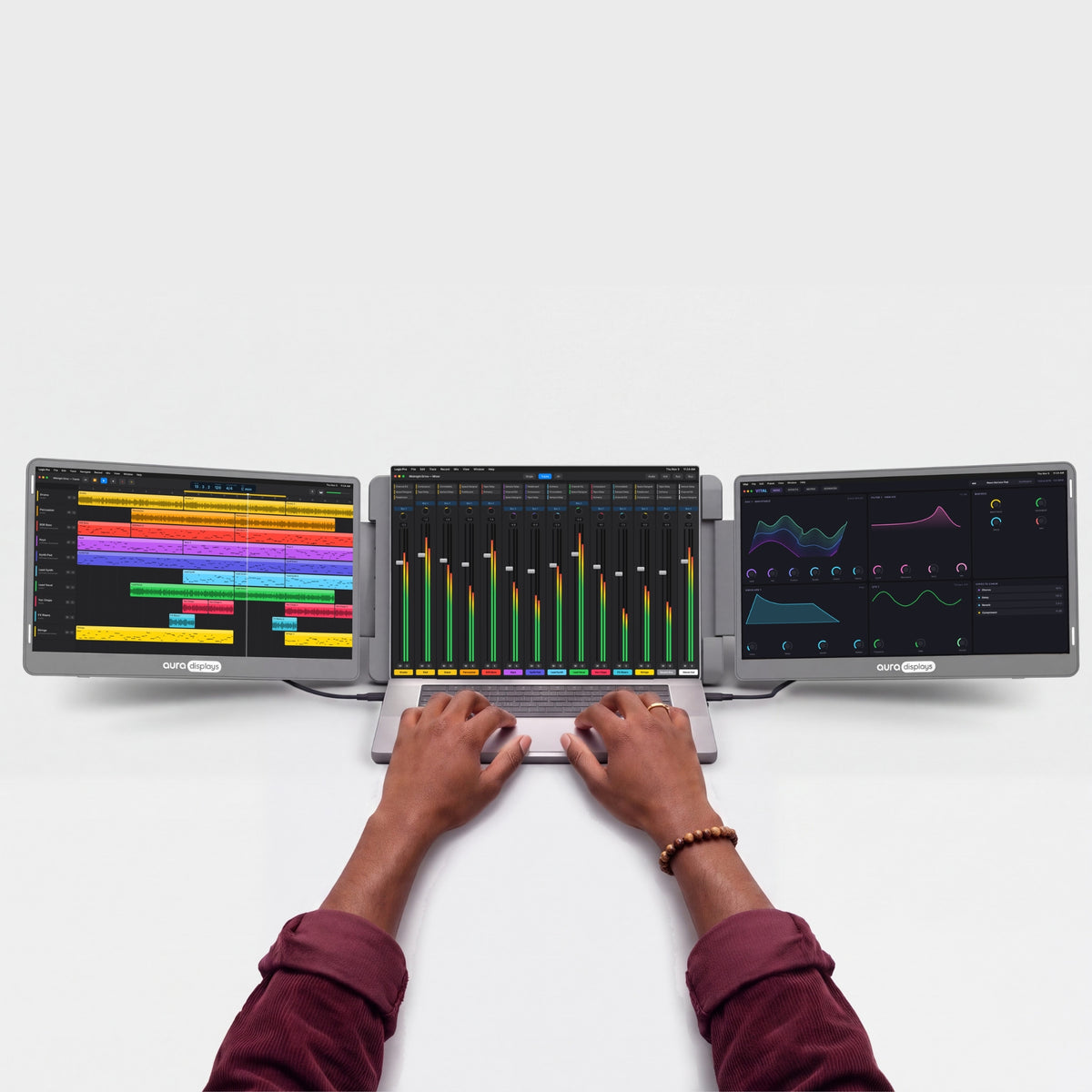
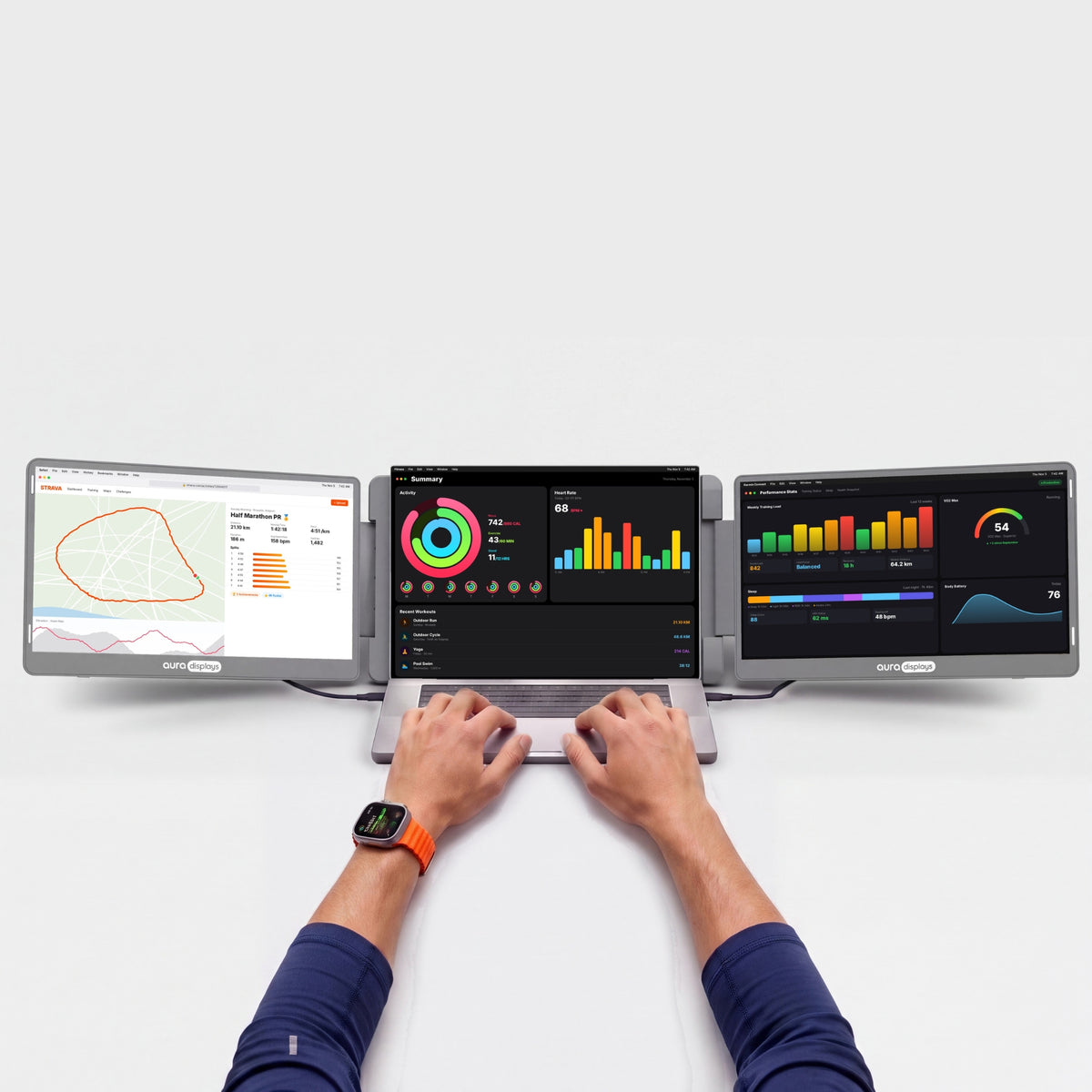
From home offices to hotel rooms, see how people use Aura to get more done.


Works with what you already own.
MacBook with M1 to M5 chips, Pro and Max included, Windows laptops and phones.
On M1, M2 and M3 MacBooks (non-Pro), an H5T adapter (sold separately) is required.


Your setup, wherever there’s a desk.
Fold it, pack it and set it up again at the next desk. Home, office or hotel room, you get the same multi-screen workspace every time.

3.55 lb · 1.61 kg
Light enough to move from desk to desk.

10" – 16"
Made to match your laptop’s screen size.

Standard laptop backpack
Folds flat for the trip.

Composite
Metal hinges, built to be opened and folded again and again.

Ports and power.
Here's what goes where, and what your laptop needs to drive it.

4x USB-C and 2x mini HDMI on the monitor
Laptop side: 2 video outputs (USB-C or HDMI), one per screen.

Powered by your laptop
No wall outlet needed: the screens run on power from your laptop.
Charges your laptop too
Plug your charger into the monitor: it powers the screens and tops up your laptop at the same time.

No driver needed
Plug it in and it works. Nothing to install, even on a work laptop.
Designed to Do More.
Explore the features that make this monitor smarter, more versatile, and built to elevate the way you work and create.

Each screen shows 2560 × 1600, so you see more lines of code, more rows and more of every page.

The screens fold face-in, so they stay protected in your bag.

The stand is built in: set it next to your laptop and adjust the angle. Nothing to assemble, nothing extra to carry.

Drag any window from your laptop to any screen and back. Extend your desktop across all three screens, or mirror one screen to show the same thing twice.

Each screen connects with its own cable: video USB-C, or mini HDMI with the included USB power cable. Use two USB-C ports, or one USB-C and one HDMI port.

No driver to install: plug in the cables and both screens turn on, even on a work laptop. On a MacBook with a base M1, M2 or M3 chip, the second screen needs the H5T adapter (sold separately).

Plug in an iPhone or Android phone with a video USB-C port to mirror it on one screen.

Tilt the screens until they sit right for you.

Plug your laptop charger into the monitor: it powers the screens and tops up your laptop at the same time.


The Go series. Made to leave.
The Go Series is our lighter multi-screen range, with less to carry on the days you work somewhere new. Each screen swivels a full 180°, so you can turn it toward the person opposite without moving the laptop.






Productivity calculator
See what more screen gives you back.
Fewer windows to juggle. More time for the work itself. Adjust the numbers to your week.
Copying between docs, comparing, a call next to your notes, code next to the preview.
Estimates only. Gains from published studies are applied to the share of time you spend working across several windows, and converted conservatively into time saved (a task done 18% more efficiently takes about 15% less time). Your results will depend on your work.
Sources: Wichita State University SURL / IDC for Dell (2015); Fraunhofer IAO OFFICE 21 for Fujitsu Siemens; Jon Peddie Research Multi-Monitor Study (2017, self-reported); University of Utah for NEC (2008); Microsoft Research, Czerwinski et al. (2003); Harvard Business Review (2022).


Is it right for you?
Is the Dual Go 14” Ultra right for you?
Made for you if
- You want to work anywhere, even without a power outlet
- You want plug & play, nothing to install
- Your laptop is between 10" and 16"
- You want two extra screens without a bulky setup
Choose another model if
- You mainly game on console — Compare models
Display
Connectivity & power
Size & weight
Design & features
Warranty & certifications
Your laptop
Operating systems
Other devices
- 1×Dual Go 14” Ultra (QHD 2.5K)
- 2×USB-C to USB-C cable, video & power (60 cm)
- 1×USB-C cable with USB-A adapter, power (90 cm)
- 1×Mini HDMI to HDMI cable (90 cm)
- 1×User manual
Plug & Play
How to connect
Two cables, one per screen: 2 video USB-C, or 1 video USB-C + 1 HDMI, or 2 HDMI. No USB-A only laptops.
- Plug & Play, no driverPlug it in and it works. No install, no admin rights.
- No power outlet neededRuns from your laptop’s USB-C port. No adapter to carry.
- Fits laptops 10"–16"Works with Windows, macOS, Android and iOS.Check compatibility in 30 s →
- Weighs 3.55 lb (1.61 kg)Folded: 13.62 × 8.62 × 1.56 in (346 × 219 × 39.6 mm). Fits in a standard laptop backpack.See lighter models →
Great product and really helps to elevate my productivity no matter where I am.

Hi Christopher,
Thank you for your kind words about our Dual Go 14” Ultra (QHD 2.5K)! We are thrilled to hear that it has been a valuable asset to your productivity, even on-the-go. We are always here to support you in any way we can. Thanks for choosing our product!
Best, David
Customer Service Team
Works as advertised. Plugged it into my laptop, and it just worked—no setup issues. It's great for editing documents.


Hi there,
Thank you for leaving such a positive review for our Dual Go 14” Ultra (QHD 2.5K) product. We are thrilled to hear that it worked seamlessly with your laptop and was helpful for editing documents without any setup issues. We appreciate your feedback and hope to continue providing products that meet your needs. Thank you again for choosing our product!
Best,
David
Customer Service Team
Super clear site that lets us know what we're buying. However, once I received the product I found that it was very large. I couldn't fit it in my backpack, which is a problem.

Hi Dunya, thank you for the great review! We're glad to hear that our website was helpful in informing you about the Dual Go 14” Ultra (QHD 2.5K). We apologize for any inconvenience caused by the size of the product. We value your feedback and will take it into consideration for future improvements. Thank you for choosing our product. Have a great day!
Great extra screen for taking notes while searching for information! Highly recommended.


Hi Amilie, thank you so much for leaving such a positive review for our Dual Go 14” Ultra (QHD 2.5K) product! We are thrilled to hear that it is helping you take notes while searching for information. Thank you for recommending it, we truly appreciate it! Have a great day.
I just wish i would have went with a larger one. Other then that its great!
Hi there,
Thank you for your feedback on our Dual Go 14” Ultra (QHD 2.5K)! We're glad to hear that you're enjoying it overall. If you ever decide to upgrade to a larger one, we have plenty of options available for you to choose from. Thank you for choosing our product!
Best,
David
Customer Support Team
I’m pleased to say it has resolved my mobility issues, It is a great piece of kit, easy to set up, lightweight and convenient to carry around.
Hi Jag,
We're thrilled to hear that the Dual Go 14” Ultra (QHD 2.5K) has resolved your mobility issues and that it's been a great addition to your life. We pride ourselves on creating products that are easy to set up, lightweight, and convenient for our customers to use. Thank you for your kind words and for choosing our product. We hope it continues to serve you well.
Best,
Customer Service Team
Once I was able to get the USB-C dock to have enough USB-C ports to connect everything, it was ok. However, the descriptions for these screens are not written for the 'average' user that is new to technology. It takes way too much power to run the two screens without shorting out the laptop battery. I went through 2 batteries before I realized I needed to buy a 100w charger along with a dock to run everything. My laptop didn't have all the ports needed to run audio and video and wouldn't work with my laptop without buying the extra power supply/dock needed to run everything. After having spent over $700 for the technology (this included the dual screens), I really like the set up.
I travel a lot for business. The Aura Dual Go 14” Ultra (QHD 2.5K) screen enables me to have the same screen set up I have at home when I am on the road.
Thank you Michael for your review of our Dual Go 14” Ultra (QHD 2.5K) product! We're glad to hear that the Aura Dual Go 14” Ultra (QHD 2.5K) screen has been a helpful solution for your business travels. It's great that you're able to have the same set up on the road as you do at home. We appreciate your feedback and hope to continue providing convenience and efficiency for your travels. Safe travels!
Very efficient when working with many reference sites- now I dont have to juggle tabs,
So far my best buy to make my work easy.
Kudos!
Thank you Cameline for your glowing review of our Dual Go 14” Ultra (QHD 2.5K)! We're so happy to hear that it has made your work easier and more efficient. Have you considered sharing a picture or video of how you use it? We would love to see it! Thanks again for choosing us. Happy working!
I’ve been using Aura Dual Go 14” Ultra (QHD 2.5K) monitors for a couple of weeks now. I travel a bit and these monitors are super easy to carry in my tote with my laptop and make a big difference to my productivity when compared to working on a 14” laptop screen only.
When I’m working from home, they allow me to move around the house, so I can enjoy sitting at my dining room table in the mornings (sunny position) rather than at my work desk.
Love, love, love em! High recommend for mobile professionals!
Hi Simeon!
Thank you so much for your kind words about our Dual Go 14” Ultra (QHD 2.5K) monitors. We're thrilled to hear that they have been a helpful tool for your productivity, both while traveling and working from home. We're glad to know that you appreciate the convenience and portability of the monitors, and that they have made a positive impact on your work routine. Thank you for recommending our product to other mobile professionals. We truly appreciate your feedback and support.
Happy working!
Best,
David
Customer Service Team
Nuuuuul
This was easy to unpack. Great instructions on setting it up and items possibly needed. I set it up in about 30 minutes and was using it as a dual screen. Having this triple screen (dual and laptop screen) is the best.
Hi Donna! Thank you for taking the time to leave us such a kind review. We're thrilled to hear that our Dual Go 14” Ultra (QHD 2.5K) has been a great addition to your laptop. We strive to provide easy-to-follow instructions and we're glad to hear that the setup process was a breeze for you. Enjoy your triple screen setup and let us know if you need any further assistance. Happy dual screening!
I wasn’t sure I needed a second monitor until I tried this. I use it in portrait mode while coding and it honestly helps me stay more focused. When I’m done, I switch it back to landscape and watch videos or scroll through PDFs. Build is solid, no lag, no weird flickering, and works seamlessly on both my work PC and Mac.
Absolutely love this. I travel a lot for work and this folds flat into my backpack. Whether I'm at a hotel, airport lounge, or coworking space, I’ve got a full dual-screen setup running in seconds. Clients are always impressed when I pop it out during a call. It feels like something every remote worker should own.
Bought this for my wife but I’ve ended up using it more than her. It’s so convenient for checking emails while watching videos.
Still works great after 2 months. No dead pixels, hinges hold well, and no weird flickering. Very happy.
This thing just simplified my workflow beyond belief. I work in architecture and constantly flip between reference files, renders, and client briefs. With this display, I’ve been able to reduce the mental load and just focus. Easy to travel with, fits in my backpack, and doesn’t require any extra charger.
Stable even on soft surfaces like my couch. Didn’t expect that.
This screen turned out to be way more useful than I thought. I'm a freelance developer and I usually work in cafés — being able to keep VS Code on my main screen and Slack or a browser window on the second makes me feel like I'm working from a full desk setup. No lags, solid build, and extremely portable.
Really easy to set up and works like magic with my Dell XPS. Wasn’t expecting it to be this light.
It’s made my daily Zoom calls a lot easier to manage. I keep my notes open without minimizing the video window.
Nice portable screen. I use it for work and sometimes to keep Netflix open on the side. Works great.
Bought one for work and ended up getting another for home. No issues at all.
Used it on a plane tray table with no issues. Game changer for travel work.
Takes my productivity to another level. Couldn’t go back to a single screen now.
One of the most useful tech purchases I’ve made. Great screen size, great portability, and honestly I’ve had no issues since day one. If you're working remote, this is a game-changer.
Solid screen. I work in customer support and keep Zendesk open on one side, tickets on the other. It's cut my response time down a lot.
Set-up and support
The questions our team answers most — from the first plug-in to the
day something looks off. If yours isn't here, write to us: a real
person replies.
Only some screens work, or a screen stays black
Only some screens work, or a screen stays black
Each Dual Go screen needs its own video connection to your laptop.
- Check that both screens are connected: one video USB-C cable or one HDMI cable per screen.
- Use a laptop USB-C port that supports video, or an HDMI port — no hub or dock for the first setup.
- MacBook with a base M1, M2 or M3 chip (not Pro or Max)? It drives only one external display: the second screen needs the H5T adapter (sold separately).
- Check that the dark screen is set as an extended display (see the question on screen order).
Still one screen dark? Contact us — it's covered by warranty.
All screens stay black / nothing turns on
All screens stay black / nothing turns on
- Connect the monitor directly to your laptop — no hub or dock.
- Use a USB-C port that carries video (all MacBooks, most recent Windows laptops): a USB-C port for data or charging only shows no picture.
- Over HDMI, also plug the included USB power cable into the screen and into a USB port or charger.
- If your laptop can't supply enough power over USB-C, plug a USB-C charger of 15 W or more into the monitor.
Still nothing? Contact us with a short video of your setup — manufacturing defects are covered for 1 year.
How do I connect it to my laptop?
How do I connect it to my laptop?
Each screen has its own connection. If your laptop has two USB-C ports with video, use the two included USB-C to USB-C cables, one per screen: picture and power go through each cable. You can also connect one screen over HDMI with the included mini HDMI to HDMI cable and USB power cable, and the other over USB-C.
Laptops with only USB-A ports won't work. For the first setup, avoid hubs and docks.
Do I need a driver?
Do I need a driver?
No. Both screens are plug and play on Mac, Windows and Linux (Ubuntu): plug in the cables and they turn on. The only exception is a MacBook with a base M1, M2 or M3 chip: the H5T adapter it needs for the second screen (sold separately) uses the free Silicon Motion app.
Does it work with my MacBook, even a base M1, M2 or M3?
Does it work with my MacBook, even a base M1, M2 or M3?
Yes. With an M1, M2 or M3 Pro or Max chip, or any M4 or M5 MacBook, both screens work with no driver. A MacBook with a base M1, M2 or M3 chip drives only one external display, so only one screen works — unless you add the H5T adapter (sold separately), which uses the free Silicon Motion app. You need macOS 11 Big Sur or newer.
My work laptop doesn’t let me install software
My work laptop doesn’t let me install software
No problem: the Dual Go needs no driver, so it works on managed work laptops. Just plug it in. Only the H5T adapter for base M1, M2 or M3 MacBooks needs an app.
Is it portable? How heavy is it?
Is it portable? How heavy is it?
Yes. It folds into one unit with the screens facing in, about 3.55 lb / 1.61 kg, and fits a standard laptop backpack. Keep it in a sleeve when you travel: the shell scratches more easily than our other models.
How do I fold it without damaging the hinges?
How do I fold it without damaging the hinges?
Open and close the screens one at a time, and never force a hinge past its stop. Keep it in a sleeve or a bag when you carry it.
Where is my screen protector?
Where is my screen protector?
It isn't pre-installed on this model: your tempered glass screen protectors come free with your order, ready to apply whenever you want.
Which laptop sizes does it work with?
Which laptop sizes does it work with?
Laptops from 10" to 16", including 16" MacBook Pro models. The Dual Go stands on its own next to your laptop.
My screens are in the wrong order, or one looks blurry / smaller
My screens are in the wrong order, or one looks blurry / smaller
- Mac: System Settings › Displays › Arrange. Windows: Settings › System › Display.
- Drag the screens to match their real positions.
- Set each Dual Go screen to its native resolution (2560 × 1600) and the same scaling.
Can I watch Netflix or other streaming services?
Can I watch Netflix or other streaming services?
It connects as a standard external display over USB-C or HDMI, with no display driver in between. We haven't tested every streaming service yet: if one stays black, play it on your laptop screen and contact us.