


Who this is for
You watch markets or model them, you keep a spreadsheet open all day, and you lose minutes at a time switching between a chart, a model and a message you need to answer before you act.
What goes on each screen
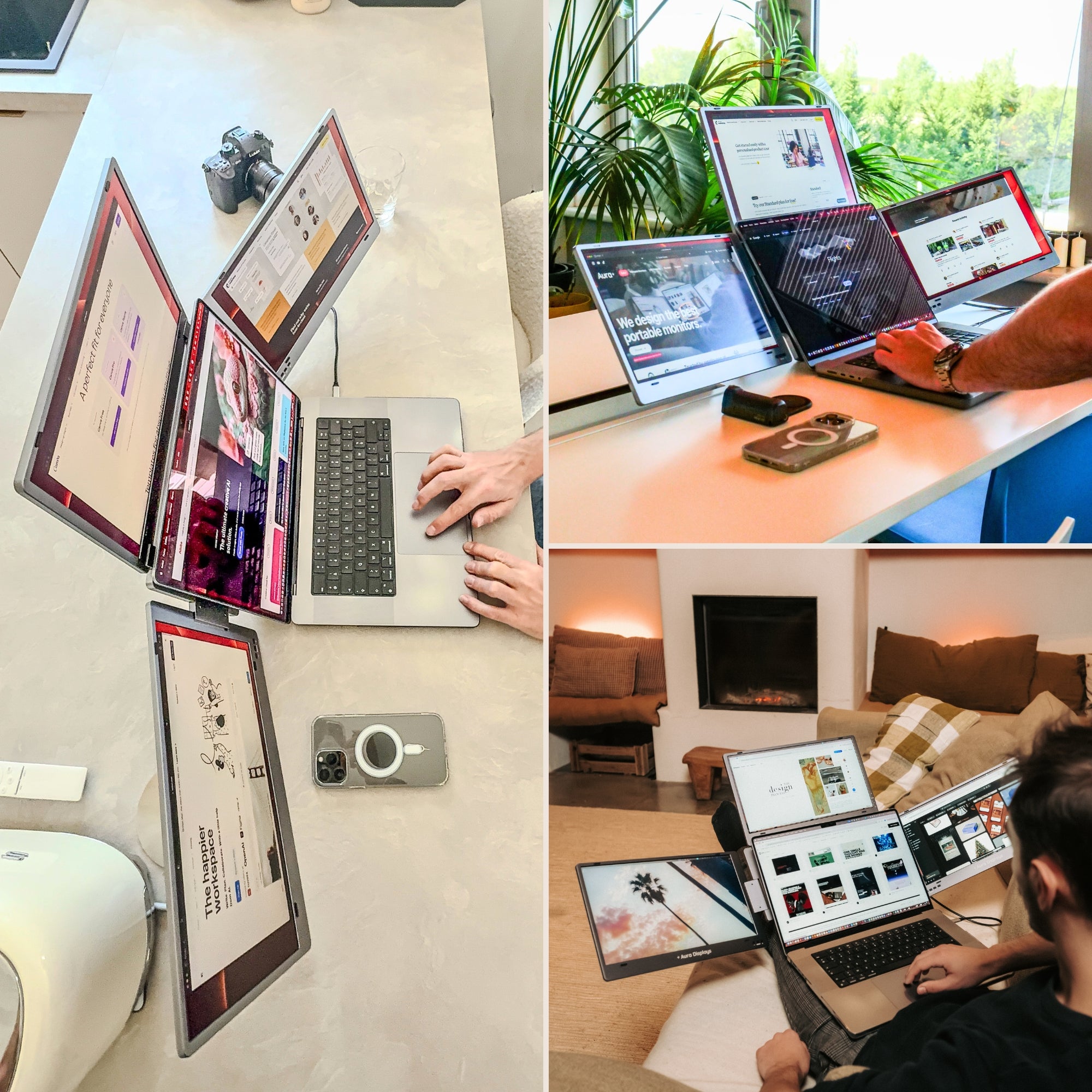
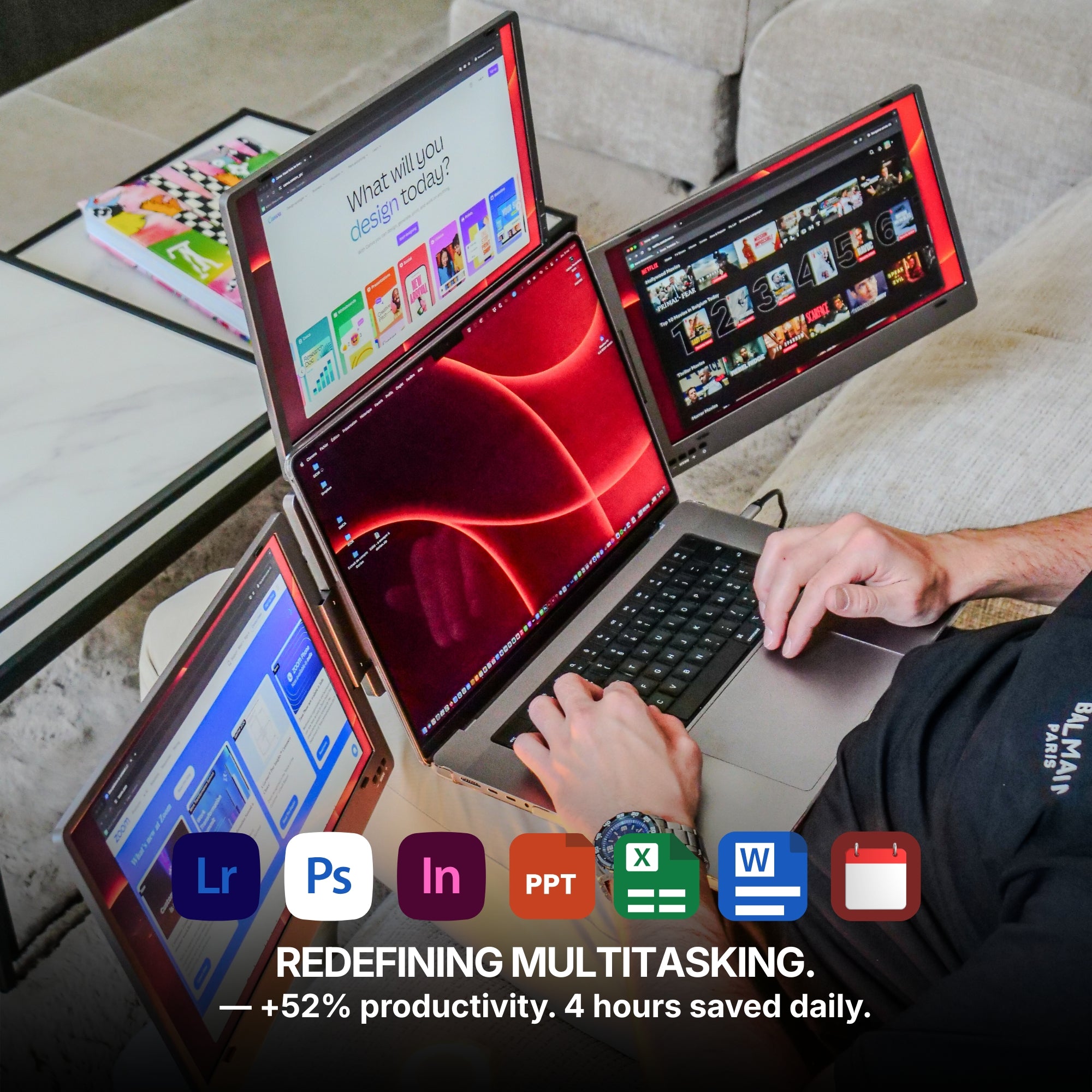
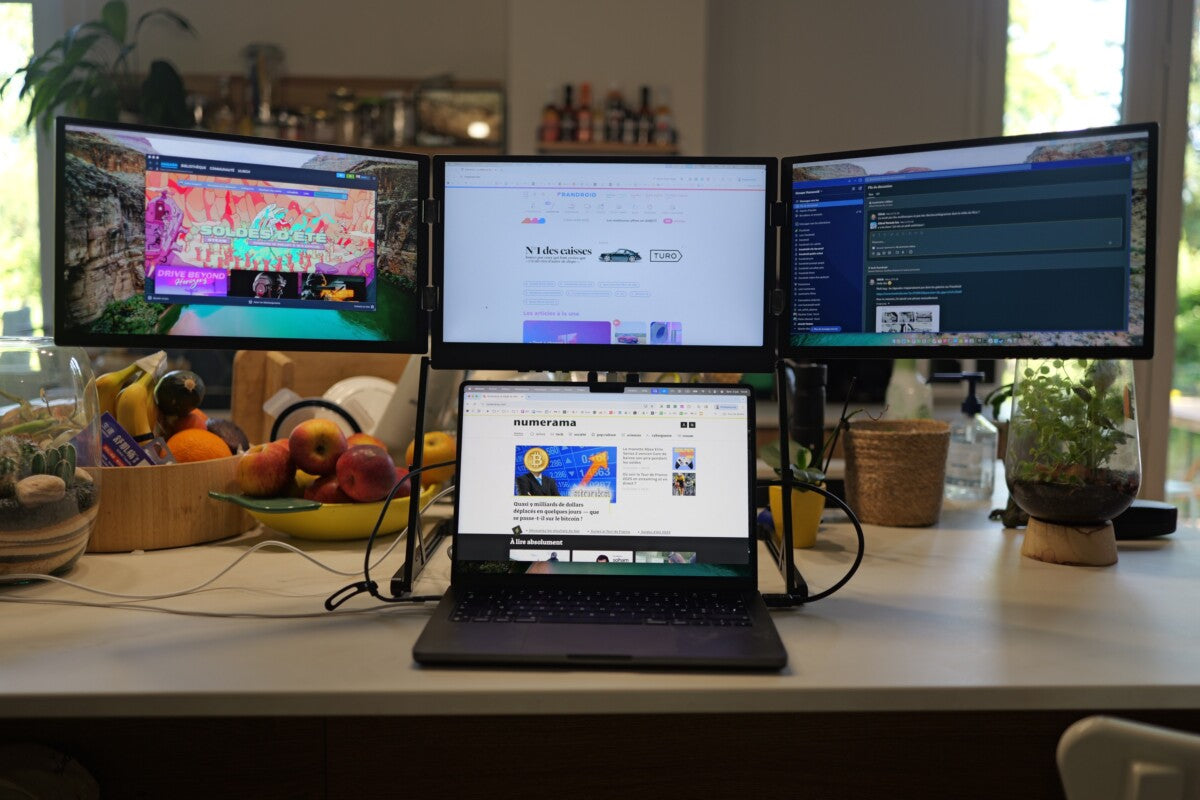
Left: charts, and only charts. One saved layout, two to four panes, nothing you have to rebuild each morning. This panel is for pattern, not for reading — you glance at it.
Centre: the thing you are actually doing. The model, the spreadsheet, the order ticket, the deck. Centre is where your hands are and where your attention lives, so it gets the best panel and the most screen height. Nothing else goes here. Not your inbox.
Right: feeds and messages. News column on top, chat or email underneath. Both are interruptions by nature, which is exactly why they belong on the panel you have to turn your head to see.
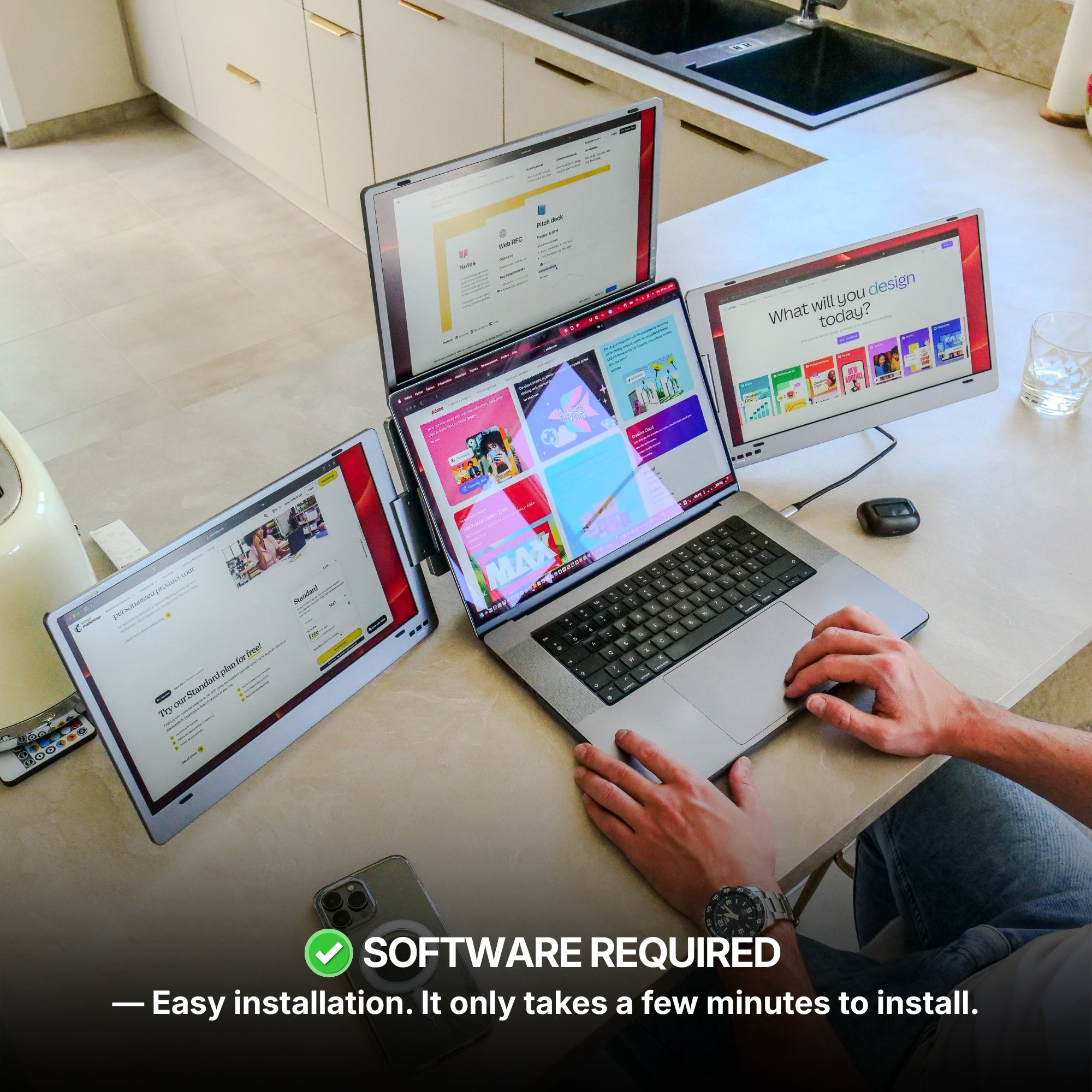
Set the centre screen slightly higher than the two wings and angle the wings in by 20 to 30 degrees. A spreadsheet row you read at an angle is a row you misread.
The software settings that make it usable
- Excel: View > New Window, then View > Arrange All > Vertical. This is the setting most people never find. It opens a second live window onto the same workbook, so you can keep the assumptions tab on the left panel and the output tab in front of you, both editable, both updating. Dragging a second copy of the file open does not do this.
- Excel: Formulas > Watch Window. Pin the six cells that actually matter and park the Watch Window on a wing. Then stop navigating to them.
- Excel: View > Freeze Panes > Freeze Top Row on every sheet you scroll. On a wide layout you lose your headers constantly.
- Windows 11: Settings > System > Display > select the centre panel > Make this my main display. Do this before anything else. Confirmation dialogs and new windows open on the main display — and a confirmation dialog that opens on a panel you are not looking at is the configuration trap in this job.
- Windows 11: Settings > System > Multitasking > turn on Snap windows and Snap layouts. Then Win + arrow keys to place windows without the mouse. For fixed zones per panel, PowerToys FancyZones: hold Shift while dragging a window to drop it into a zone.
- TradingView: build the multi-chart layout once, then Save layout and name it. Use price alerts (Alt+A) instead of watching a level with your eyes — a level you are watching is a level that owns your attention.
- Windows 11: Settings > System > Notifications. Turn banners off for chat apps. They live on the right panel so you see them when you choose to, not so they cover your model.
- macOS: System Settings > Desktop & Dock > turn on Displays have separate Spaces. Without it, taking one app full screen blacks out your other panels.
What these screens will not do for you
Three screens will not make you better at this. They reduce round trips, and that is the whole of the benefit. If you switch windows a handful of times an hour, you will not feel the difference. Count your own switching for a day before you spend anything.
Two limits worth knowing first. A software-driven extender builds its panels using your machine's processor and graphics, and that cost is real on a laptop already grinding through a heavy recalculation. If your workbook makes the fans spin, test before you commit.
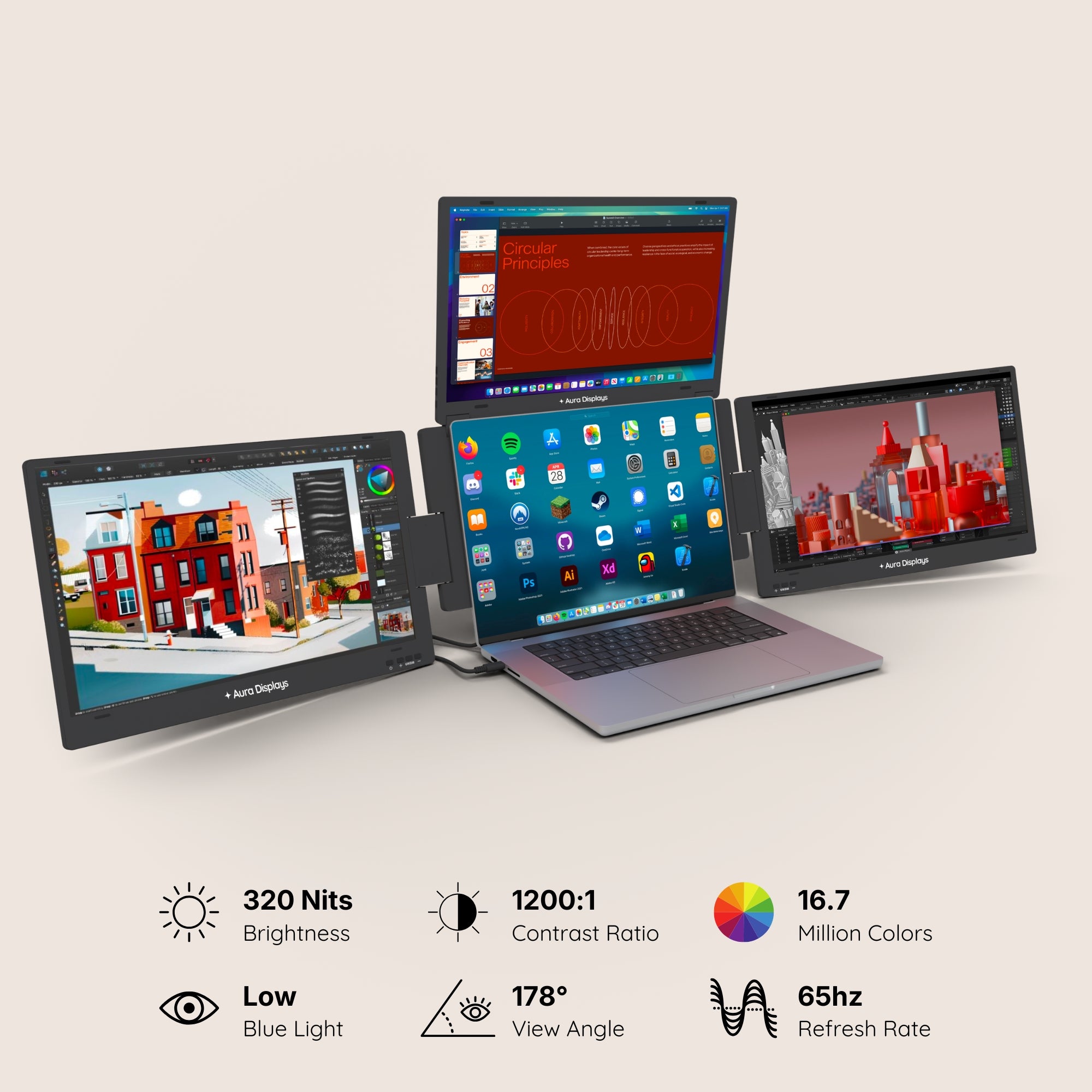
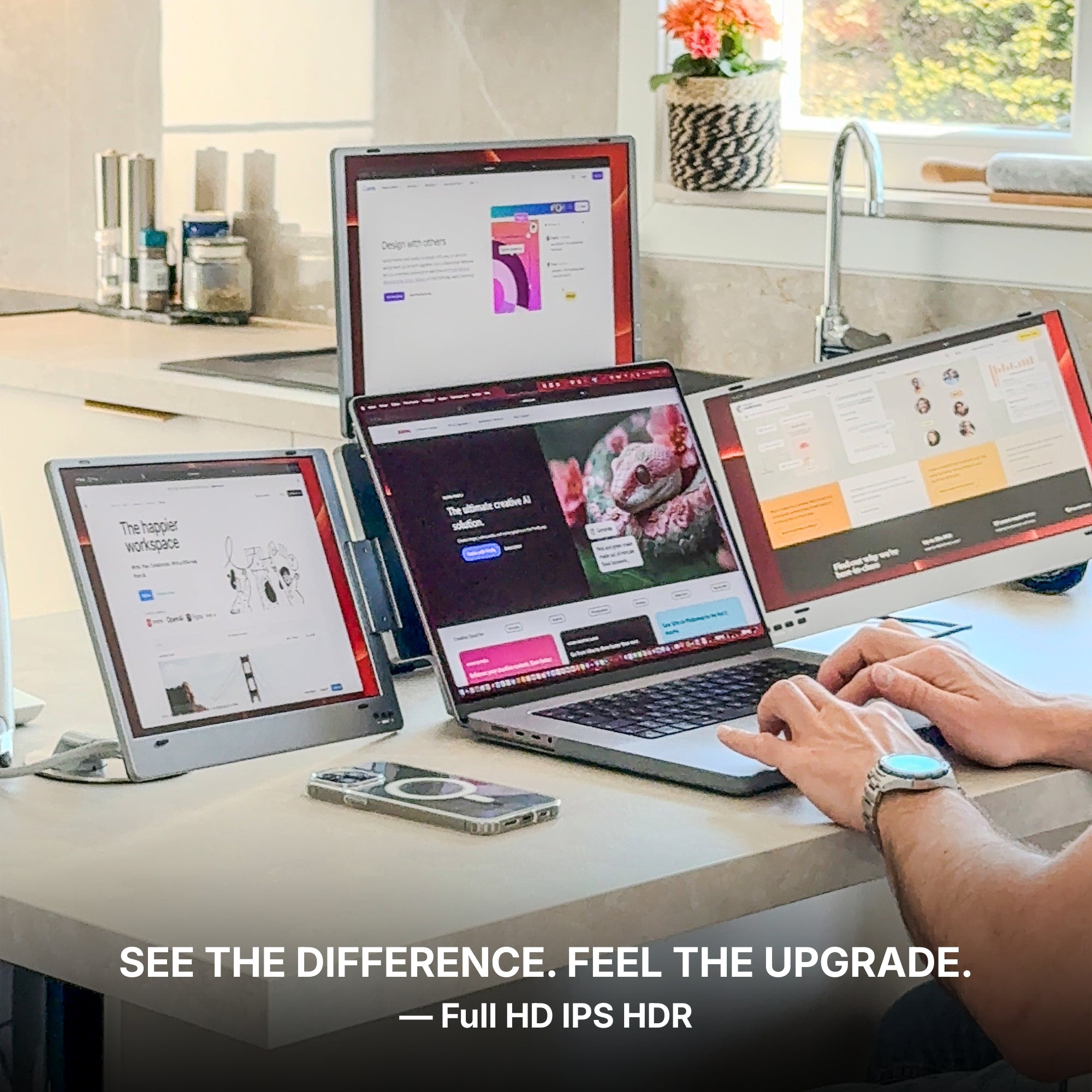
And resolution beats panel count for spreadsheet work, a trade our triple loses. Triple Boost Pro (Gen 2) is Full HD, 1920 × 1080, on every variant. Two QHD 2.5K panels show more rows than three Full HD ones. If your day is one very long sheet, buy pixels rather than panels.
And nothing in our catalogue declares a colour gamut. These panels lay work out; they are not for judging a colour.
The setup we recommend, and the cheaper one
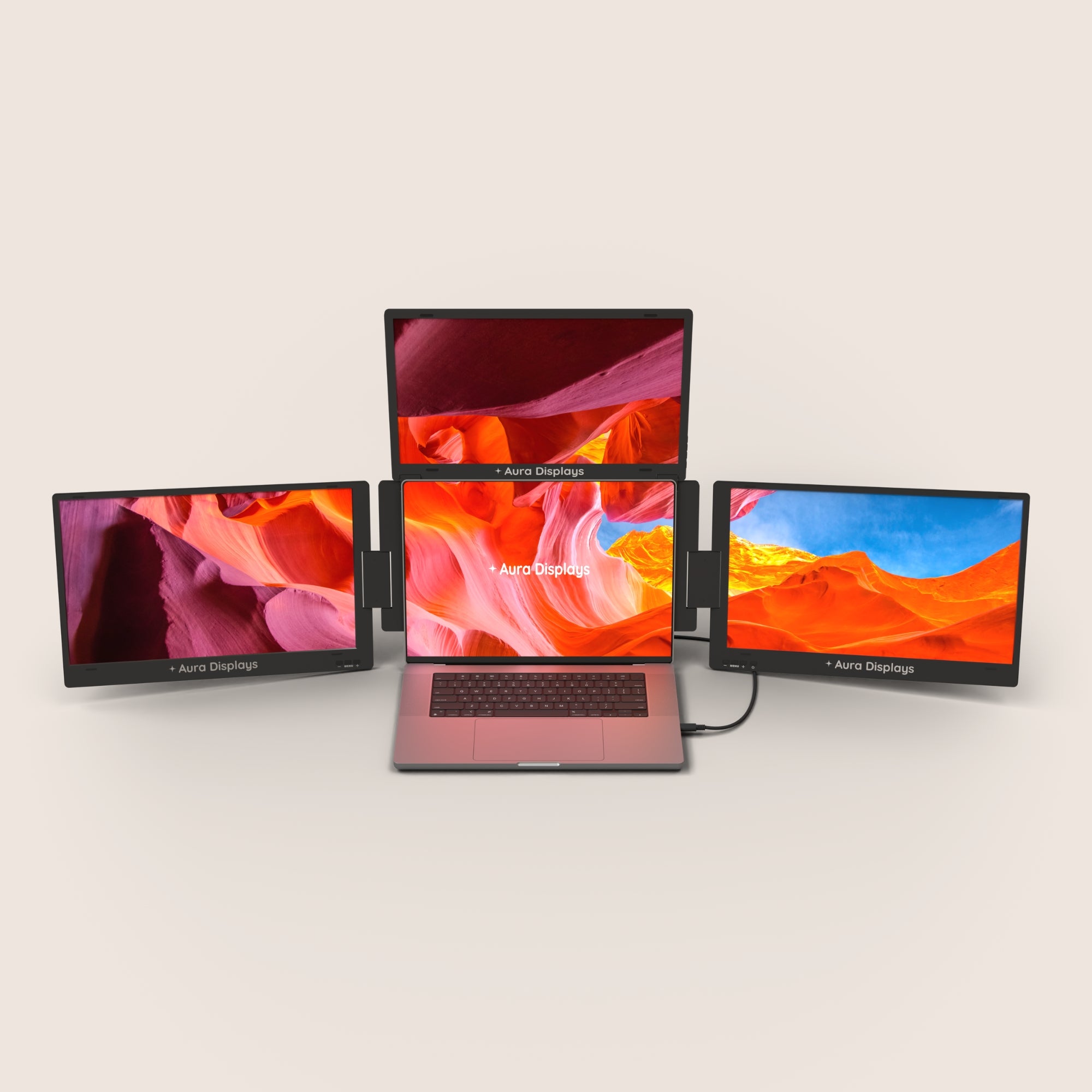
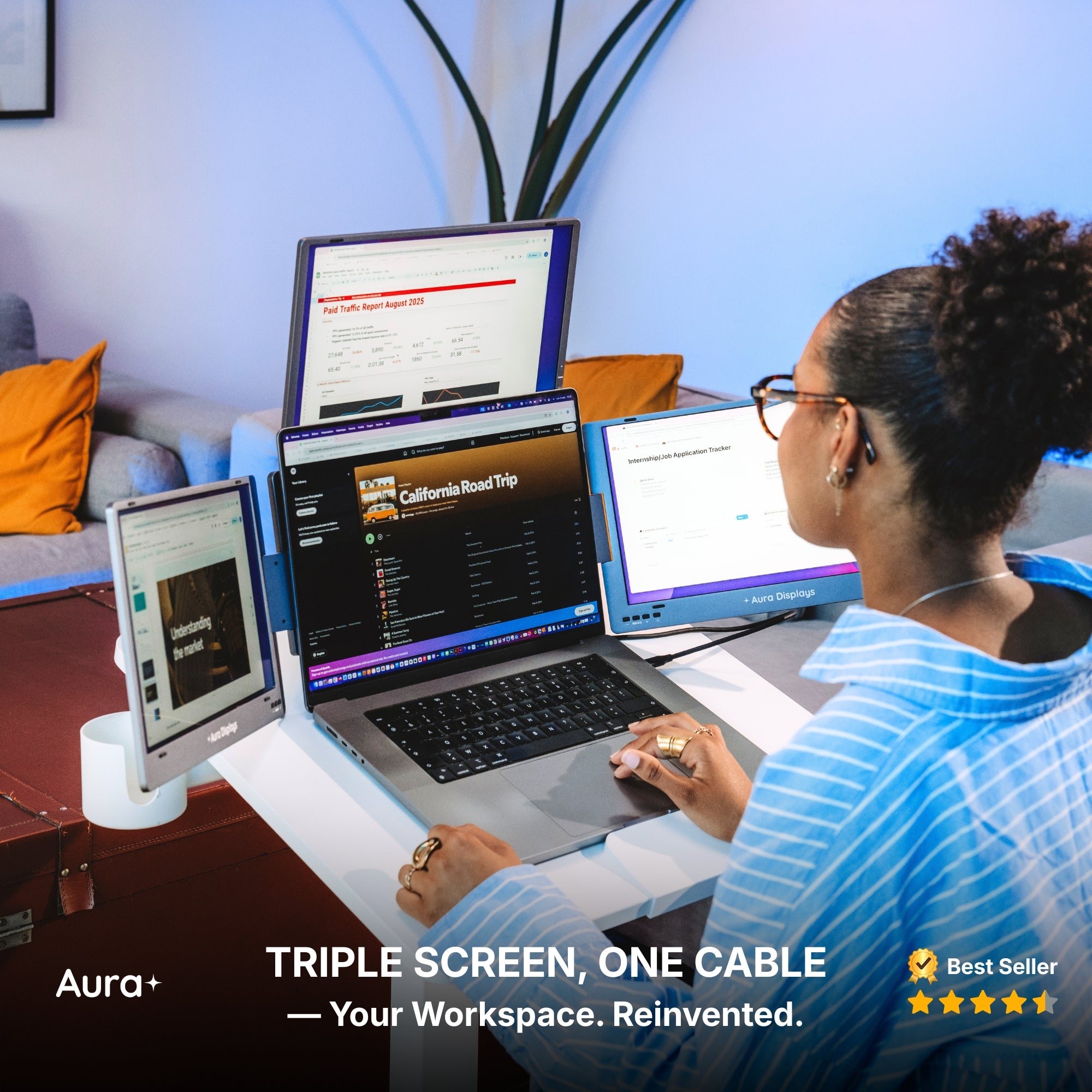
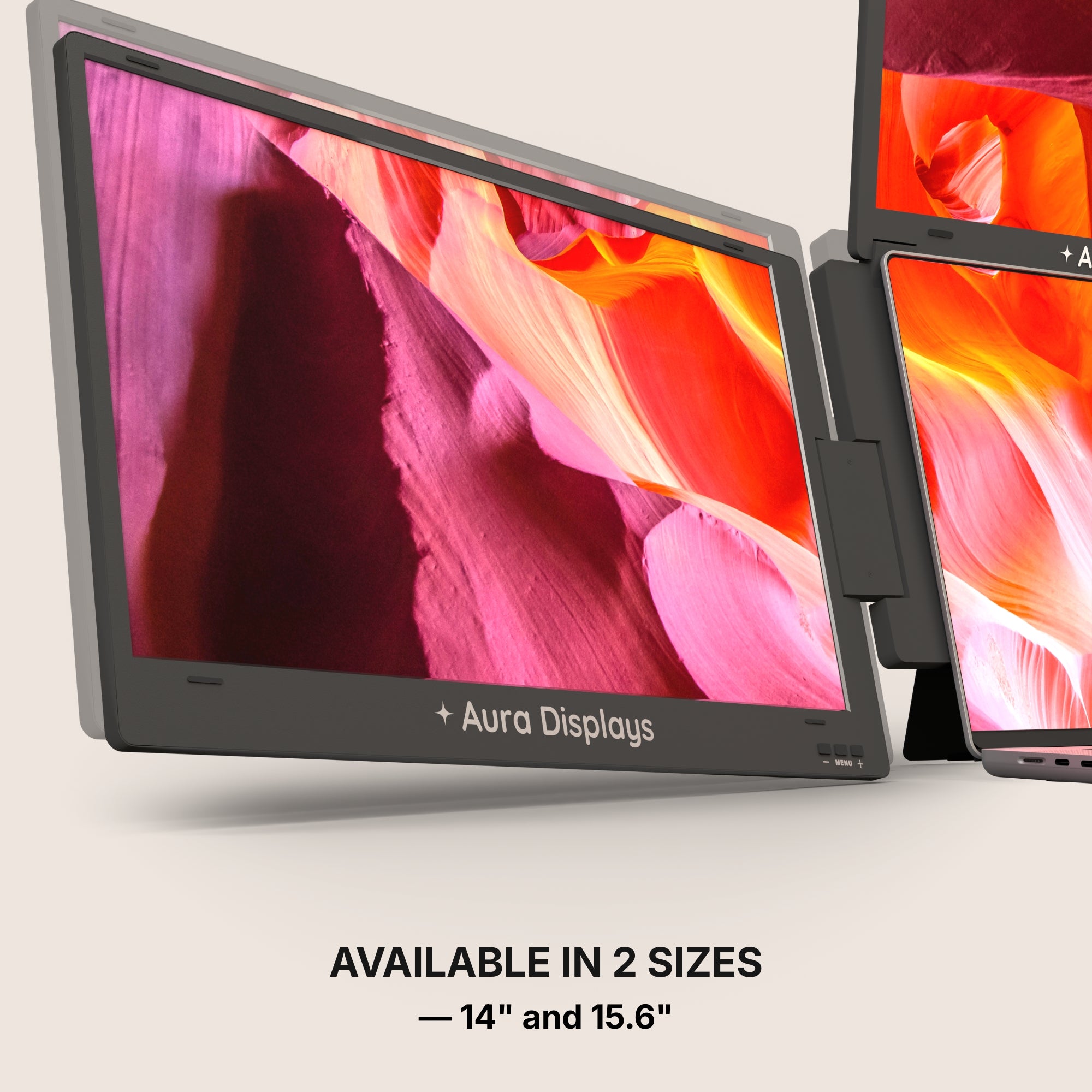
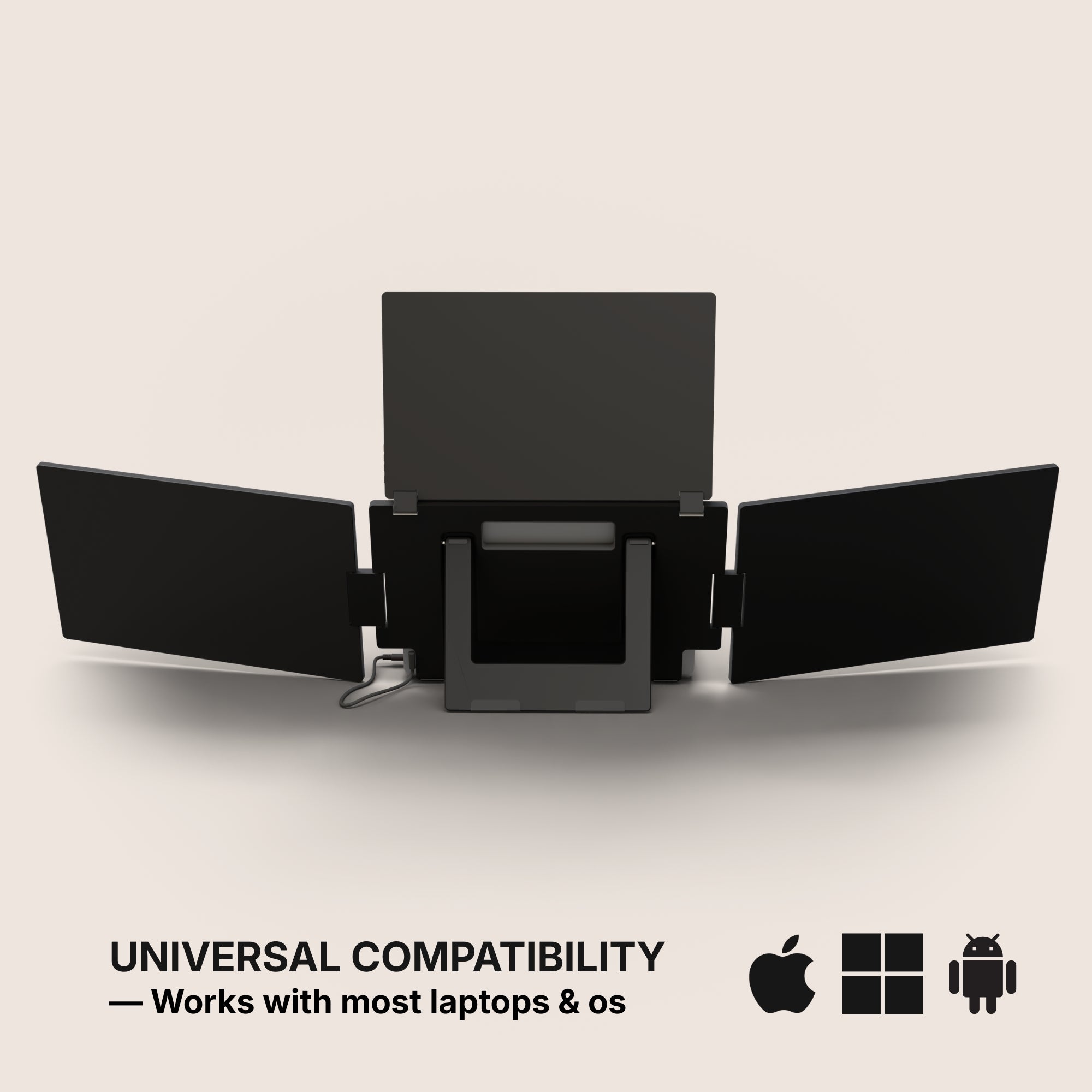
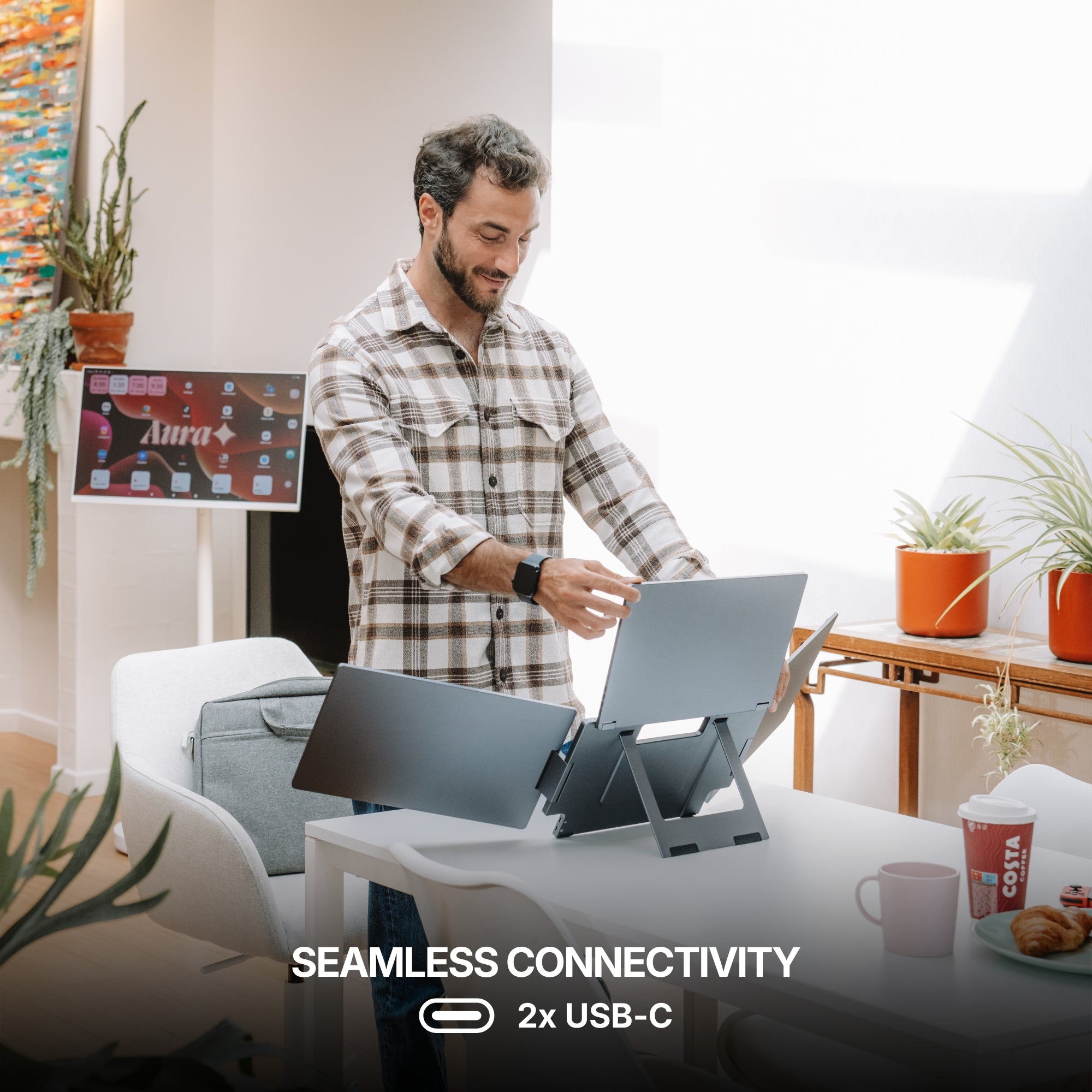
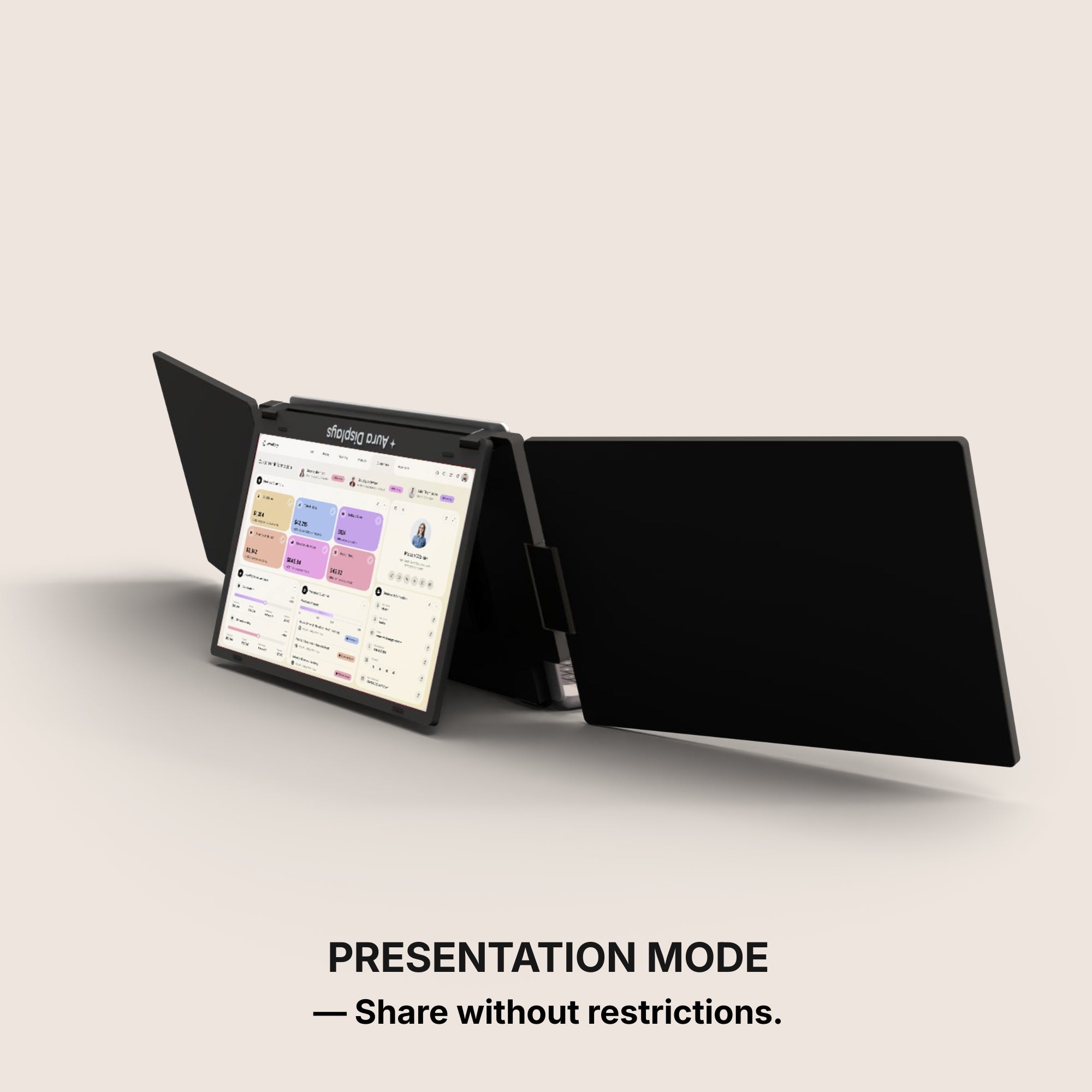
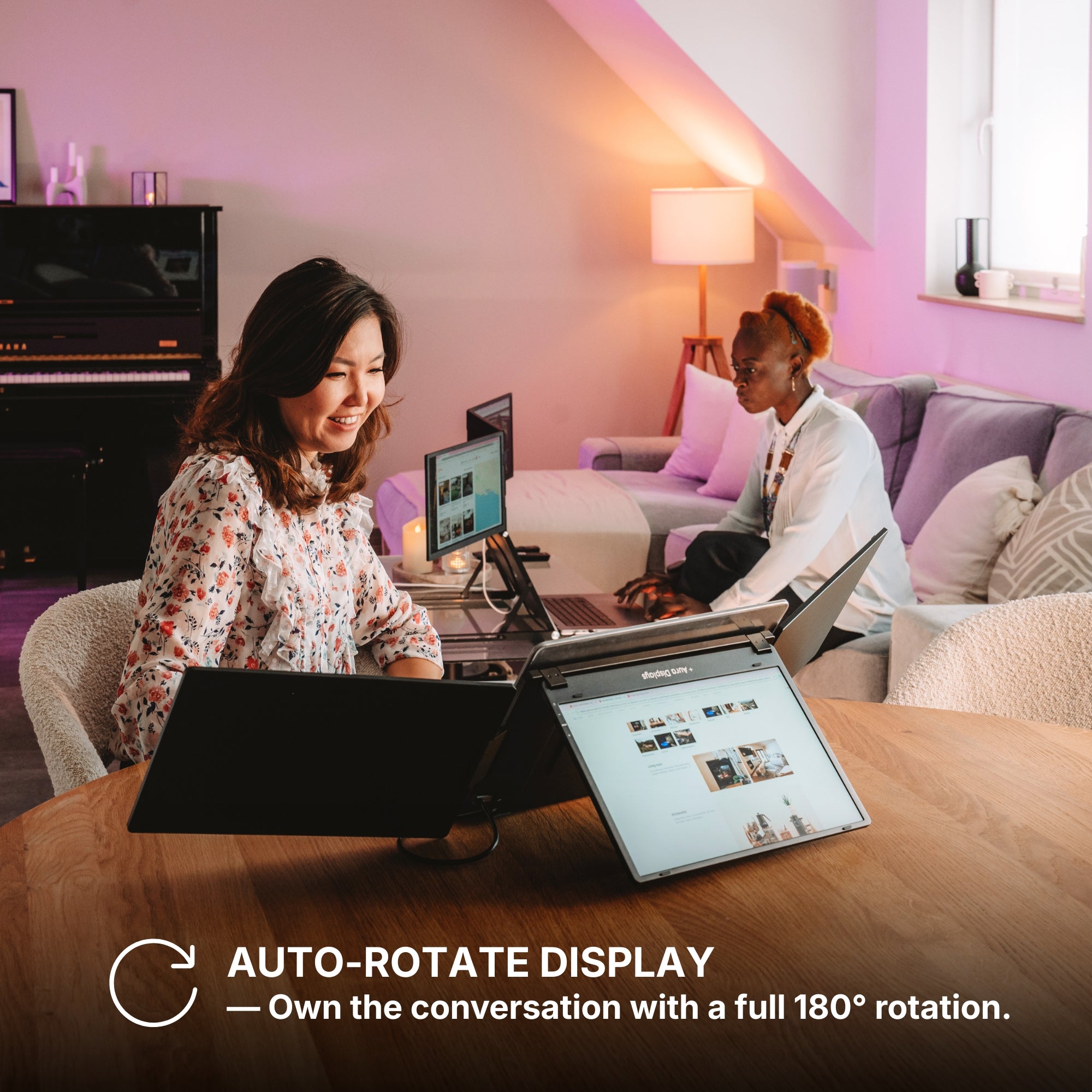
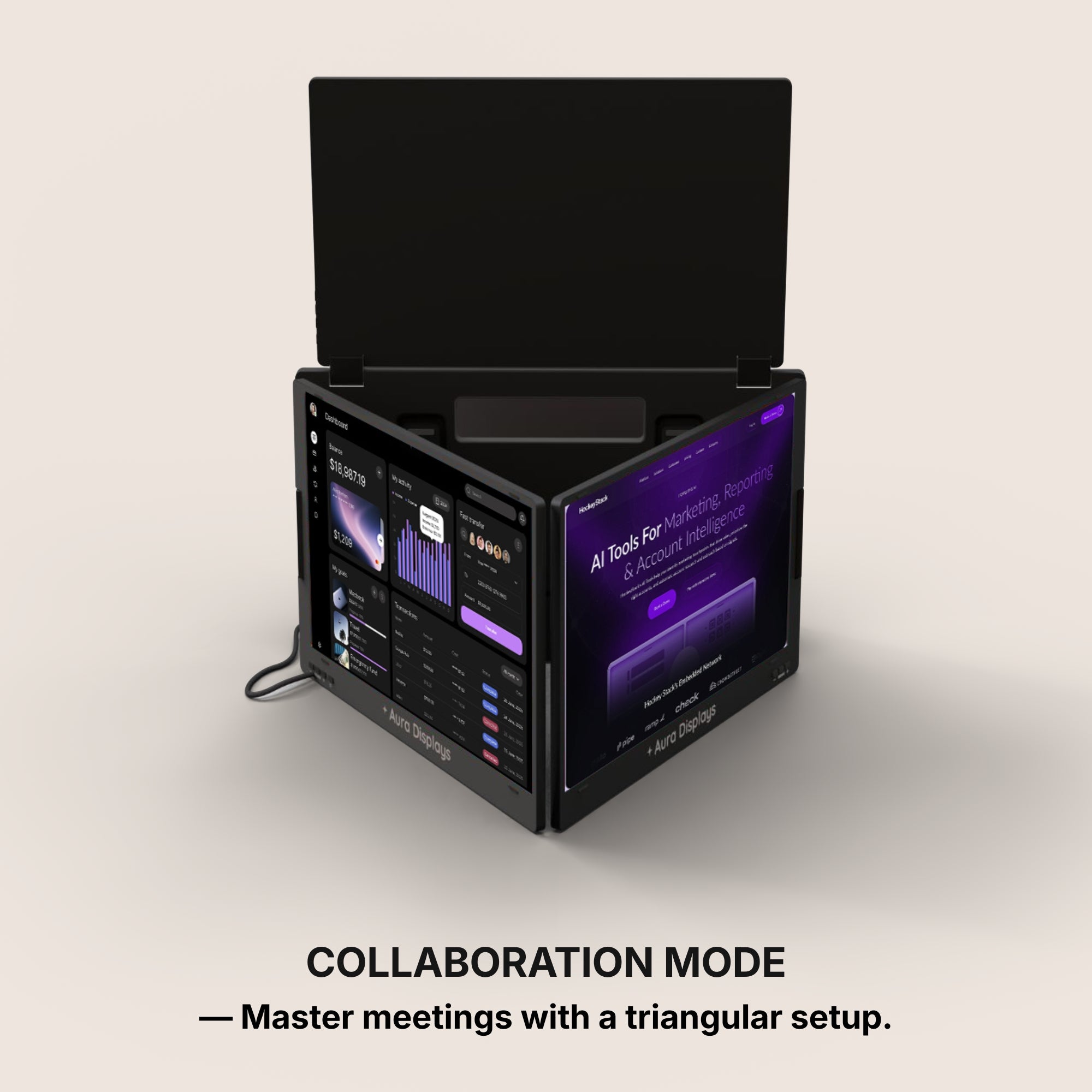
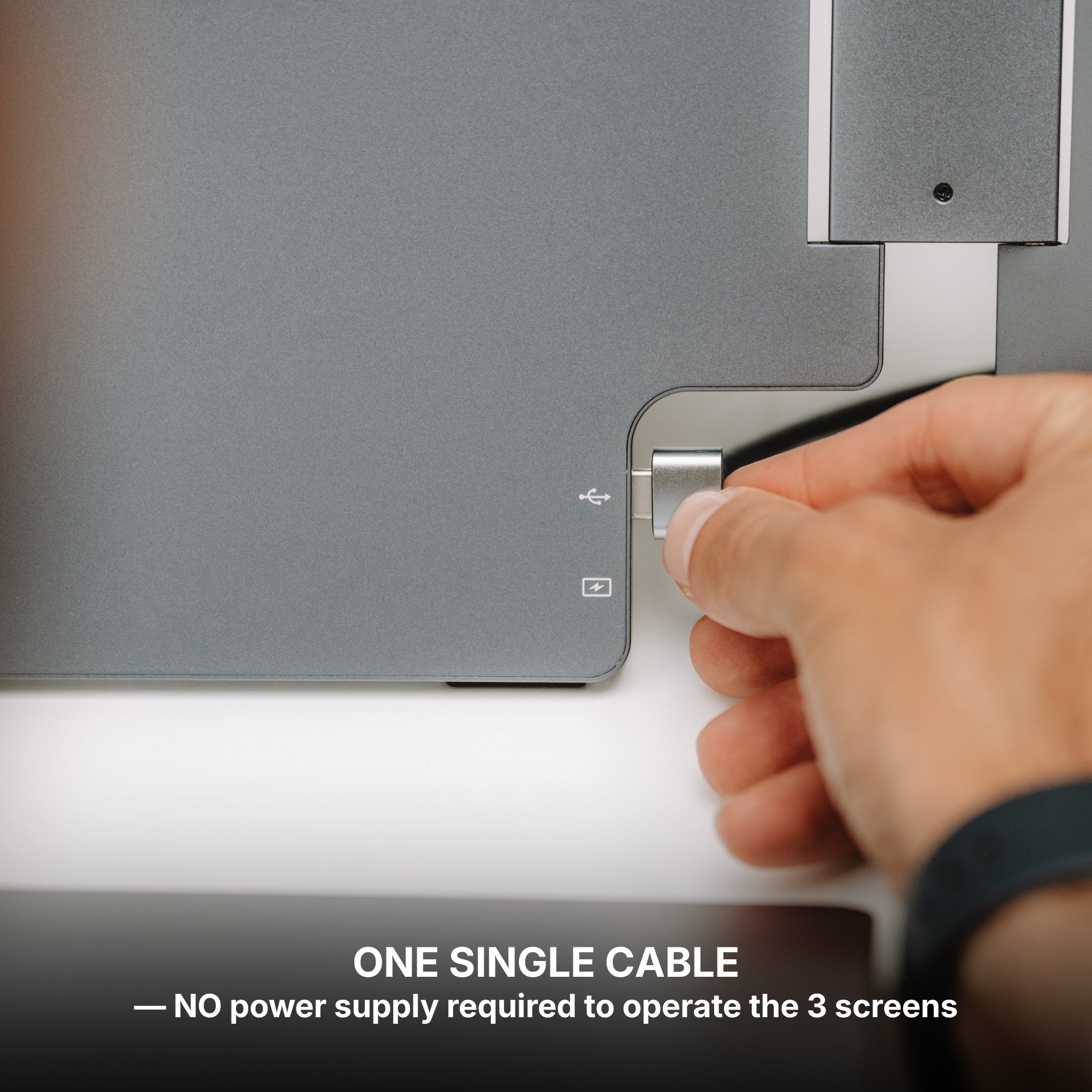
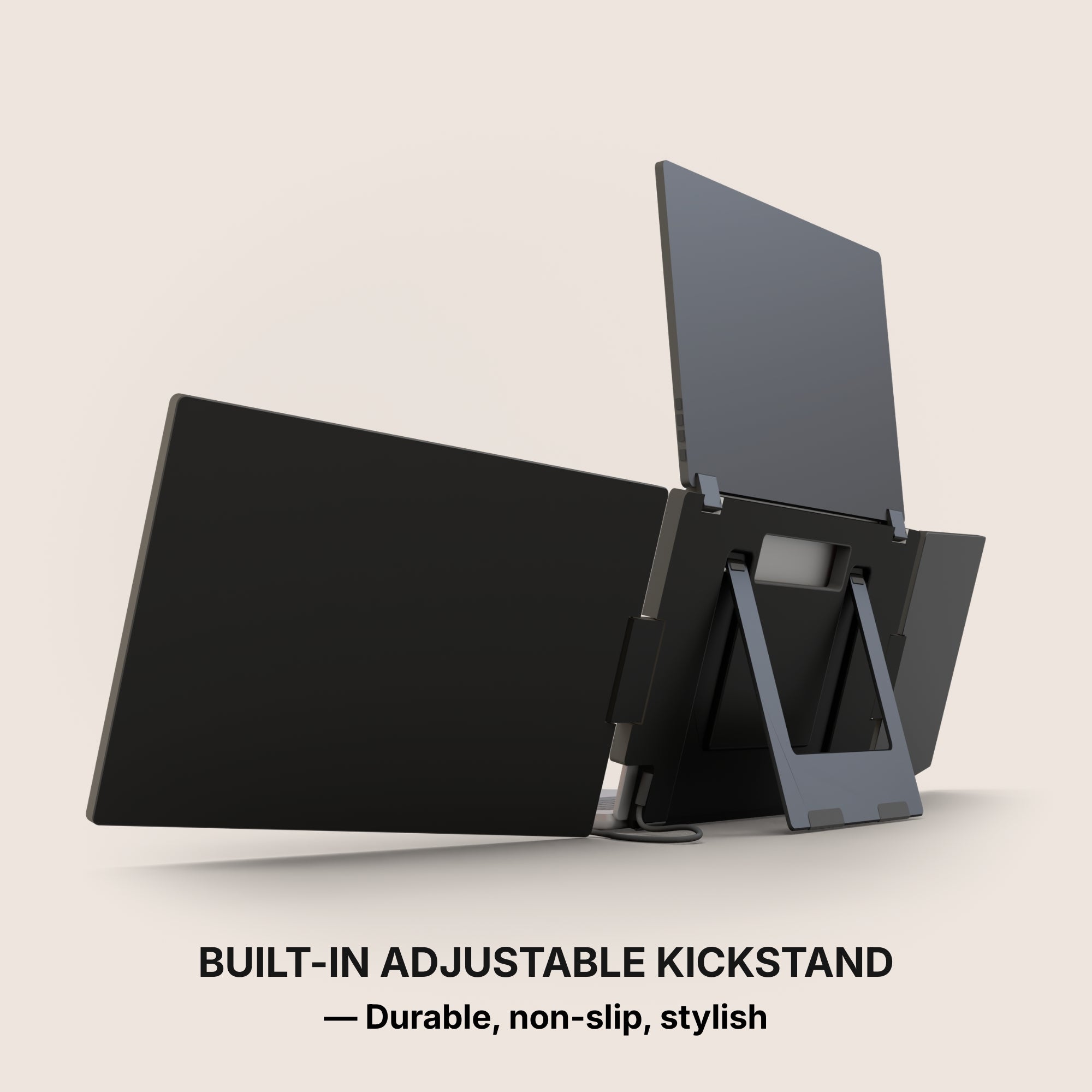
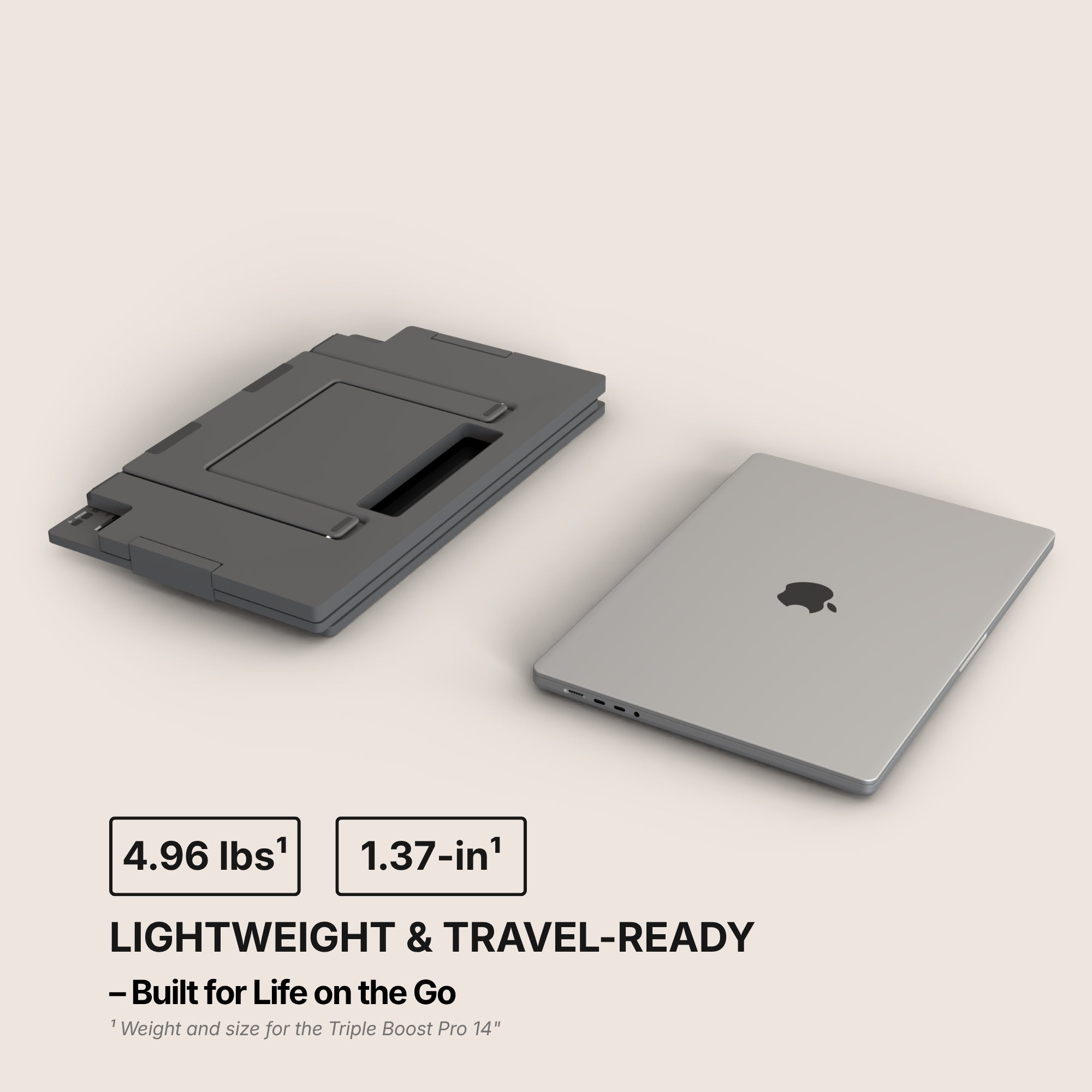
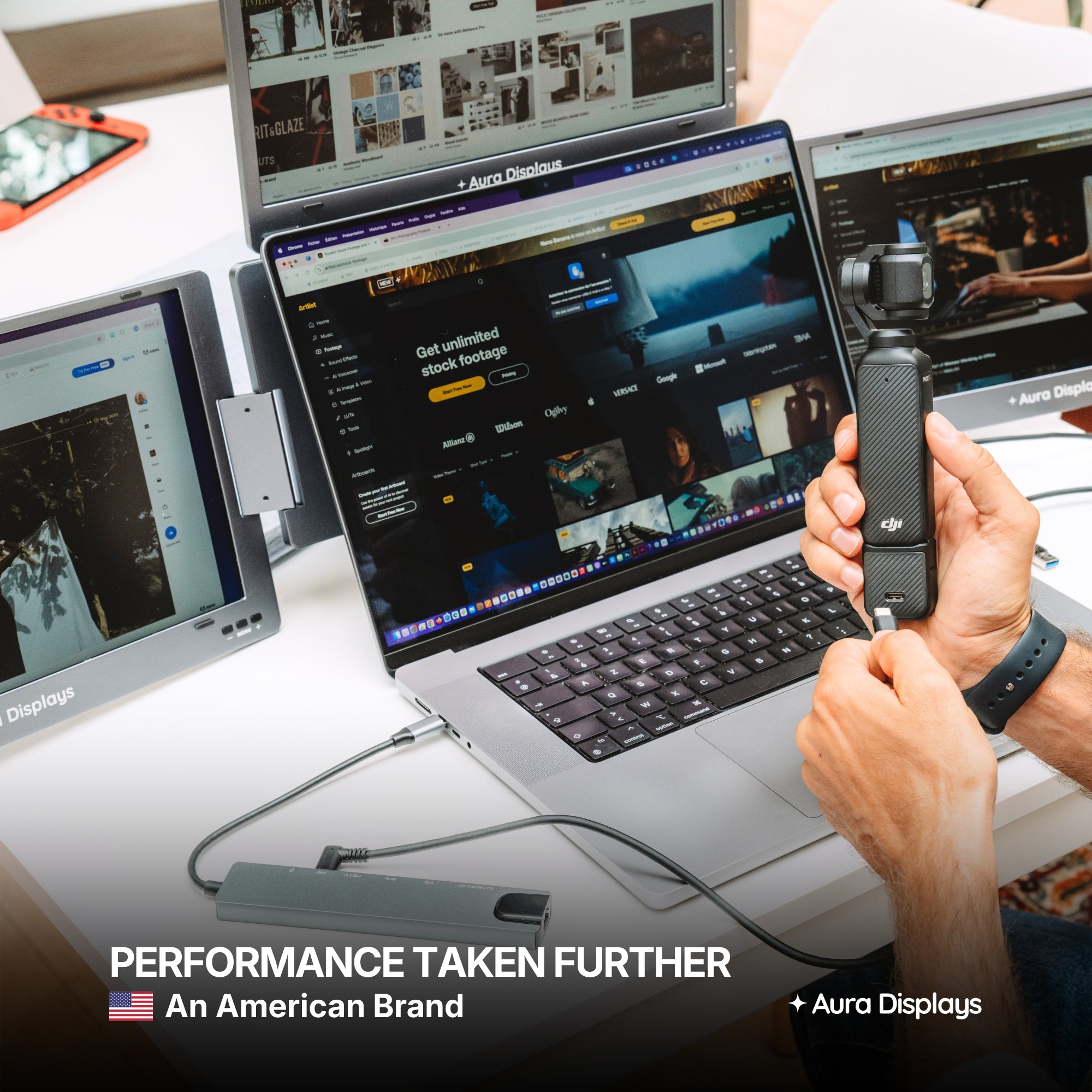
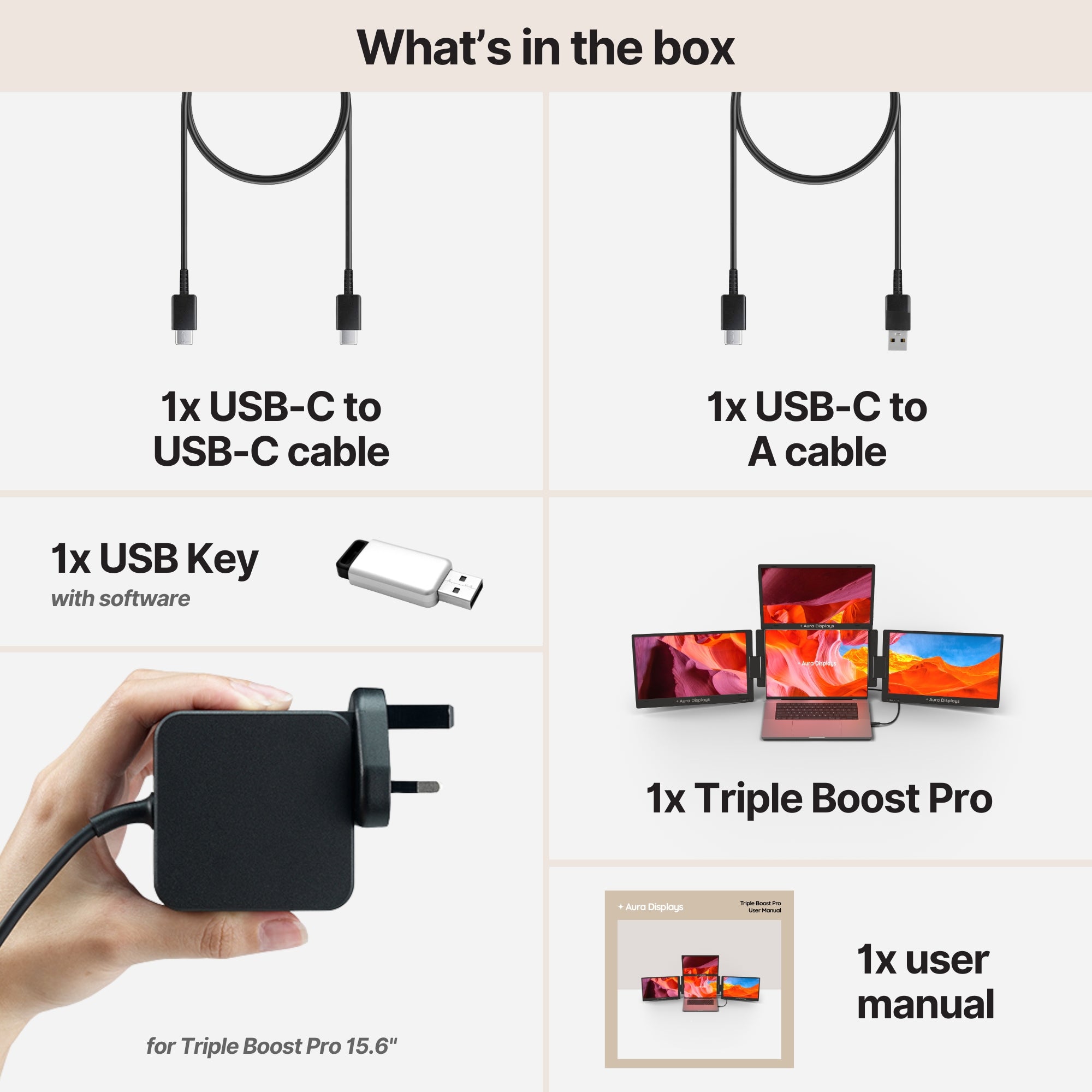
Our recommendation: Triple Boost Pro (Gen 2), from $499. Three working surfaces from one unit, 14" or 15.6", Full HD, 320 nits — the brightest tier we publish — over 2× USB-C. Rated 4.5 out of 5 across 263 reviews. Read the fields first: it is Software required, and the operating-systems list is macOS, Windows, Android and Ubuntu. On a locked-down work laptop this is the wrong product, and we would rather you knew now.
The cheaper option: Dual Play (Gen 3), from $369, up to QHD 2.5K at $419. Two panels, plug and play, 300 nits, 4× USB-C and 2× mini HDMI, rated 4.75 out of 5 across 593 reviews. For a lot of analysts this is the better buy outright, not the compromise: charts on one wing, model in front of you, feeds moved to a phone stand. And it works where you have no admin rights, which the triple does not.
Why we are not selling you more. Triple Go (Gen 3) reaches 18.5" per panel at $799 — a lot of money for a unit you will stop carrying within a month, and its resolution still tops out at 1920 × 1200. Three screens correctly assigned beats three bigger screens badly assigned.








Share: