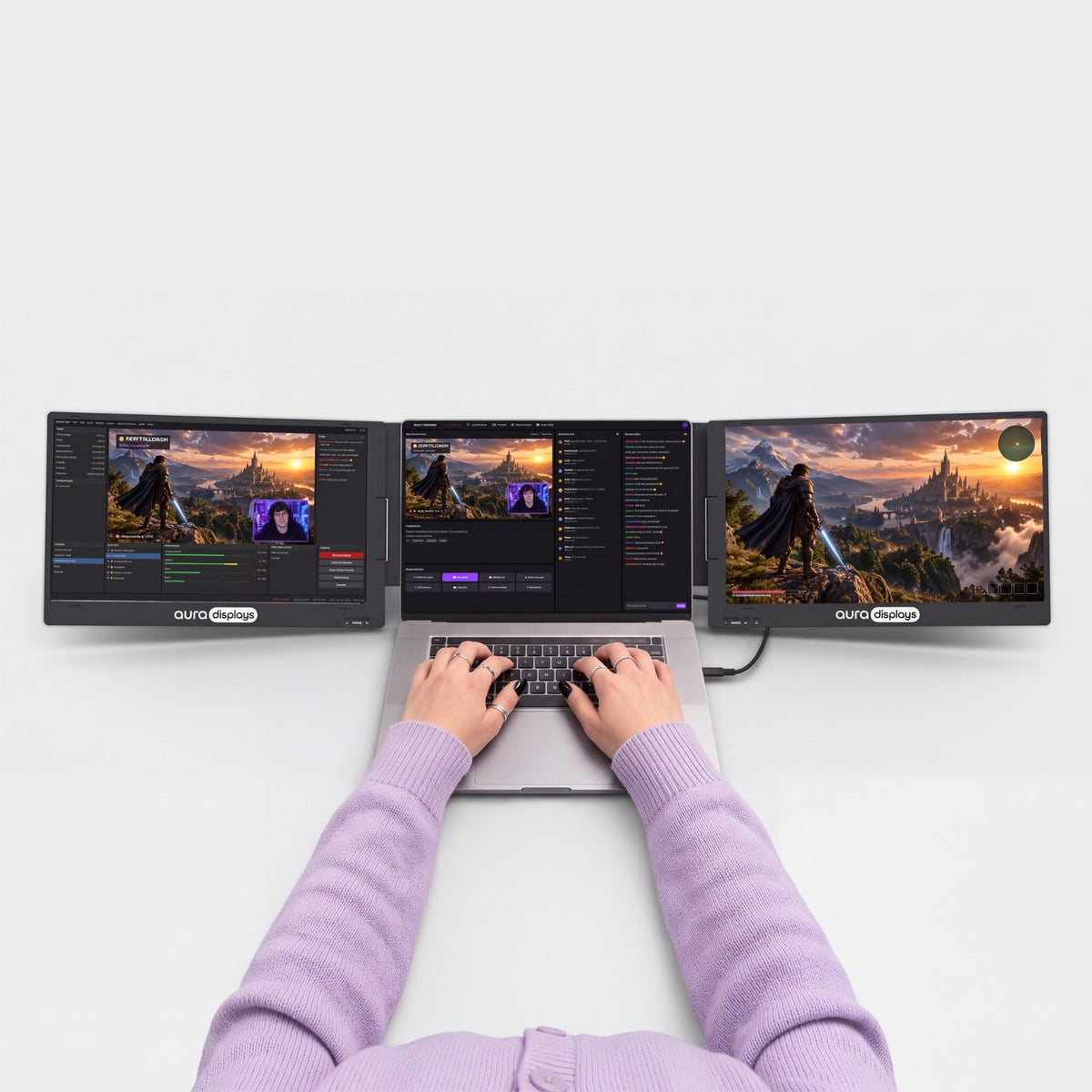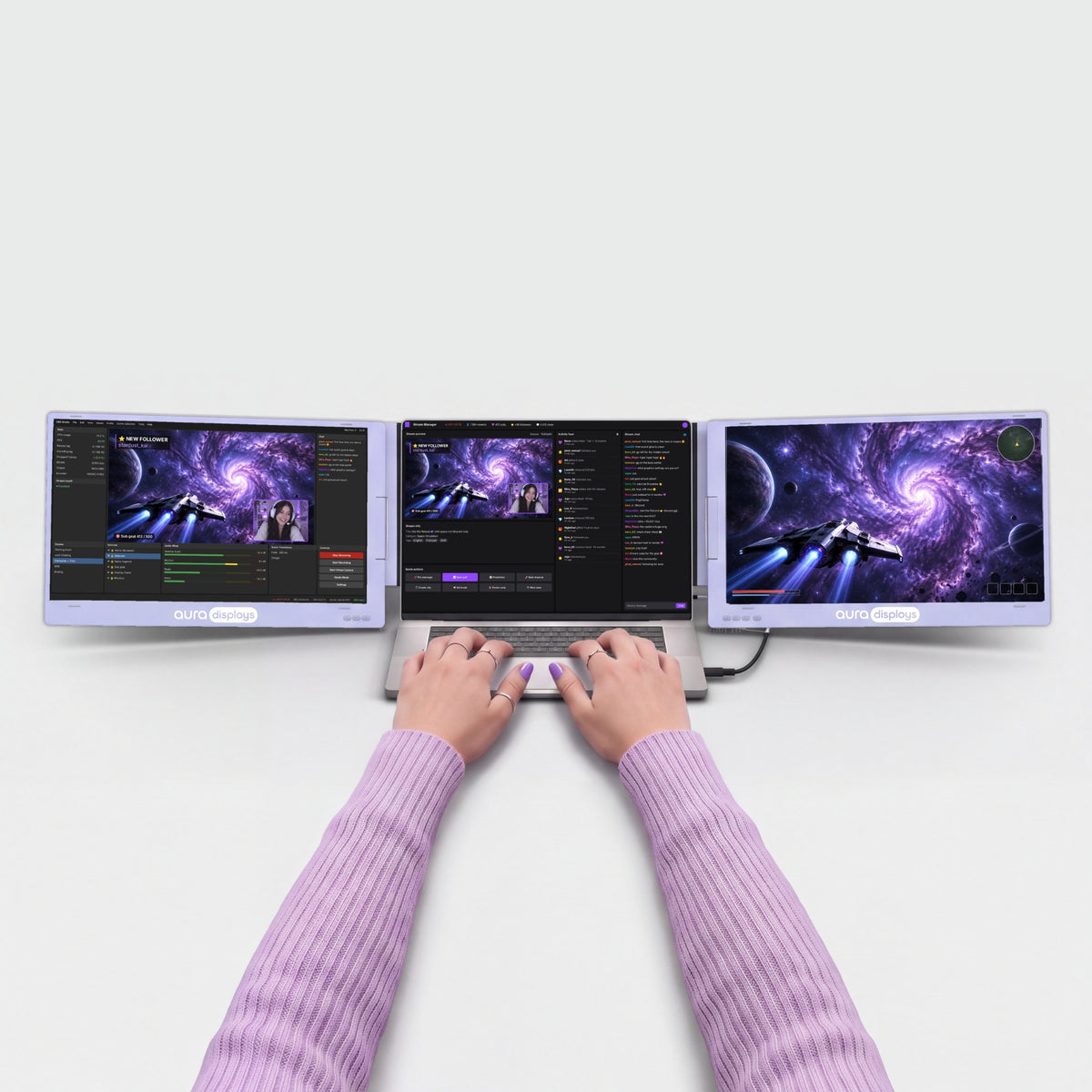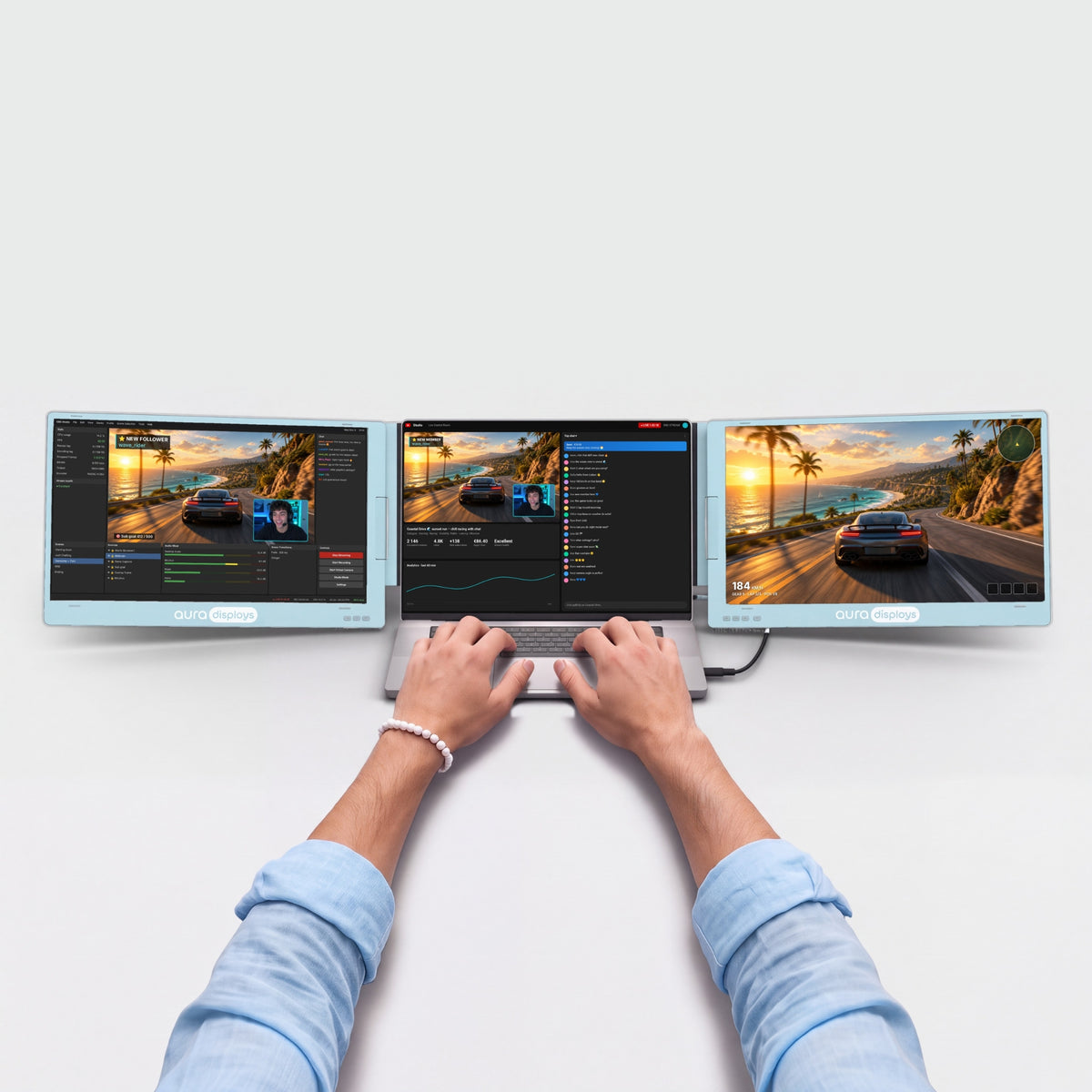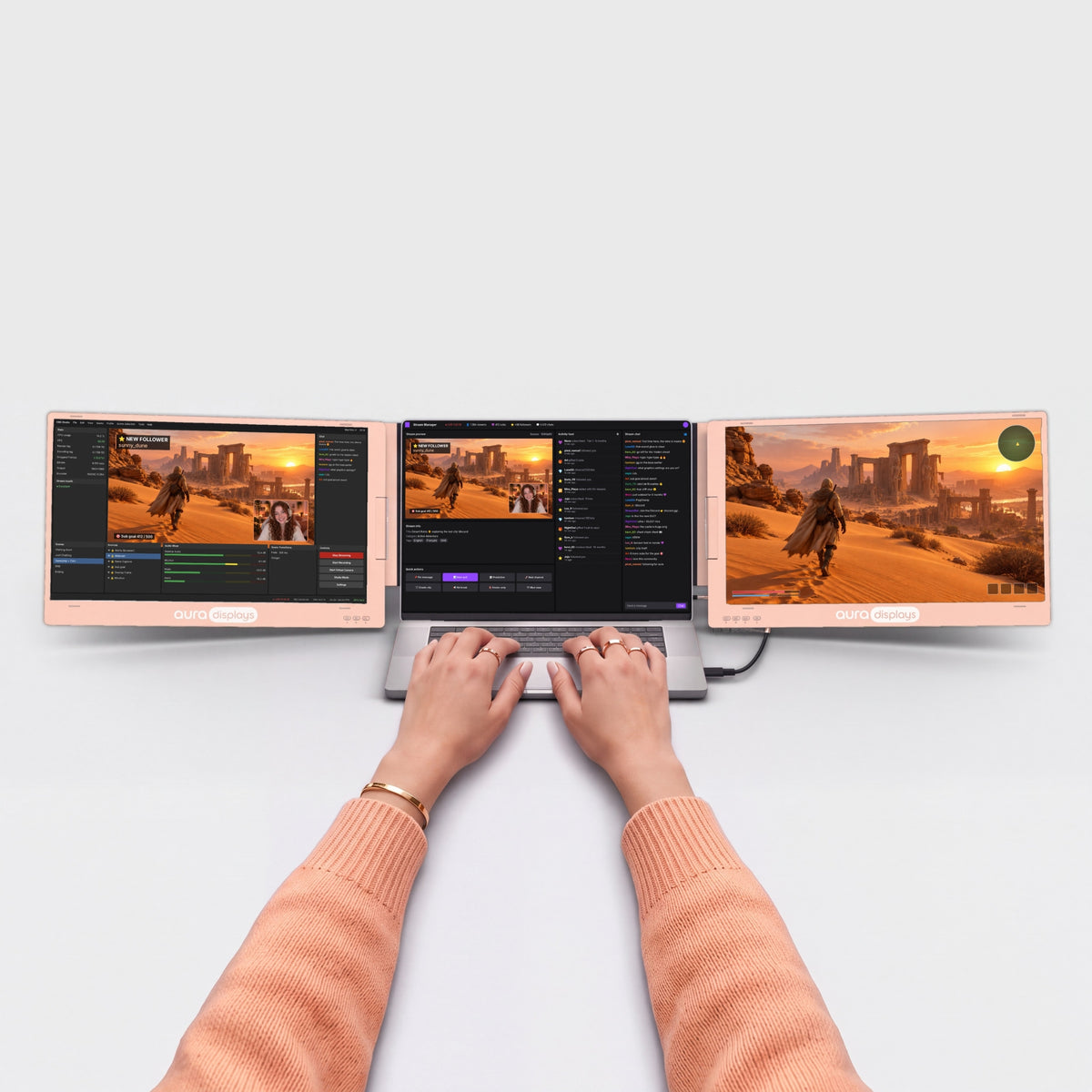



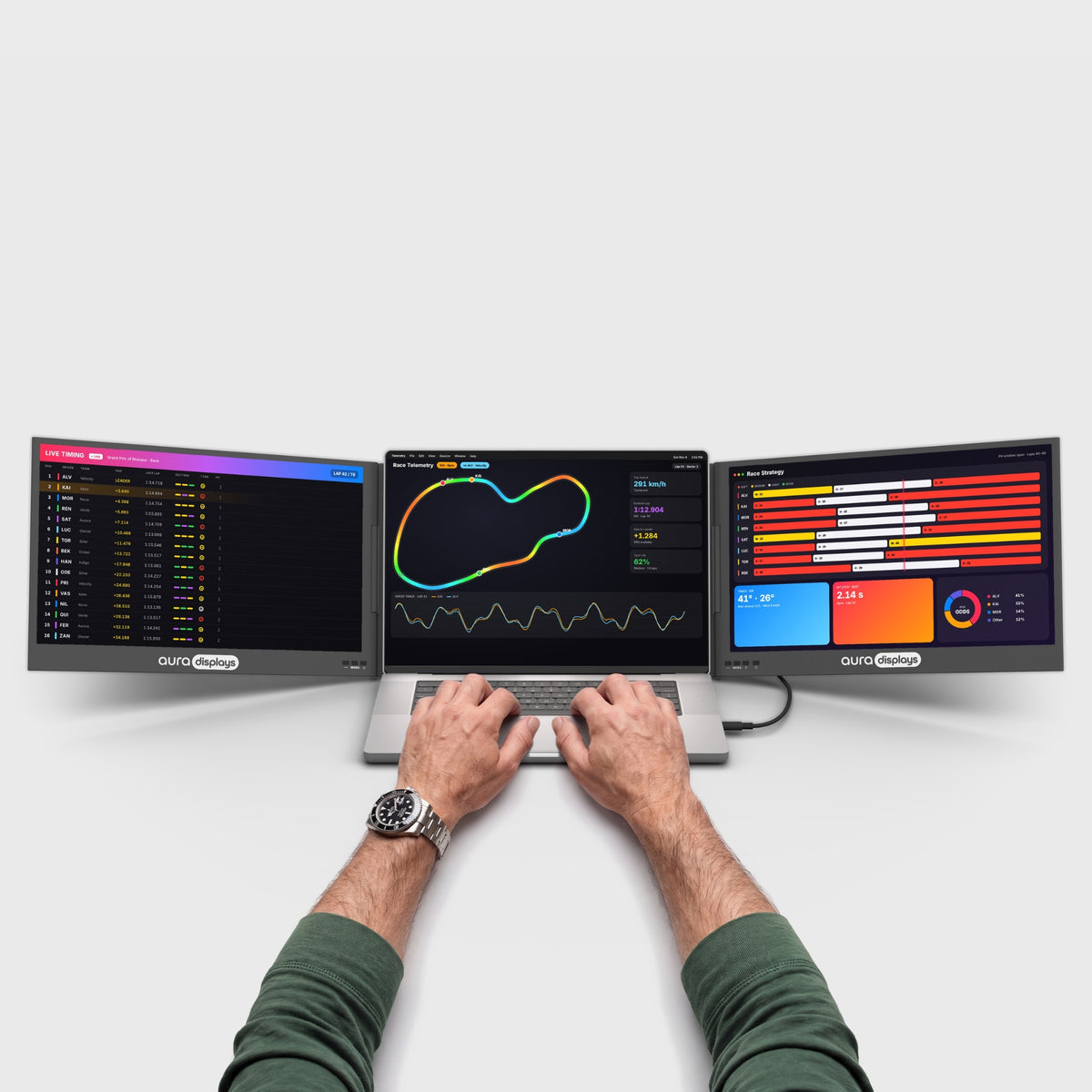

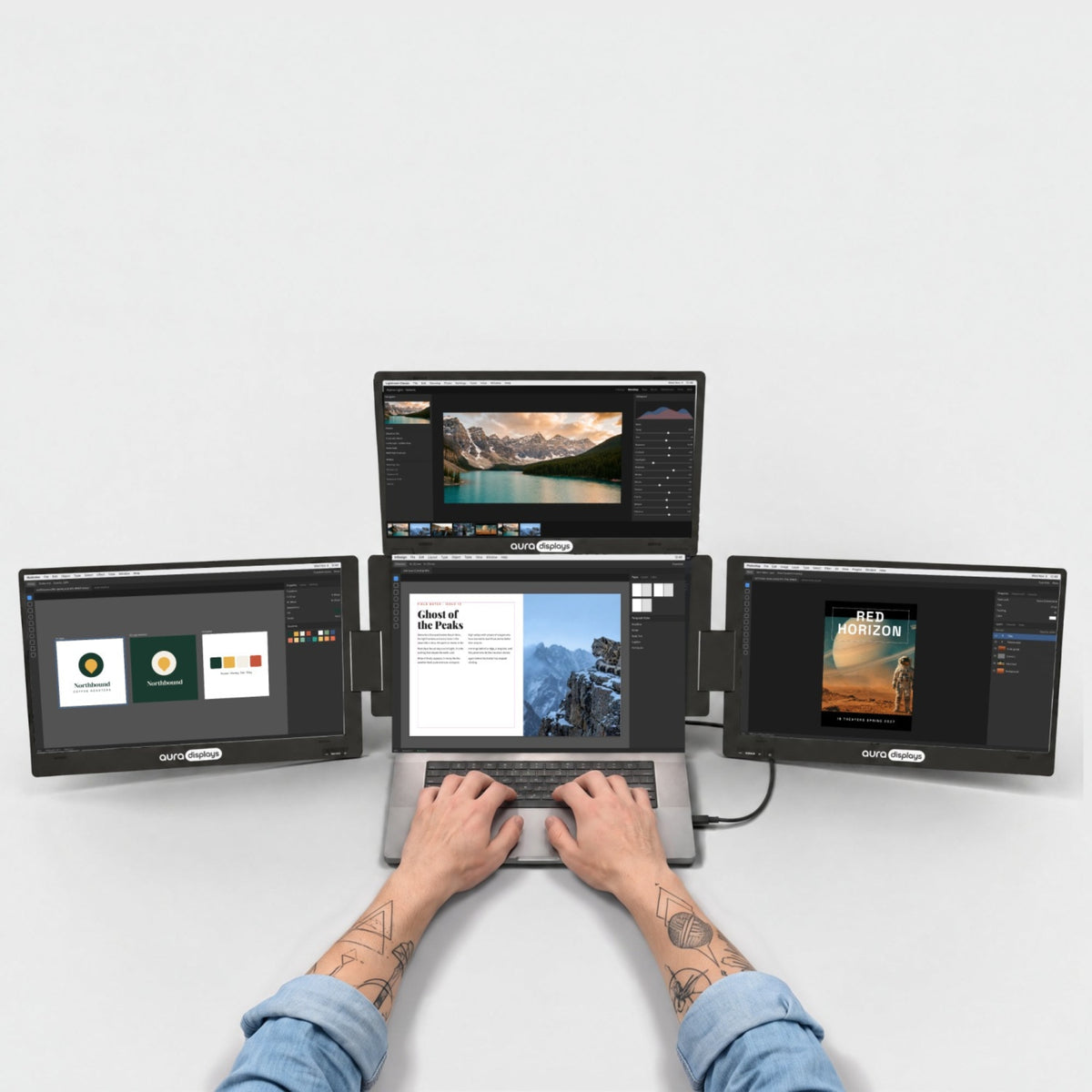

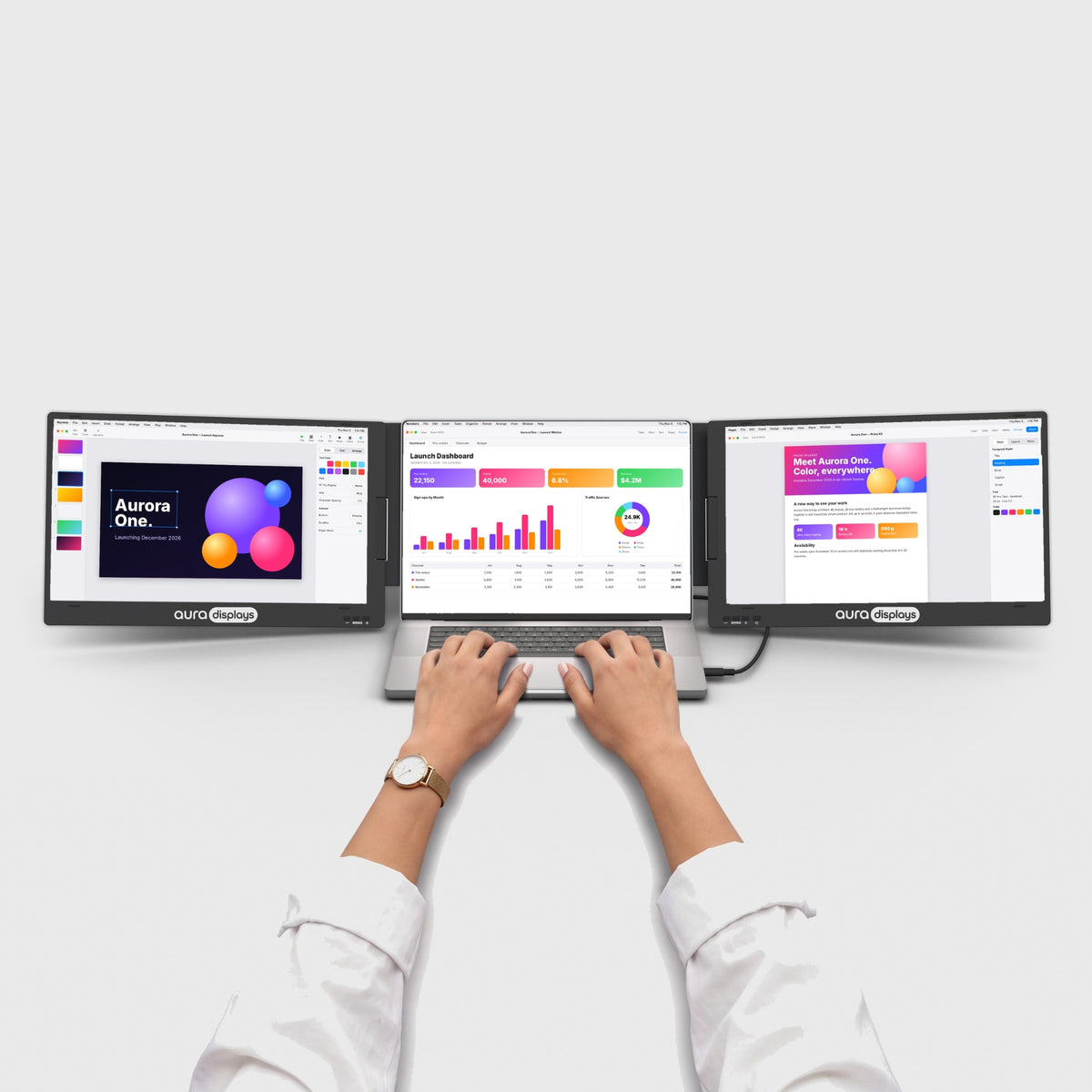

The question we get most this week is how many screens: one, two or three. The number is the easy part. What changes your day is how the panels sit — and every product page now publishes that in a field called Screen configurations. Here is what each value means.
Panoramic: the one everybody pictures
All the panels in a line, side by side. Nearly every multi-screen model we sell publishes it, and it is the right answer for anything you read left to right.
The thing to check is not the field, it is the table. Our attachable models publish Setup type: Beside laptop; the Go triples publish Around laptop. Panoramic needs width, and width is the one thing you cannot change after the box arrives. Measure the desk.
Portrait: turn a panel ninety degrees
Published on the Dual Go Max 15.6", the Dual Book Pro Max 16", the Dual Boost Pro Max 15.6", the Triple Boost Pro 14" and the Single Boost Pro Max 15.6".
Rotated, a 1920 x 1200 panel gives you 1200 pixels across and 1920 down: a full page of a document, a long file, a chat column or a log, with no scrolling. It is the biggest change you can make to a second screen, and it costs nothing:
- Windows: Settings > System > Display, select the panel, then Display orientation > Portrait.
- macOS: System Settings > Displays, select the panel, then Rotation > 90°.
One honest caveat. Rotated, you read a panel from further off its axis than you ever do in landscape, so the Viewing angle figure matters. Most of our panels publish 178°. The Single Boost Pro Max 15.6" publishes 170°. If portrait is going to be your main reading surface, read that field first.
Triangle: angle the panels inward
Published on the Dual Boost Pro Max 15.6" and the Triple Boost Pro 14". Instead of lying flat in a line, the panels toe in toward you. Two reasons to use it: a table too narrow for panoramic, and a window you want to angle away from. Our panels are IPS and matte, several add anti-glare, but geometry beats coating every time.
180°: hand someone the screen without handing over the laptop
Published on almost every multi-screen model. One panel flips to face the person opposite you. If you have ever turned your whole laptop round on a kitchen table so somebody could see something, this is the field that fixes it.
Use with only some screens open
Published on the Dual Boost Pro Max 15.6" and the Triple Boost Pro 14". This is the quiet answer to "how many screens do I need". A model publishing this value runs with one panel open on a cramped table and at full width at home, with no settings to change. If you are torn between two and three, look for this value rather than a bigger number.
Display modes is a different field. Read it too.
Every model publishes Extended and Mirrored. The Dual Book Pro Max 16" also publishes Combined (one big screen), which is not panoramic: it is one desktop across both panels rather than two.
Then read the Before you buy note on the page itself. On that model it says a MacBook with a standard M1, M2 or M3 chip — not Pro, not Max — can mirror or combine the two screens but cannot extend them as two separate displays. No arrangement gets around that.
Two things the configurations field will not tell you
It does not change what your laptop can drive. The Boost and Triple ranges publish Setup: Driver required. The software is free and quick, but on a work or school machine your IT team may have to approve it, and some triples also publish power adapter required. The Plug & Play part of the range installs nothing at all.
It does not fix the light. Our panels publish between 250 and 280 nits. No arrangement wins against a bright window behind the screen. Move the desk or close the blind.
Where we would start
Our recommendation: Dual Boost Pro Max 15.6" (Full HD), from $399. It is one of only two models in our catalogue publishing all five values at once — Panoramic, Portrait, Triangle, 180° and Use with only some screens open — and it is the cheaper of the two. Two 15.6" panels at 1920 x 1080, 260 nits, IPS with matte and anti-glare, a kickstand adjustable to 90°, one USB-C cable. Its setup field reads Driver required, so check with IT before ordering for a managed machine. Rated 4.89 out of 5 across 328 reviews.
The cheaper option: Dual Go Max 15.6" (Full HD), $329. Plug & Play, nothing to install, and it still publishes Panoramic, Portrait and 180°. Two cables instead of one, one per screen. Its own page says the shell scratches more easily than our other models, so keep it in a sleeve. Rated 4.78 out of 5 across 193 reviews.
Why we are not selling you more. The Triple Go Studio 18.5", from $609, is three big panels — and its Screen configurations field publishes only Panoramic and 180°. It is Driver required and needs a power adapter. You would pay for size and lose arrangements. Read the field before the price.