



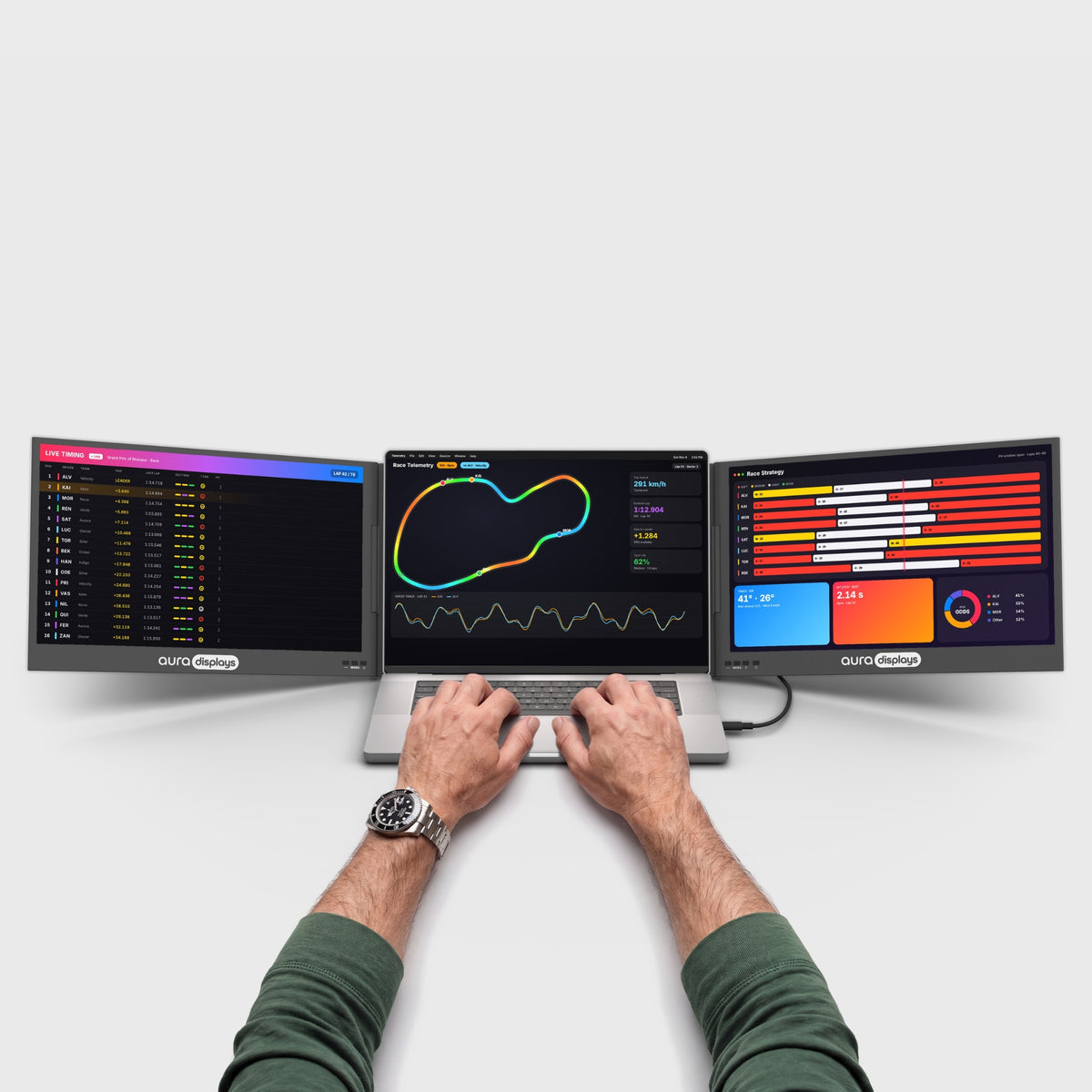

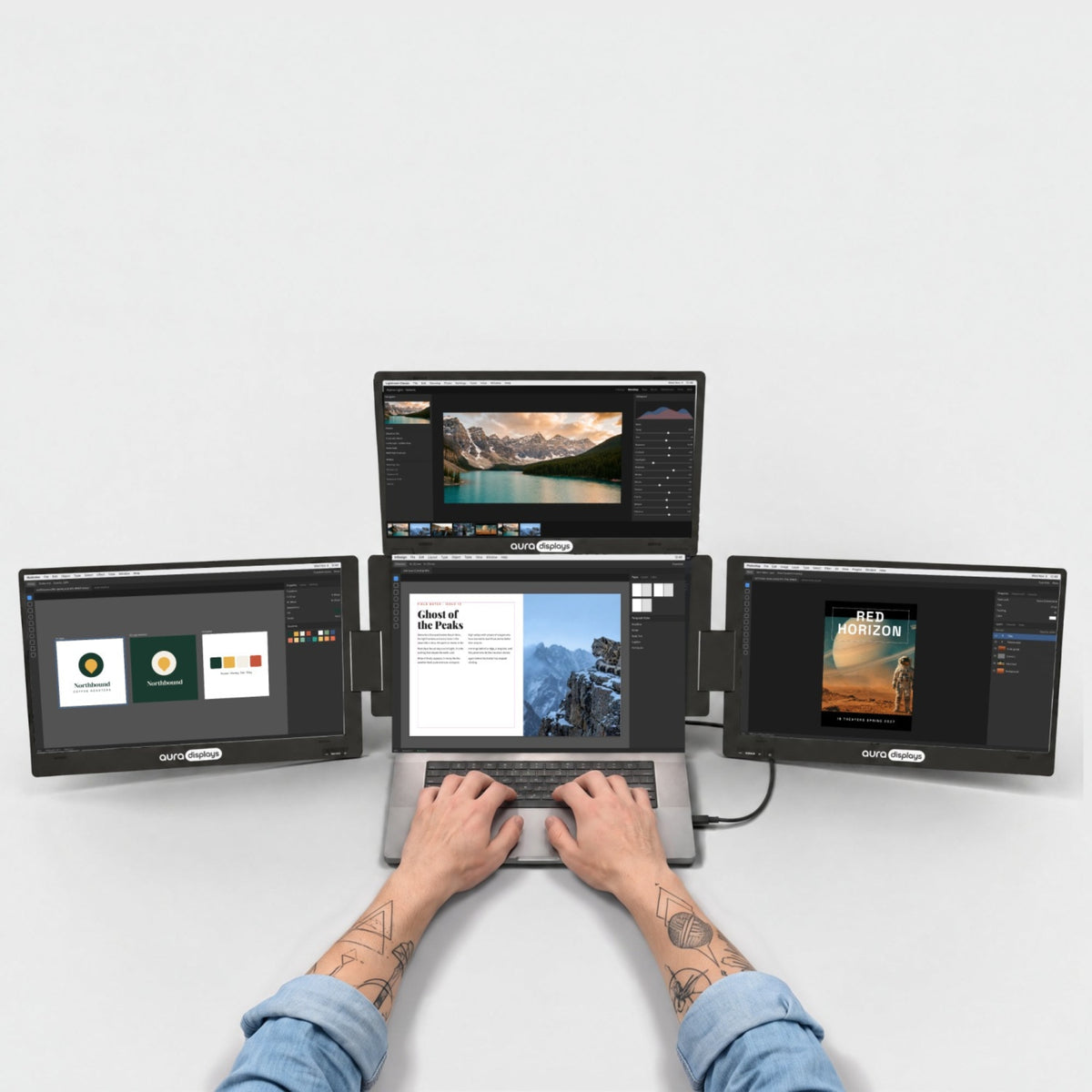

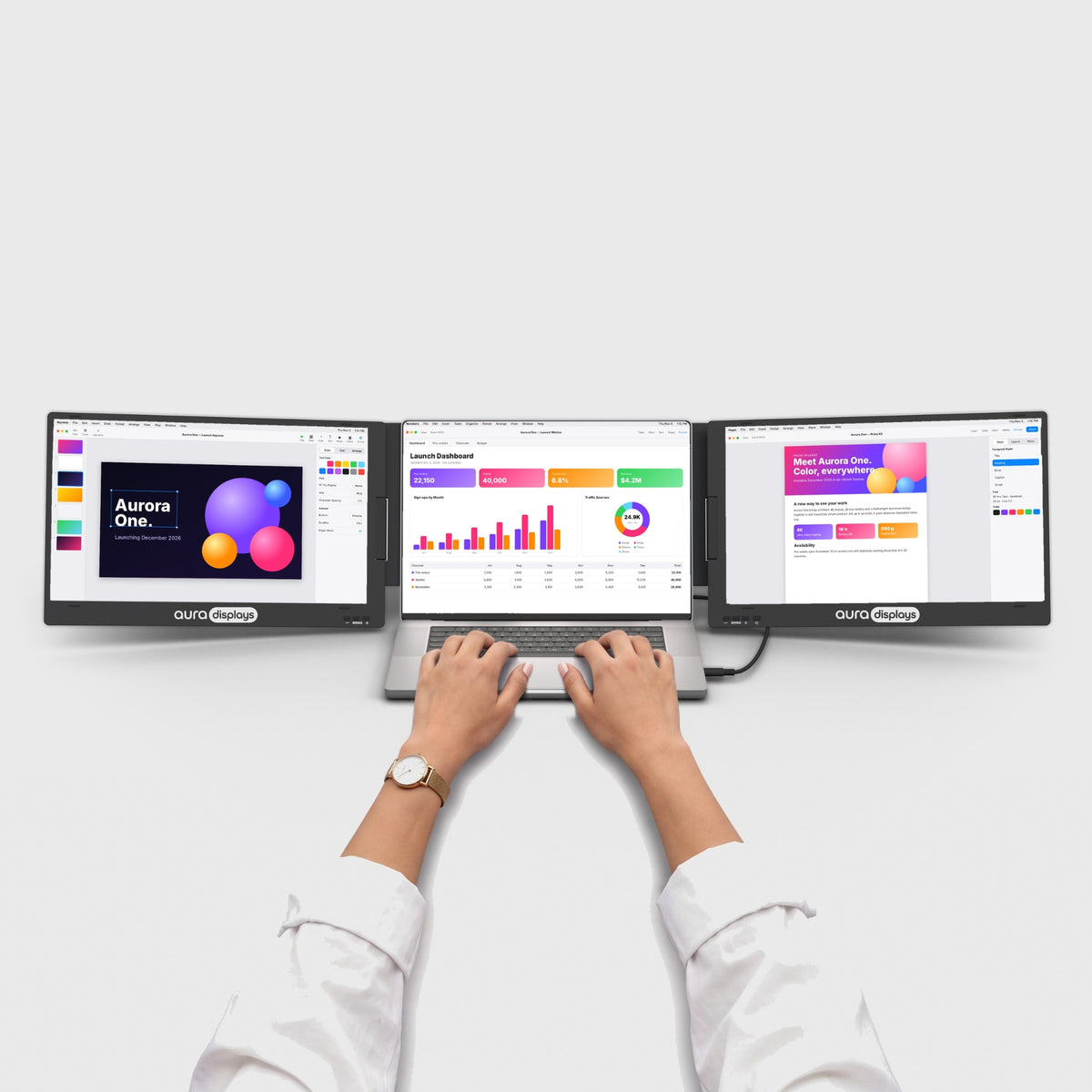

A big release lands this week, and the layout everyone pictures is the same one: the game on one screen, the map or the guide or the chat on the second. It works. It just does not work the way most people assume, because the console is almost never what lights up that second panel.
A console can only see part of our catalogue
Every monitor page we publish carries two fields that settle this before price comes into it. Filter: OS lists the systems a panel is documented to work with, and Filter: Driver says whether software has to be installed first.
Game Consoles appears on Dual Play (Gen 3), Dual Snap (Gen 1), Dual Book Pro (Gen 2), Single Play (Gen 2) and Single Boost 15.6" (Gen 2). All five also read No Software required - Plug and Play.
It does not appear on our Boost or Triple ranges. Triple Go (Gen 3) and Dual Boost Pro (Gen 4) read Software required, and their system lists stop at macOS, Windows, Android and Ubuntu. That is not us hedging. A console has nowhere to install a driver, so a panel that needs one has no way in. Read those two fields before you read a price.
The second panel needs its own source
- The console goes into the panel you play on. The mini HDMI inputs are the straightforward route. Dual Play and Dual Snap each publish 4x USB-C and 2x mini HDMI. Dual Book Pro publishes 3x USB-C, 2x mini HDMI and a 3.5 mm jack. Single Play publishes 2x USB-C and 1x mini HDMI.
- Something else goes into the other one. Our plug-and-play panels list iPhone (with USB-C) and iPad (with USB-C) alongside macOS, Windows, Android, Chromebook, Linux and Surface. A map or a guide open in a browser, driven by a phone you already carry, is a perfectly good second source and it costs nothing.
- Check which panel takes which input before you plan around it. Our pages publish the input list for the product. They do not publish a map of which socket feeds which panel. If your setup depends on two different sources arriving at one two-panel unit, confirm that first — it is the one thing on this page we cannot answer out of a product field.
The settings worth five minutes
- Set the console's output to match the panel. PlayStation 5: Settings > Screen and Video > Video Output. Xbox Series X|S: Settings > General > TV & display options. Across the console-capable models above we publish Full HD, 1920 x 1200 and 2560 x 1440 depending on model and variant. Pick the output that matches the panel you actually bought instead of leaving it to guess.
- Audio does not follow the picture on its own. Dual Book Pro and Single Boost 15.6" each publish a 3.5 mm jack, so a wired headset can hang off the panel. Dual Play, Dual Snap and Single Play do not — plan to take sound from the console side.
- Give the companion content its own window, full height. On Windows 11, hover the maximise button or press Win + Z for Snap Layouts; the toggle lives in Settings > System > Multitasking > Snap windows.
- If a panel never appears at all, suspect the port. Windows 11: Settings > System > Display, then Multiple displays and Detect. macOS: System Settings > Displays. Not every USB-C socket carries video.
- Stop the companion machine going to sleep. This is the most irritating fault in the whole setup. Windows 11: Settings > System > Power & battery > Screen and sleep. macOS: System Settings > Lock Screen.
What this will not do for you
These are not esport panels, and we publish no refresh rate. Look through our catalogue: there is no refresh-rate field on any product page. If frame rate is the thing you are buying, this is not the right page, and we would rather say so in November than read it in a return request in December.
Colour and brightness, as ever. The panels a console can see sit between 280 and 300 nits, and no product page in our catalogue declares a colour gamut. Do not form a view about an HDR picture or a colour grade on one of these.
A second panel does not make you better at the game. It stops you pausing to go and look something up. That is the whole of the benefit. It is worth having and it is not a performance upgrade.
And half our range is out of this entirely. Not slower — out. No console, no install, no picture.
What we would buy, and the cheaper way in
Our recommendation: Dual Play (Gen 3), from $369. Two attachable panels, plug and play with no driver, 300 nits, 4x USB-C and 2x mini HDMI, with Full HD, 1920 x 1200 and 2560 x 1440 across its variants, and an operating-system list that runs macOS, Windows, Android, Chromebook, Linux, Surface, game consoles and USB-C iPhones and iPads. It is on this list for the two mini HDMI inputs and the console line in Filter: OS: of the panel pairs we sell, it is the one best set up to take a signal from something that is not a laptop. $369 for the 14" Plus at 1920 x 1200, $389 for the 15.6" Full HD, $419 for the 14" Ultra at 2560 x 1440. Rated 4.75 out of 5 across 593 reviews.
The cheaper way in: Single Play (Gen 2), from $289. One panel, plug and play, Full HD, 280 nits, 2x USB-C and 1x mini HDMI. Put the companion map on it from your phone and leave the game on the television you already own. That is the cheapest honest version of this layout, and for a good many people it is the right one.
Why we are not selling you more. Triple Go (Gen 3), from $549, gives you three panels, reads Software required and lists macOS and Windows only: a console cannot use it at all. Dual Boost Pro (Gen 4), from $399, is the same story for the same reason. More panels is not the upgrade here. A second source is.